
A "Bid Package Detail" block puts the full levelling picture for one bid package into the report — every bidder side by side, their totals, their pricing line by line, and the spread between the lowest and highest. Where the "Bid Package Summary" block gives one row per package, this one opens a single package right up.
To add a "Bid Package Detail" block to an estimate report follow these steps.
Navigate to the desired estimate and select the "Report" tab, then open the report you want to edit.
Press "Add Block" at the top of the "Report Structure" panel on the right.
Find the package you want under the "BID PACKAGES" heading. Each package is listed by its code and name, beneath the "Bid Package Summary" card. NOTE, press the magnifying glass beside the heading to search by package name.
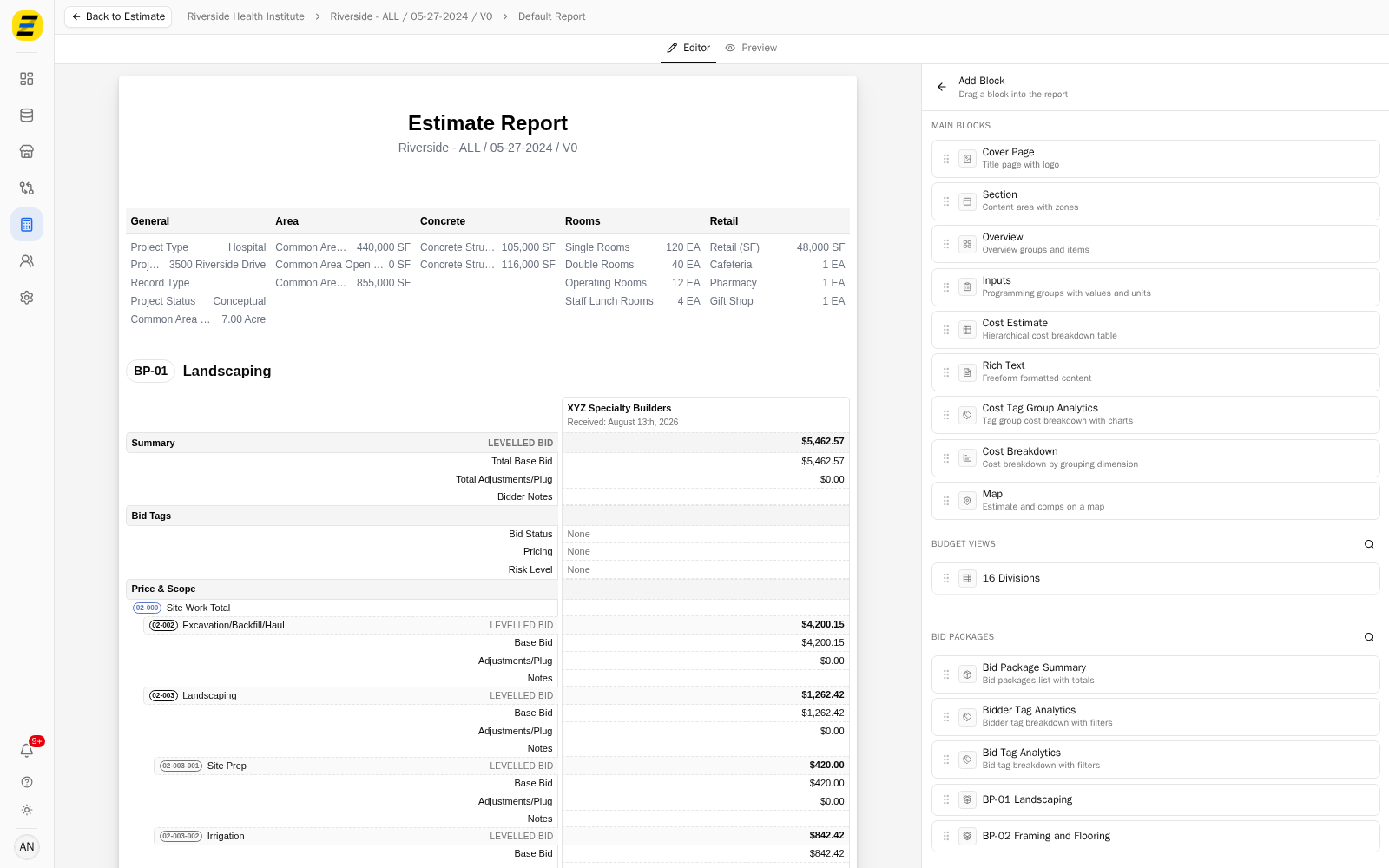
Drag the package into the report and drop it on the line where you want it to sit. Blocks are added by dragging, not by clicking.
The block arrives tied to that package and takes its name. Press the block in the "Report Structure" panel to open its settings.
Open the "BIDS" section to choose which bidders appear. Every bid on the package is listed with an eye icon; press the eye to hide one from the report. NOTE, if the package has no bids yet the section reads "No bids on this bid package."
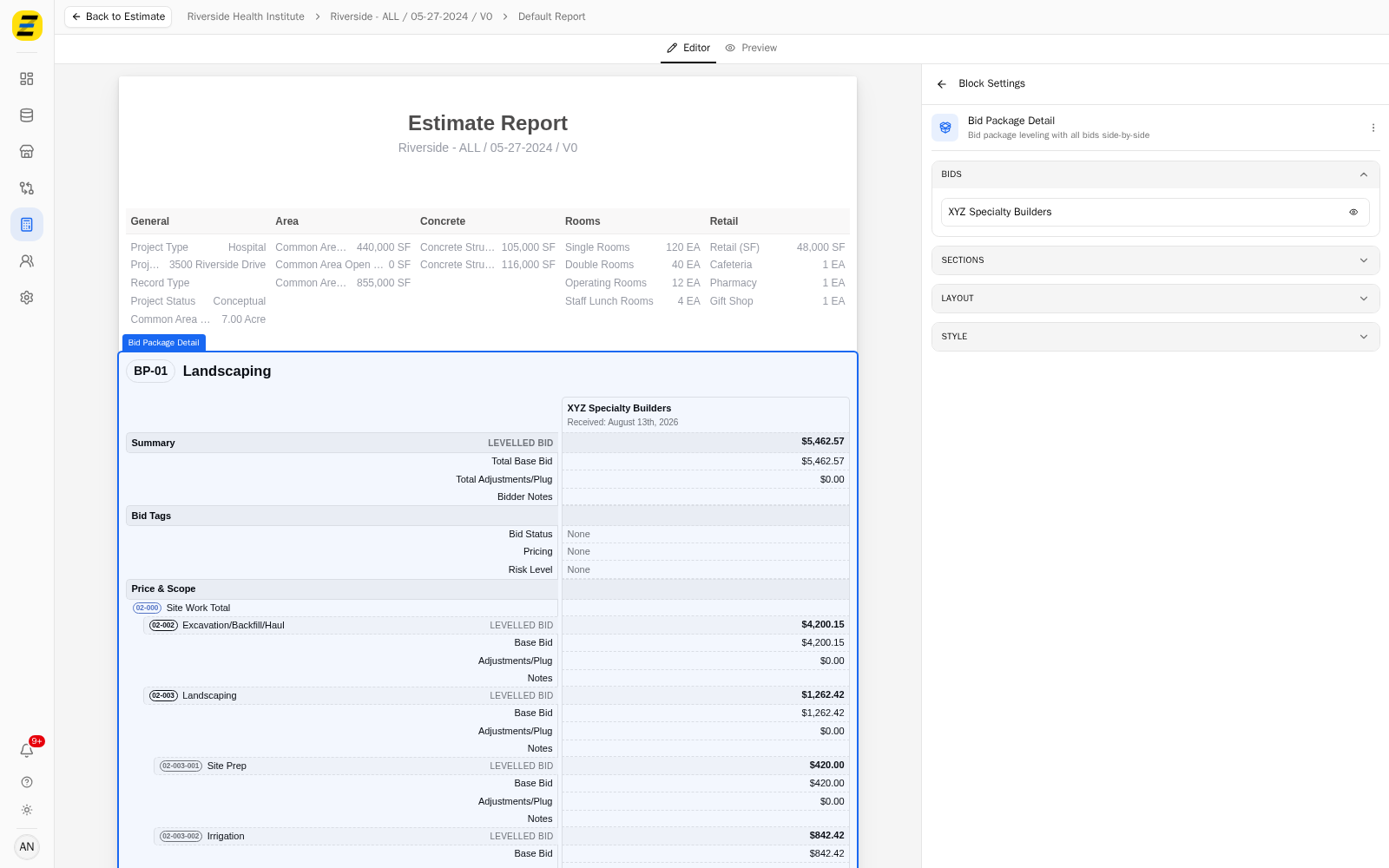
Open the "SECTIONS" section to choose what each bidder's column contains.
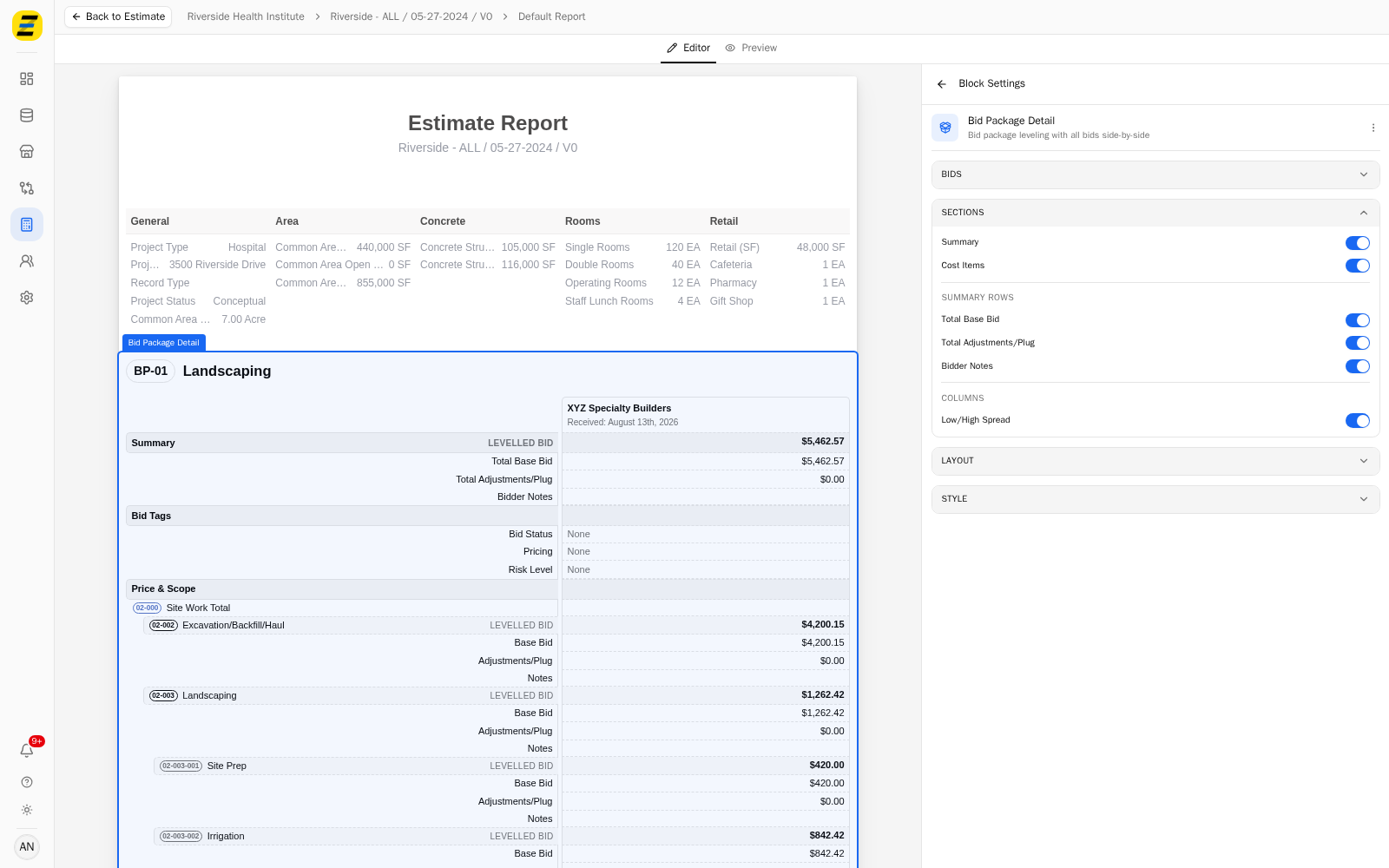
"Summary" — the totals block at the top of the table.
"Cost Items" — the line-by-line pricing beneath it.
Under "SUMMARY ROWS", choose which rows the summary shows — "Total Base Bid", "Total Adjustments/Plug" and "Bidder Notes". All three are on by default.
If the bid form has sections of its own, they are listed under "Bid Form Sections" with a switch each, so you can drop a whole section of the form from the report.
Under "COLUMNS", switch on "Low/High Spread" to add a column showing the gap between the lowest and highest bid on each line. It is on by default.
Open the "LAYOUT" section to set the "Padding" inside the block, the "Margin Bottom" beneath it, and "Page Break After" if this block should be the last thing on its page.
Open the "STYLE" section to set "Stripe Rows", "Header Text Color", "Header Background Color", "Header Font Weight", "Font Size", and the "Border Bottom" width and "Border Color".
NOTE, the figures shown are the levelled bid values, the same ones the "Bid Packages" tab works from. Adjustments and plugs are already reflected in them, which is why "Total Adjustments/Plug" is worth leaving on — it shows the reader how much of the total is adjustment rather than submitted price.
We recommend one block per package rather than one block covering everything. A detail block for a package with several bidders is already wide, and giving each package its own block lets you set "Page Break After" so every package starts on a fresh page.