
A "Custom Unit Cost Display" adds a column to your Detailed Budget showing every cost divided by one of your design fields — cost per square foot, cost per room, cost per acre. It is how you look at the same budget in the unit the person you are talking to thinks in, without changing the estimate.
To add a "Custom Unit Cost Display" follow these steps.
Navigate to the desired estimate and select the "Budget & Inputs" tab.
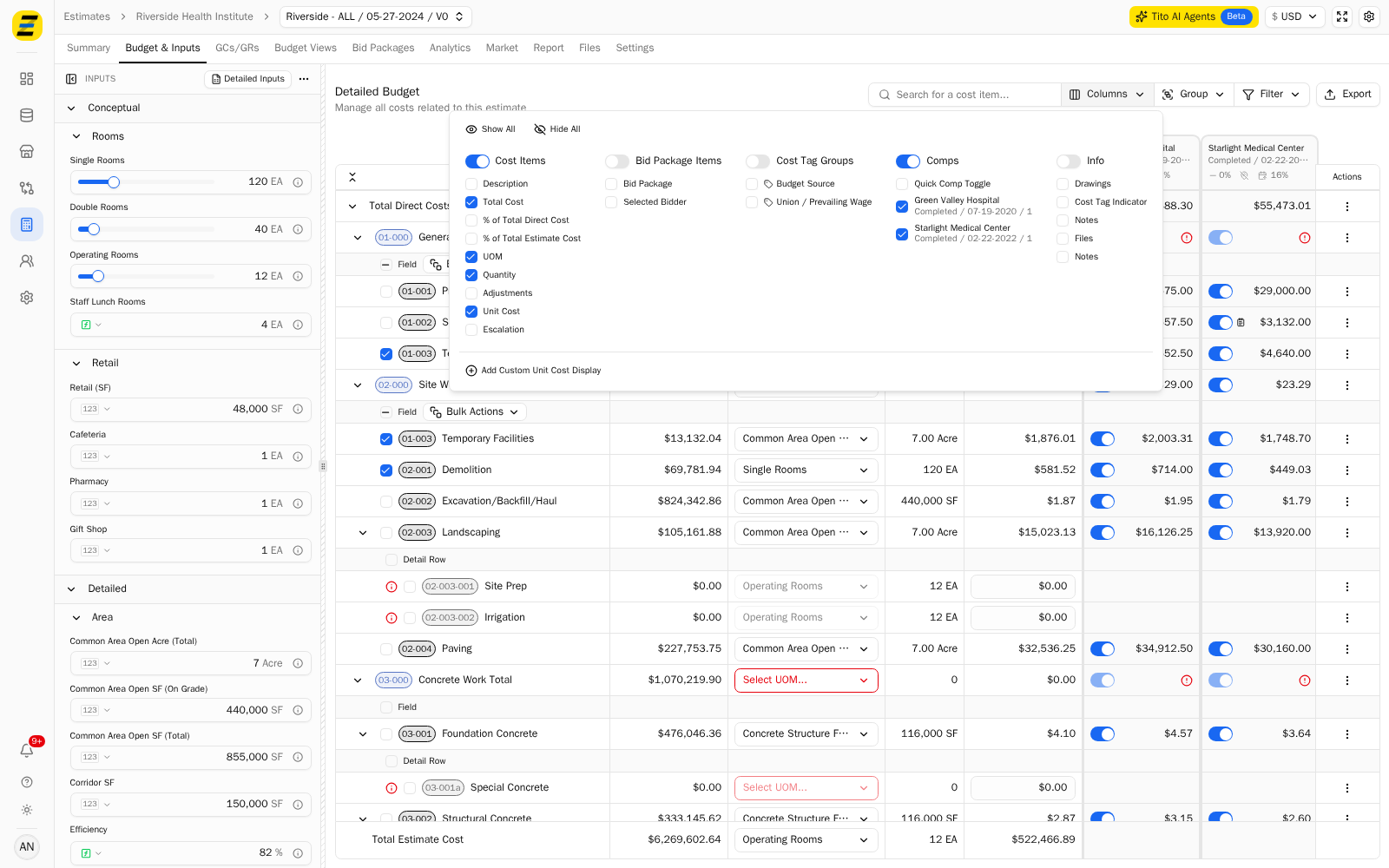
Press the "Columns" button above the table.
Press "Add Custom Unit Cost Display" at the bottom of the list.
Select the design field you want the costs divided by. Every design field on the estimate is available, so you can pick anything from "Common Area Open SF (Total)" to "Single Rooms".
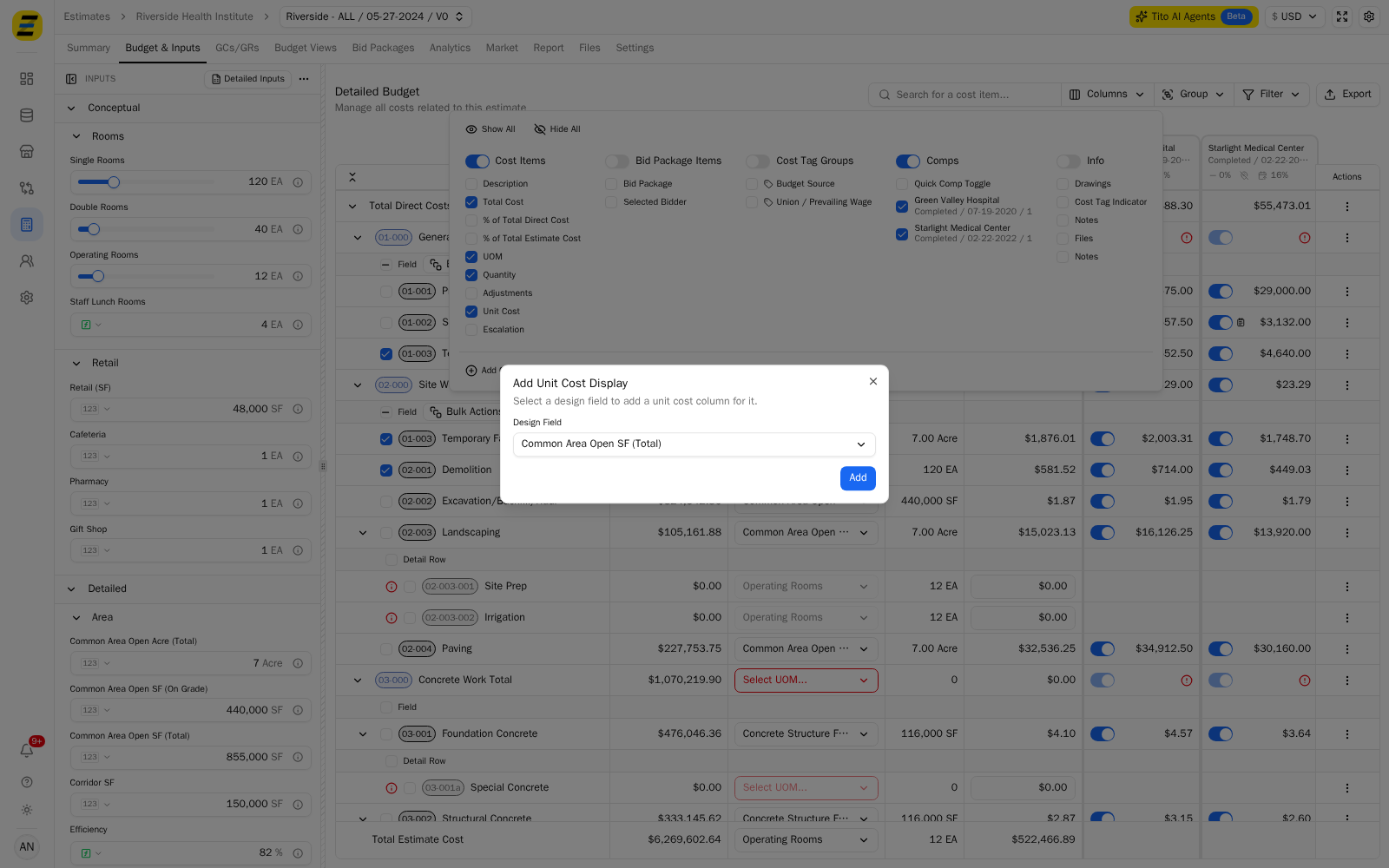
NOTE, a design field you have already added a column for is not offered again.
Press the "Add" button.
The new column appears in the table, headed "Per" and the field you chose, with a figure on every row from the individual cost fields up to "Total Estimate Cost".
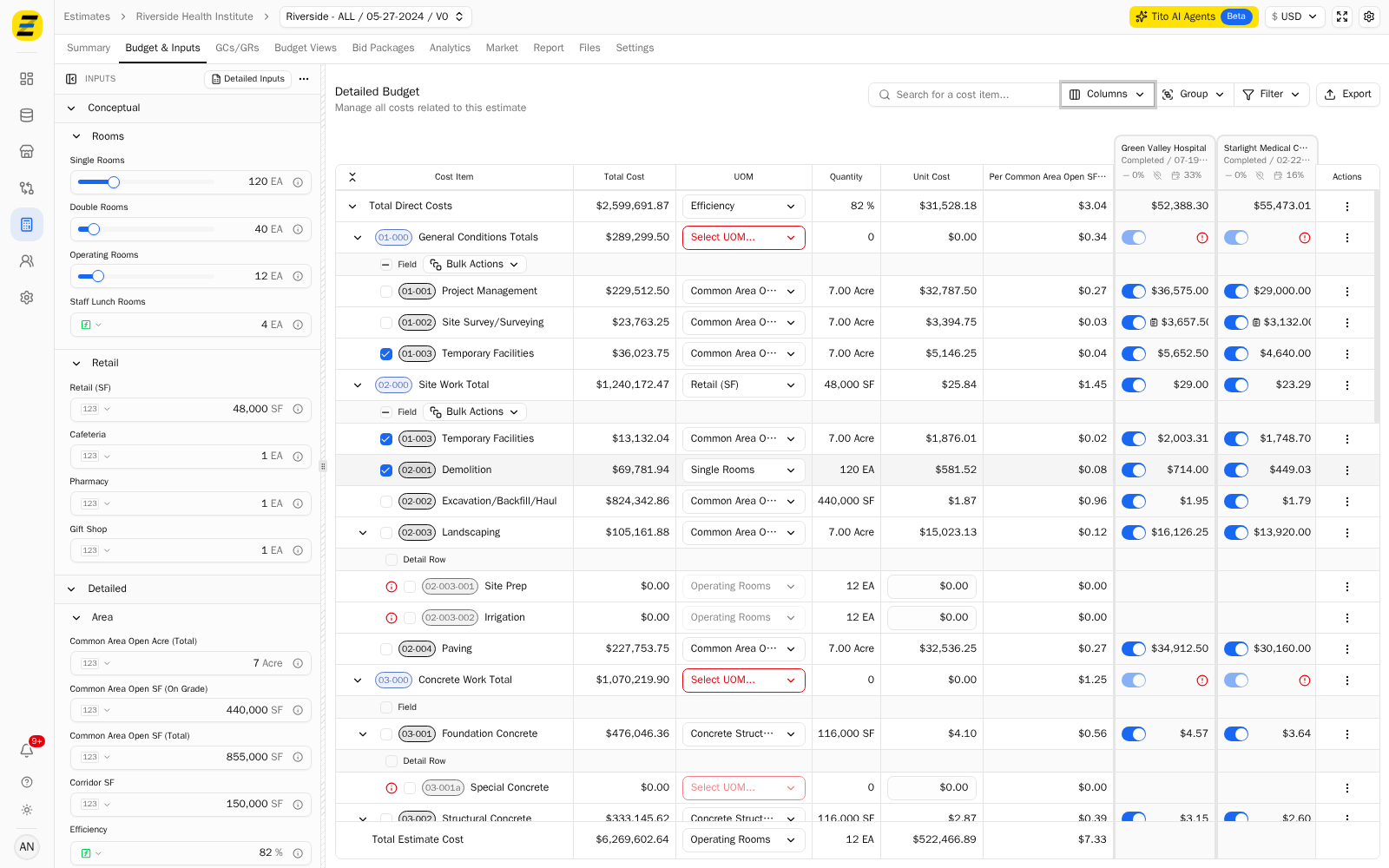
In the example the estimate totals $6,269,602.64 against 855,000 SF of "Common Area Open SF (Total)", so the column reads $7.33 on the "Total Estimate Cost" row.
To remove a column, press the "three dot" menu in its header and select the delete option.
Please note that the figures are worked out from whatever the design field currently holds, so changing that input in the "Inputs" sidebar changes every number in the column with it. If a unit cost looks wrong, check the design field's value before you go looking at the costs.