
An "AI Agent Result" block puts the findings from one AI agent run straight into the report. Each time an agent runs against your estimate it saves a result, and this block renders that result — its title, what the agent checks for, and the analysis itself — so the report can carry the agent's conclusions alongside the numbers they came from.
To add an "AI Agent Result" block to an estimate report follow these steps.
Navigate to the desired estimate and select the "Report" tab, then open the report you want to edit.
Press "Add Block" at the top of the "Report Structure" panel on the right.
Scroll to the "AI AGENT RESULTS" heading in the block list. Results are grouped under the agent that produced them, and each one is listed by the date it was generated. NOTE, this section only appears when at least one agent has run against this estimate. If no agent has run yet there is nothing to add.
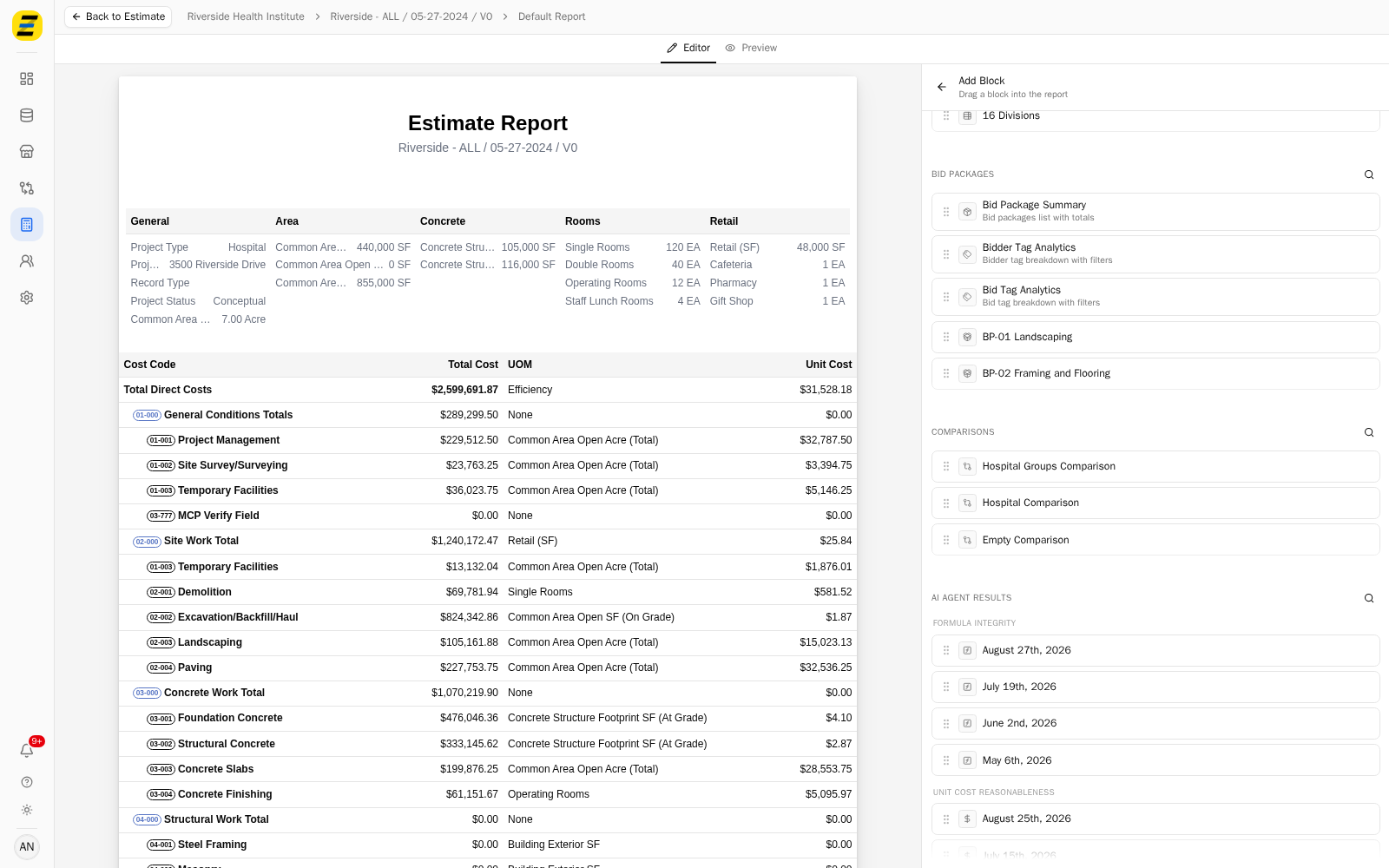
Press the magnifying glass beside the "AI AGENT RESULTS" heading to search. You can search by the agent's name or by the date of a run.
Drag the result you want into the report and drop it on the line where you want it to sit. Blocks are added by dragging, not by clicking.
The block arrives tied to that specific run and is labelled with its date, so a report always shows the analysis as it stood on that date rather than re-running the agent. Press the block in the "Report Structure" panel to open its settings.
Open the "CONTENT" section to choose what appears above the analysis.
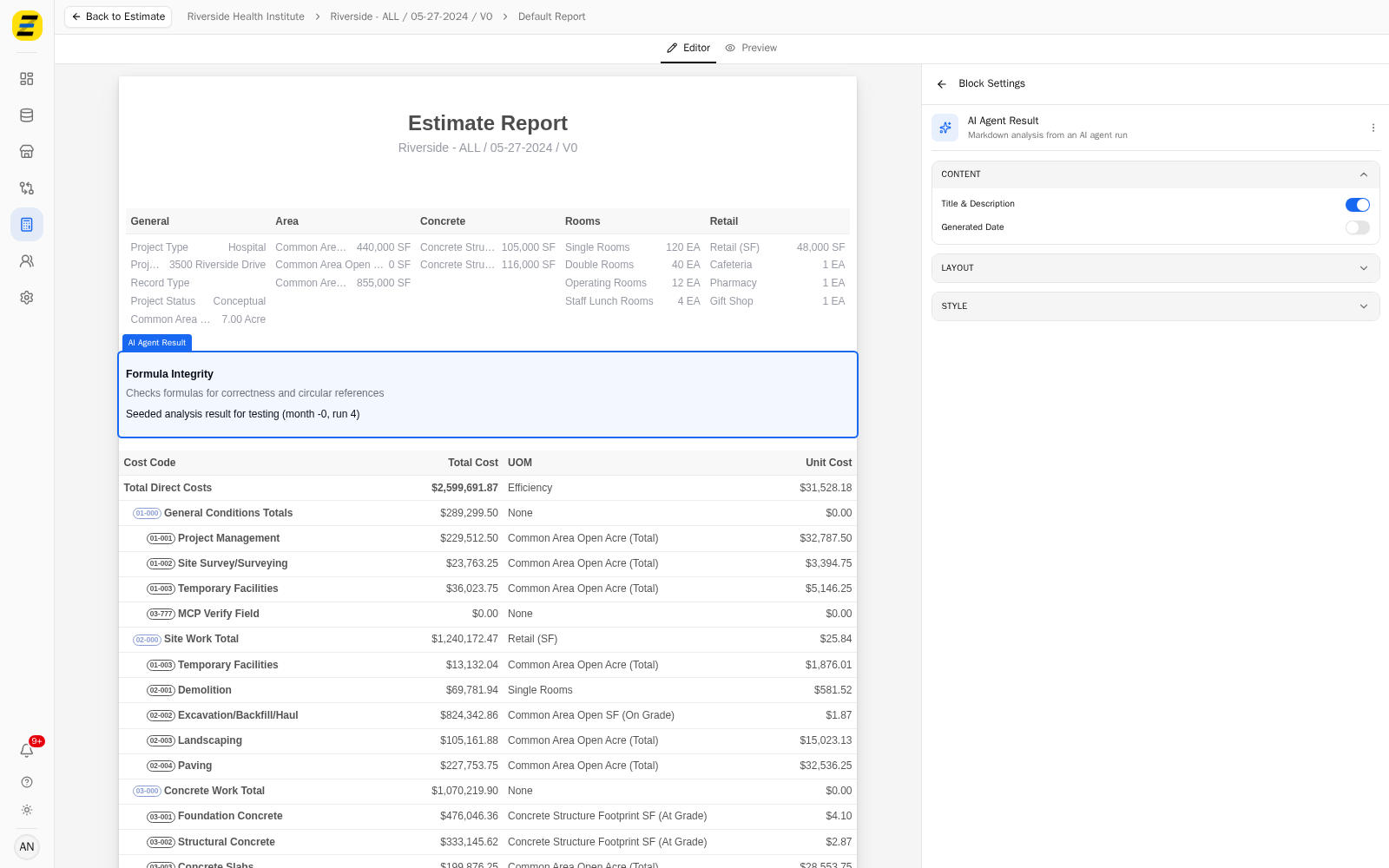
"Title & Description" — the agent's name and the line explaining what it checks. On by default.
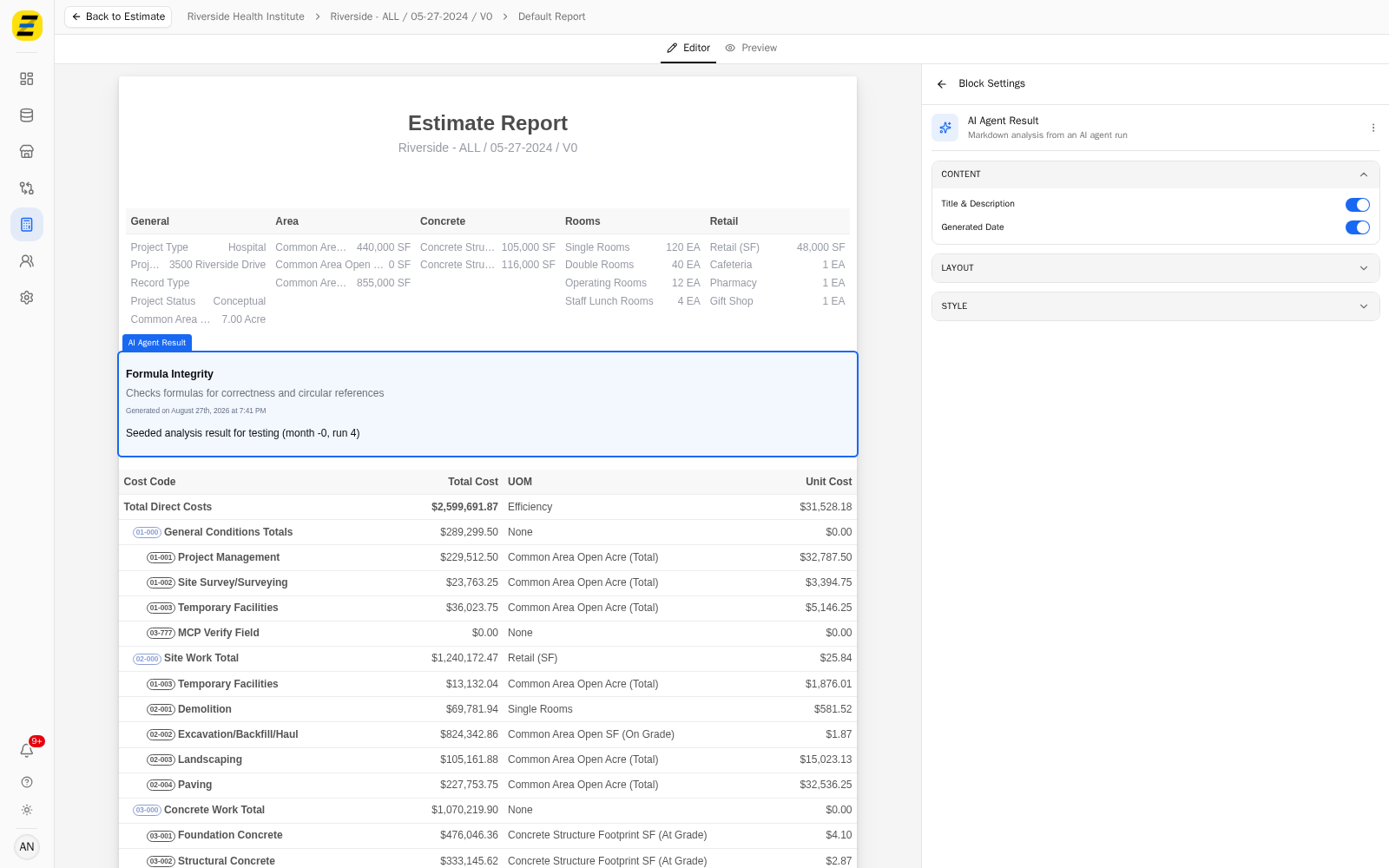
"Generated Date" — the date and time the agent produced this result. Off by default.
Switch on "Generated Date" when the report needs to show how current the analysis is. It adds a "Generated on …" line beneath the description.
Open the "LAYOUT" section to set the "Padding" inside the block, the "Margin Bottom" beneath it, and "Page Break After" if this block should be the last thing on its page.
Open the "STYLE" section to set "Stripe Rows", "Header Text Color", "Header Background Color", "Header Font Weight", "Font Size", and the "Border Bottom" width and "Border Color".
NOTE, the block shows the result exactly as the agent wrote it. Editing the analysis is not done here — re-run the agent and add the newer result if the findings have moved on.
We recommend switching on "Generated Date" whenever an agent result is included in a report that will be read later. An analysis with no date on it invites the reader to assume it is current, and the whole point of the block is that it is a snapshot of one particular run.