
An "Inputs" block puts your estimate's programming into the report — the room counts, areas and other quantities the estimate is built from, grouped exactly as they are on the "Budget & Inputs" tab. It is the block that lets a reader see what the estimate assumed before they look at what it cost.
To add an "Inputs" block to an estimate report follow these steps.
Navigate to the desired estimate and select the "Report" tab, then open the report you want to edit.
Press "Add Block" at the top of the "Report Structure" panel on the right.
Find "Inputs" under the "MAIN BLOCKS" heading. It is described as "Programming groups with values and units".
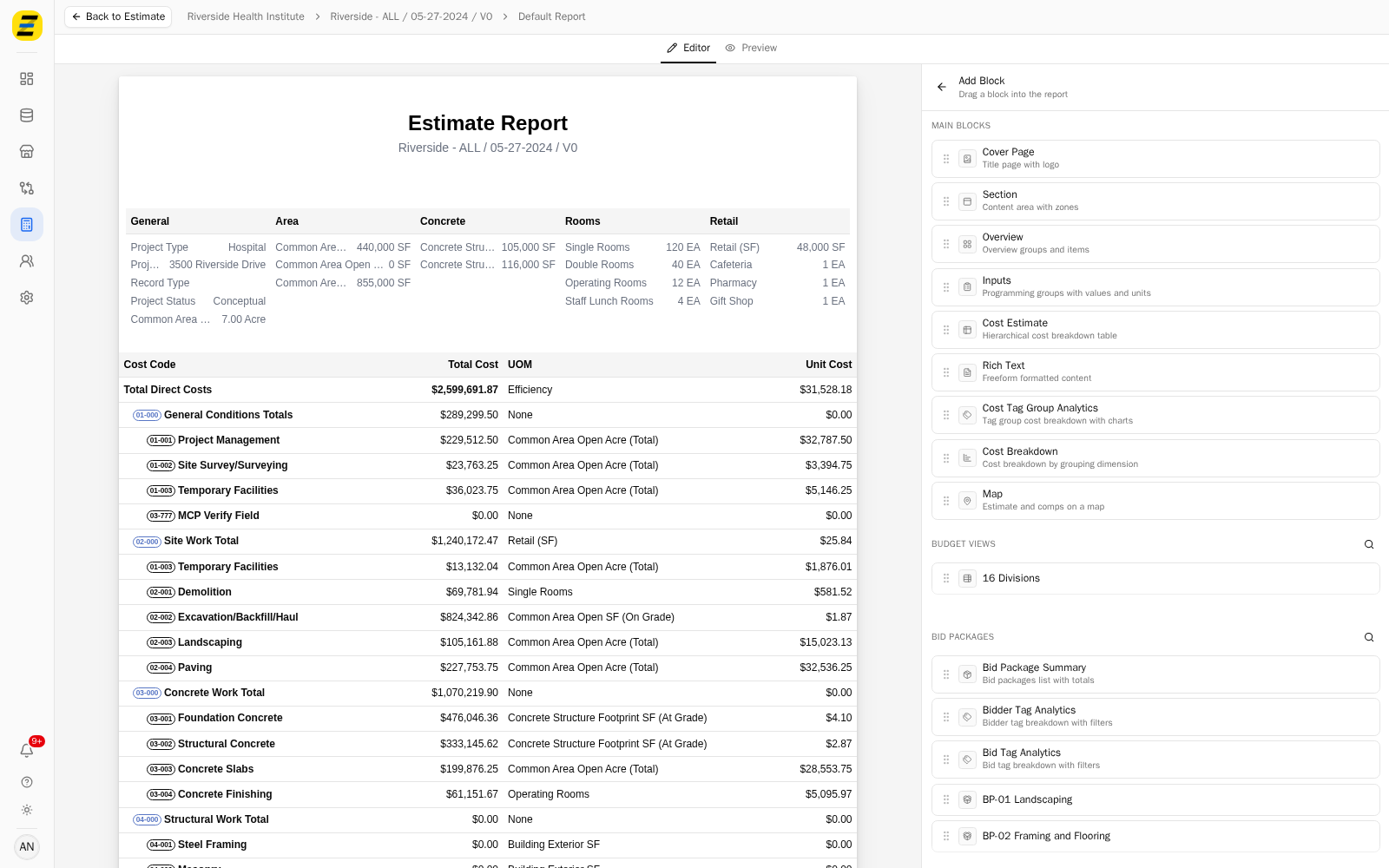
Drag it into the report and drop it on the line where you want it to sit. Blocks are added by dragging, not by clicking.
Press the block in the "Report Structure" panel to open its settings.
Open the "COLUMNS" section to choose which columns appear beside each input.
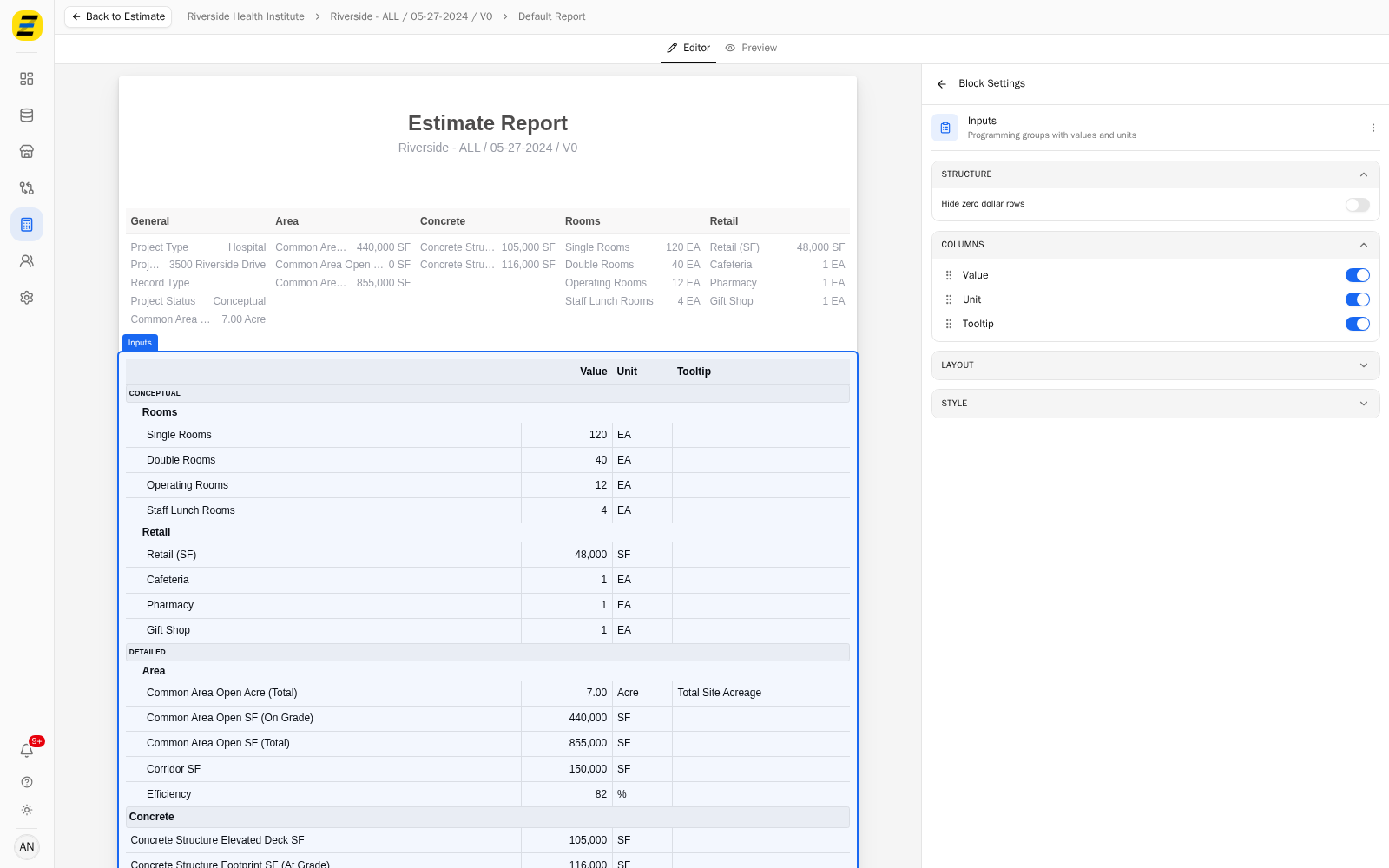
"Value" — the number itself.
"Unit" — its unit of measure, such as EA, SF or Acre.
"Tooltip" — the explanatory note recorded against that input, where one exists.
All three are on by default. Drag them by the handle on their left to change their order.
Open the "STRUCTURE" section and switch on "Hide zero dollar rows" to leave out inputs with no value, which is useful when a template carries more inputs than this estimate uses.
Open the "LAYOUT" section to set the "Padding" inside the block, the "Margin Bottom" beneath it, and "Page Break After" if this block should be the last thing on its page.
Open the "STYLE" section to set "Stripe Rows", "Header Text Color", "Header Background Color", "Header Font Weight", "Font Size", and the "Border Bottom" width and "Border Color".
NOTE, the block follows the estimate's own input structure. Inputs are grouped under their section — "CONCEPTUAL" and "DETAILED" — and then under their group, such as "Rooms", "Retail" or "Area". You do not choose the grouping here; change it on the estimate and the block follows.
NOTE, the "Tooltip" column is blank for inputs that have no note recorded, so a report can look sparse in that column without anything being wrong.
We recommend placing the "Inputs" block before the cost blocks in a report. A reader who has seen the room counts and areas first will read the costs that follow as rates rather than as raw totals.