
Detail rows break a single cost item into the pieces that make it up — a paving line becomes base, asphalt and striping. Rather than adding them one at a time, you can lay out several rows in one panel and create them together, either on the budget or on a bid package.
To add detail rows follow these steps.
Navigate to the desired estimate and select the "Budget & Inputs" tab.
Find the cost item you want to break down, press the "three dot" menu at the right hand end of its row, and choose "Add Detail Rows".
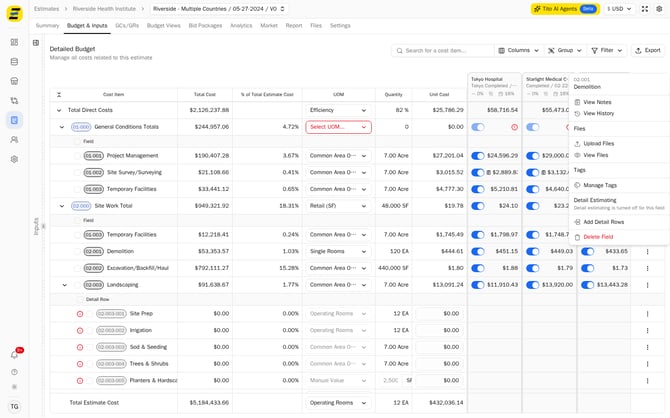
Add Detail Rows in the cost item menu
The "Add Detail Rows" panel opens along the bottom of the page with one blank row. Type a "Code" and a "Name". Ie. "02-001-001" and "Interior Demolition".
Set the "UOM". It starts on the unit of measure the cost item itself uses, and the dropdown lists every design field on the estimate with its quantity, so you can pick a different one. Choose "Manual Value" at the bottom of the list if the row is measured by something the estimate does not track — a "Manual Value" column then appears where you type the quantity and its unit. Ie. 1 "LS".
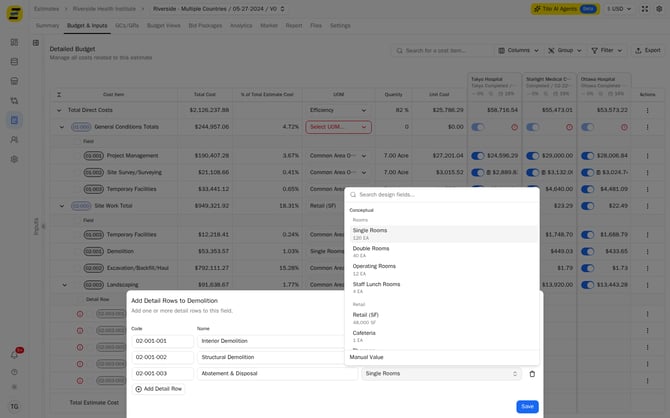
The UOM dropdown with Manual Value at the bottom
Press the "Add Detail Row" button to add another line, and fill it in the same way. Repeat until every row you want is on screen. Press the "trash" icon at the right hand end of a row to drop it before saving.
Three rows filled in, ready to save
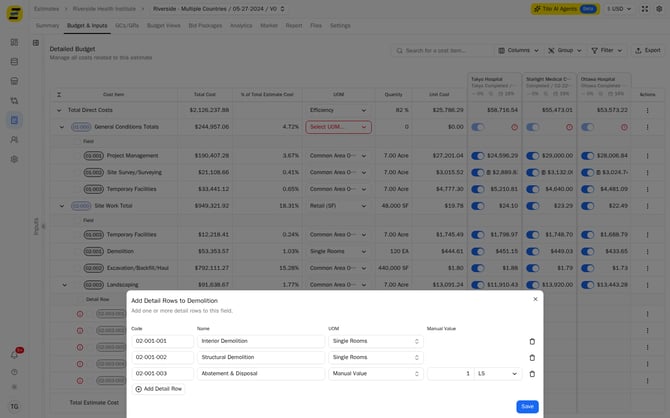
Press "Save". Every row is created at once and appears beneath the cost item, under a "Detail Row" heading.
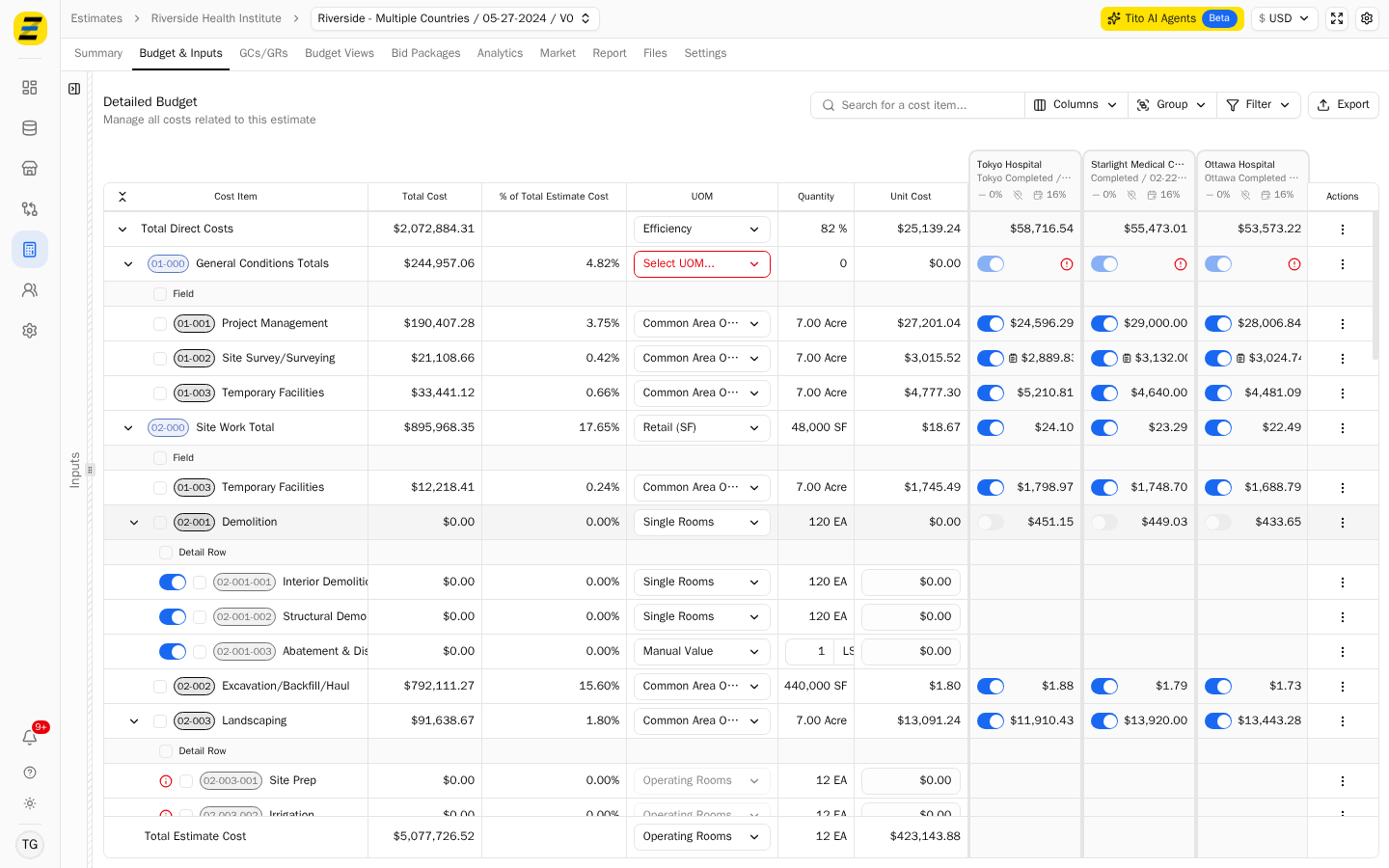
The new detail rows under Demolition
NOTE, if the cost item did not have detail rows before, saving turns "Detail Estimating" on for it. From that point the cost item's total is the sum of its detail rows, so it reads $0.00 until you price them — in the screenshot above "Demolition" has gone from $53,353.57 to $0.00 and the rows beneath it are waiting for costs.
You can do the same thing from a bid package. Select the "Bid Packages" tab, open the package, press the "three dot" menu on the cost item and choose "Add Detail Rows" — the same panel opens.
The same action on a bid package cost item
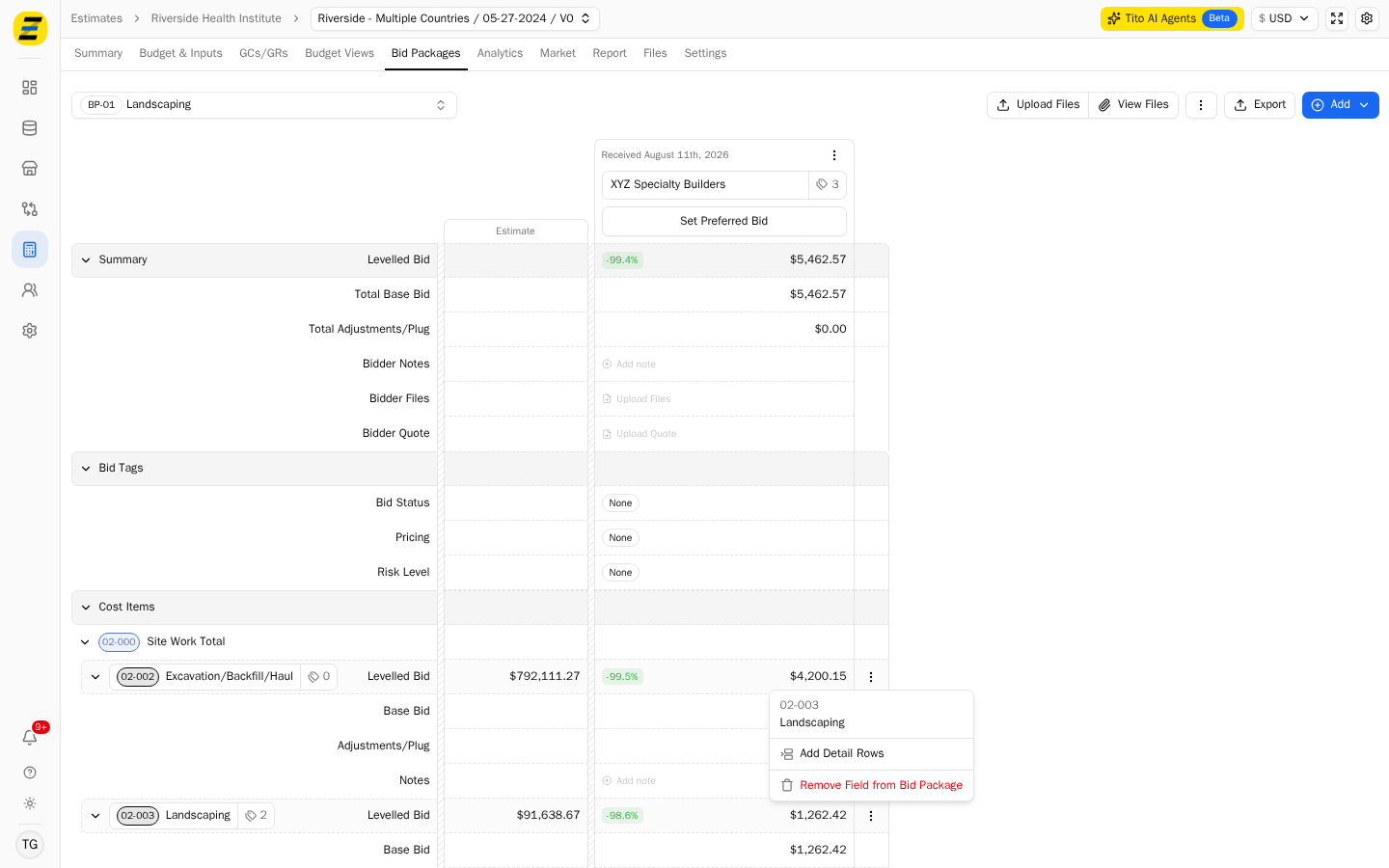
Please note that detail rows added from a bid package do not turn "Detail Estimating" on for the cost item, so your budget number does not move. The rows are there for the bidder to price within the package, and the cost item still carries its own estimated cost in "Budget & Inputs".