
The bid package grid now carries an "Estimate" column to the left of the bidders. It shows what you have that cost item priced at in your own estimate, so you can read a bid against your number without leaving the page or opening the budget in another tab.
To compare a bid against your estimate follow these steps.
Navigate to the desired estimate and select the "Bid Packages" tab.
Select the desired bid package from the dropdown near the upper left corner.
Find the "Estimate" column, immediately to the left of the first bidder. Each row in "Cost Items" shows your estimated cost for that cost field.
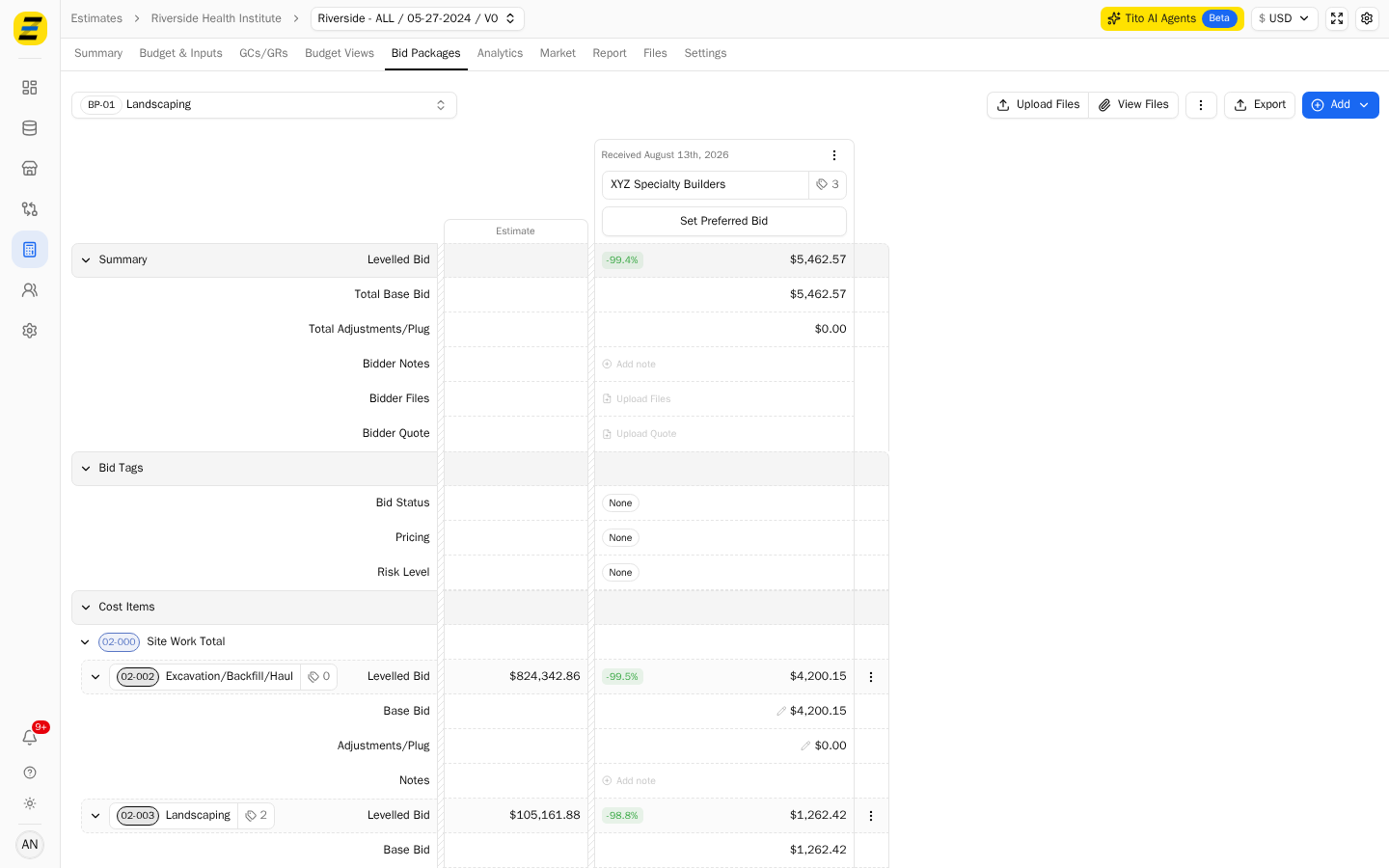
Read across the row to compare. In the example, "Excavation/Backfill/Haul" is estimated at $824,342.86 and the bidder's levelled bid is $4,200.15, so the percentage badge beside the bid reads -99.5%.
Press the arrow beside a cost field to expand its detail rows. Each detail row shows its own estimated cost on the same column, so a field broken into detail estimating can be compared line by line rather than only in total.
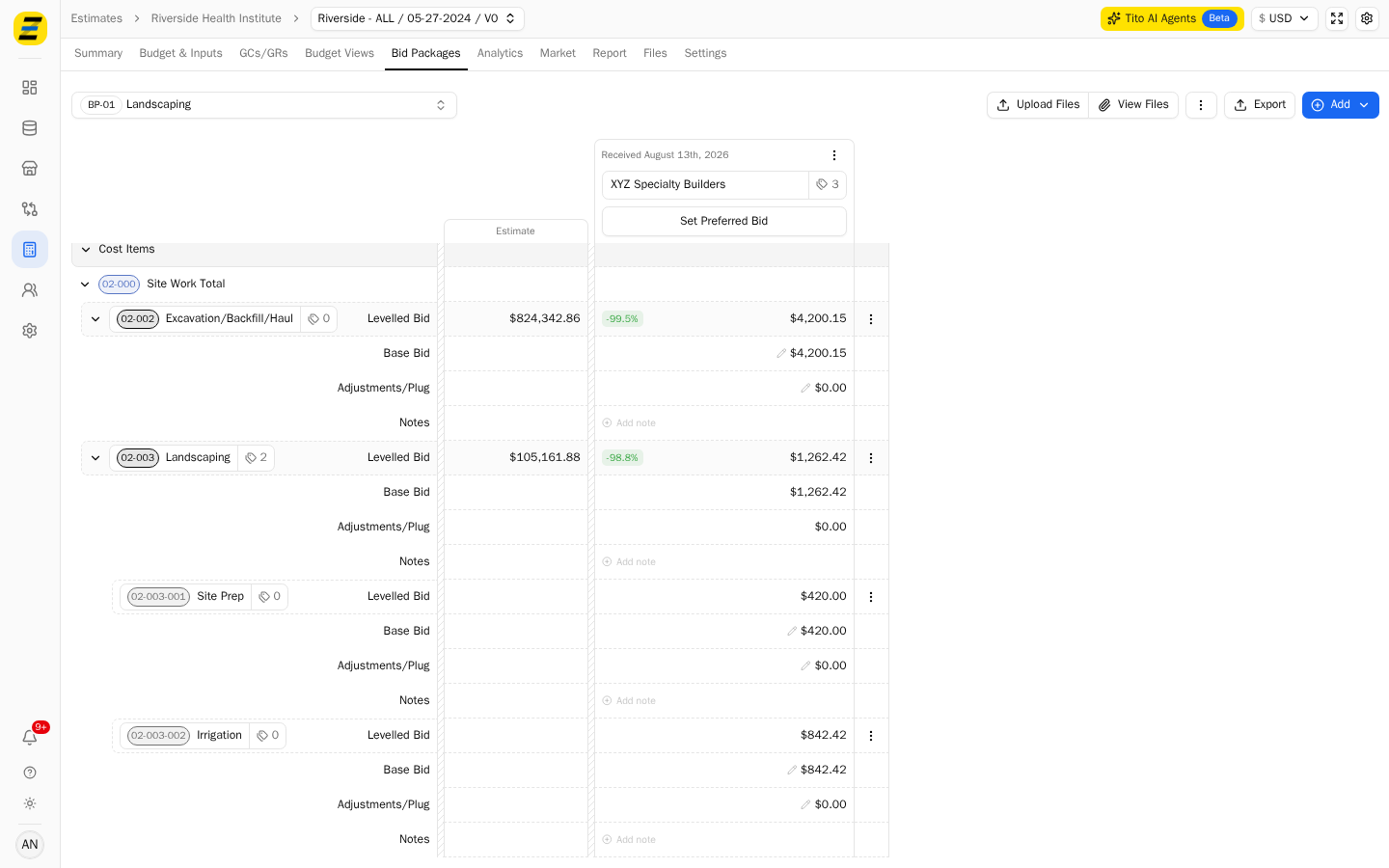
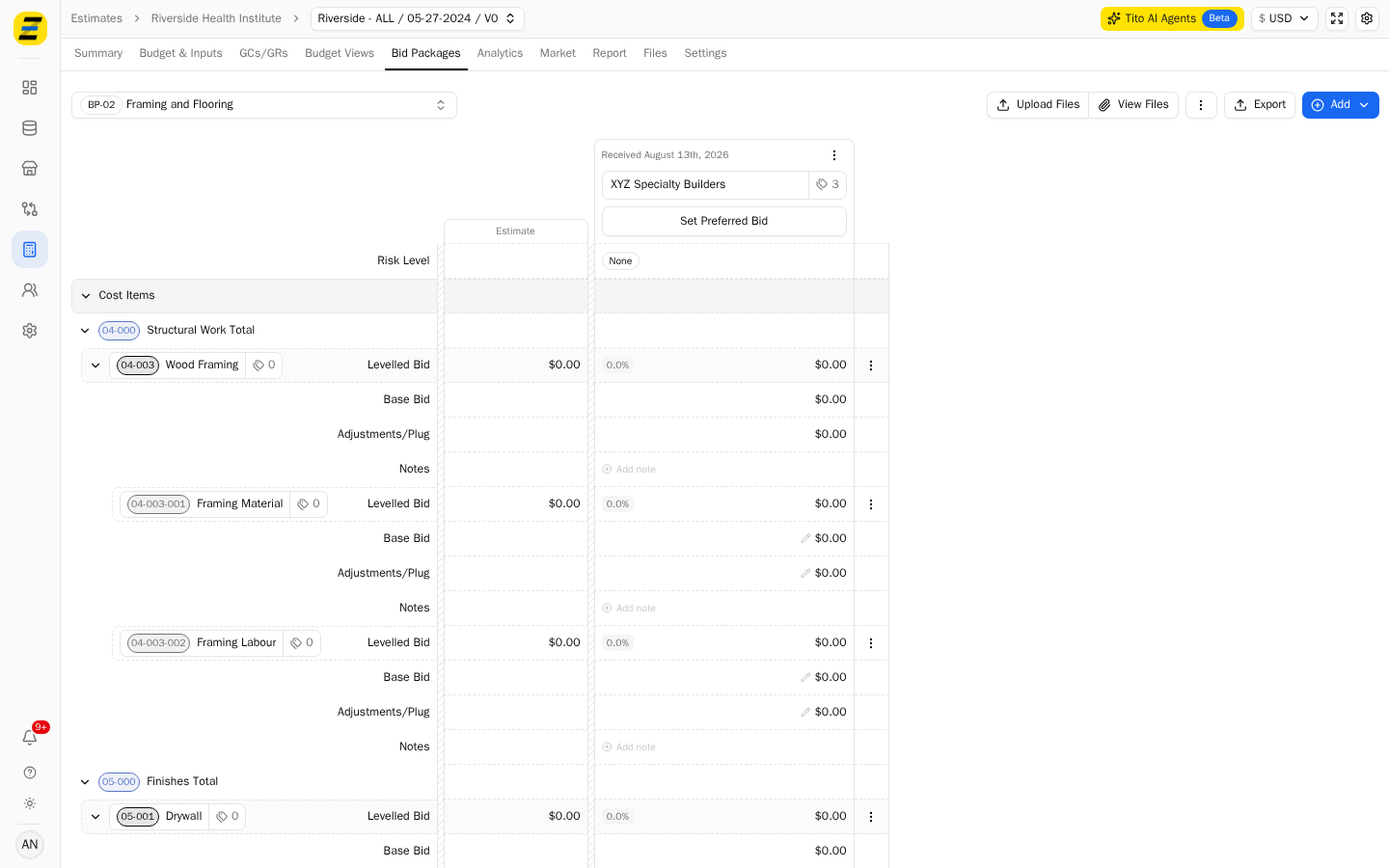
NOTE, the percentage badge beside a bid is the difference between that bid and your estimate for the same row. A negative number means the bid came in under your estimate; a positive number means it came in over.
NOTE, the "Estimate" column is read only. It reflects what is in your "Budget & Inputs" tab, so if a number looks wrong, correct it there and it will update here.
We recommend scanning the percentage badges first when a new bid arrives — a row that is wildly under or over your estimate is usually a scope misunderstanding rather than a price, and it is quicker to spot in that column than in the bidder's own paperwork.