---
title: How to create a side-by-side project comparison report
description: creating a comparison report in Zebel
---
[Skip to content](https://lp.zebel.io/help/how-to-create-a-side-by-side-project-comparison-report#main-content)
English
Show submenu for translations

Open main navigation
Close main navigation
- English
Show submenu for translations
How can we help you?
- There are no suggestions because the search field is empty.
1. [Zebel Help Center](https://lp.zebel.io/help?hsLang=en)
2. [Comparison Reports](https://lp.zebel.io/help/comparison-reports?hsLang=en)
# How to create a side-by-side project comparison report
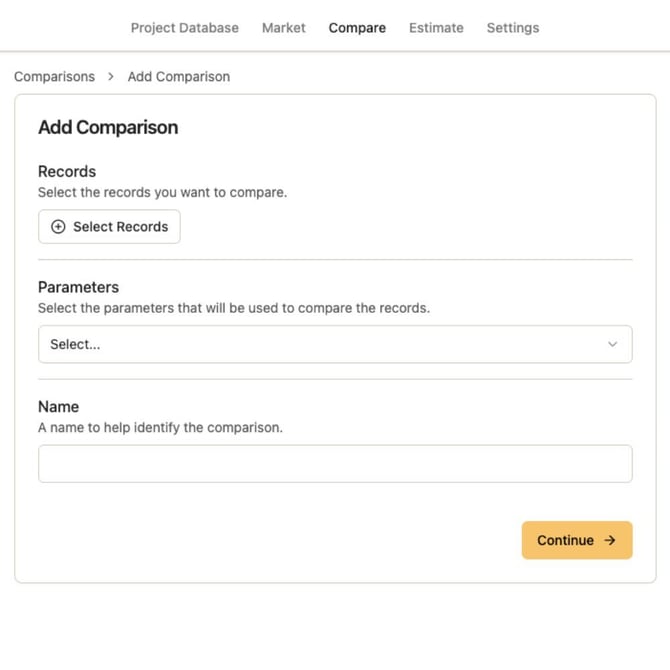
1. Go to "Compare" on the main menu at the top of the screen.
2. Click on "Add Comparison" button on the top right corner
3. Click on "Select Records" button to pick the project records you want to include in the report. A record selector pop up box will appear. You may use the search bar at the top of the record selector pop up or the filters to find the desired project.
4. Click on the "Parameters" dropdown menu to select the comparison layout you want to use. You can use any of the layouts you have created in your account settings (Settings \> Compare Layouts) or select "Custom" to start from scratch.
5. Enter a name for your comparison report so you can find it later (e.g. Hospital projects - Southwest Regions - 2022 to 2025)
6. Click on the "Continue" button to see the report.
- [Getting Started](https://lp.zebel.io/help/getting-started?hsLang=en)
- [Database](https://lp.zebel.io/help/database?hsLang=en)
- [Comparison Reports](https://lp.zebel.io/help/comparison-reports?hsLang=en)
- [Estimates](https://lp.zebel.io/help/estimates?hsLang=en)
- [Account Settings](https://lp.zebel.io/help/account-settings?hsLang=en)
- [Bid Management](https://lp.zebel.io/help/bid-management?hsLang=en)
- [Integrations](https://lp.zebel.io/help/integrations?hsLang=en)
- [Estimate Reports](https://lp.zebel.io/help/estimate-reports?hsLang=en)
- [Value Engineering](https://lp.zebel.io/help/value-engineering?hsLang=en)
[](https://zebel.io/)
[mailto:email@email.com](mailto:email@email.com)
Copyright © 2026, Zebel Group Inc