
A "Lump Sum" is a single total from a bidder that is not broken out by cost field. Importing one lets Zebel spread that total across the cost fields on the bid for you, so the bid can be levelled and compared against the others in the package.
To import a "Lump Sum" on a bid follow these steps.
Navigate to the desired estimate and select the "Bid Packages" tab.
Select the desired bid package from the dropdown near the upper left corner.
Find the column for the bidder whose lump sum you are importing, and press the "three dot" menu at the top of that column.
Select "Import Lump Sum" from the menu.
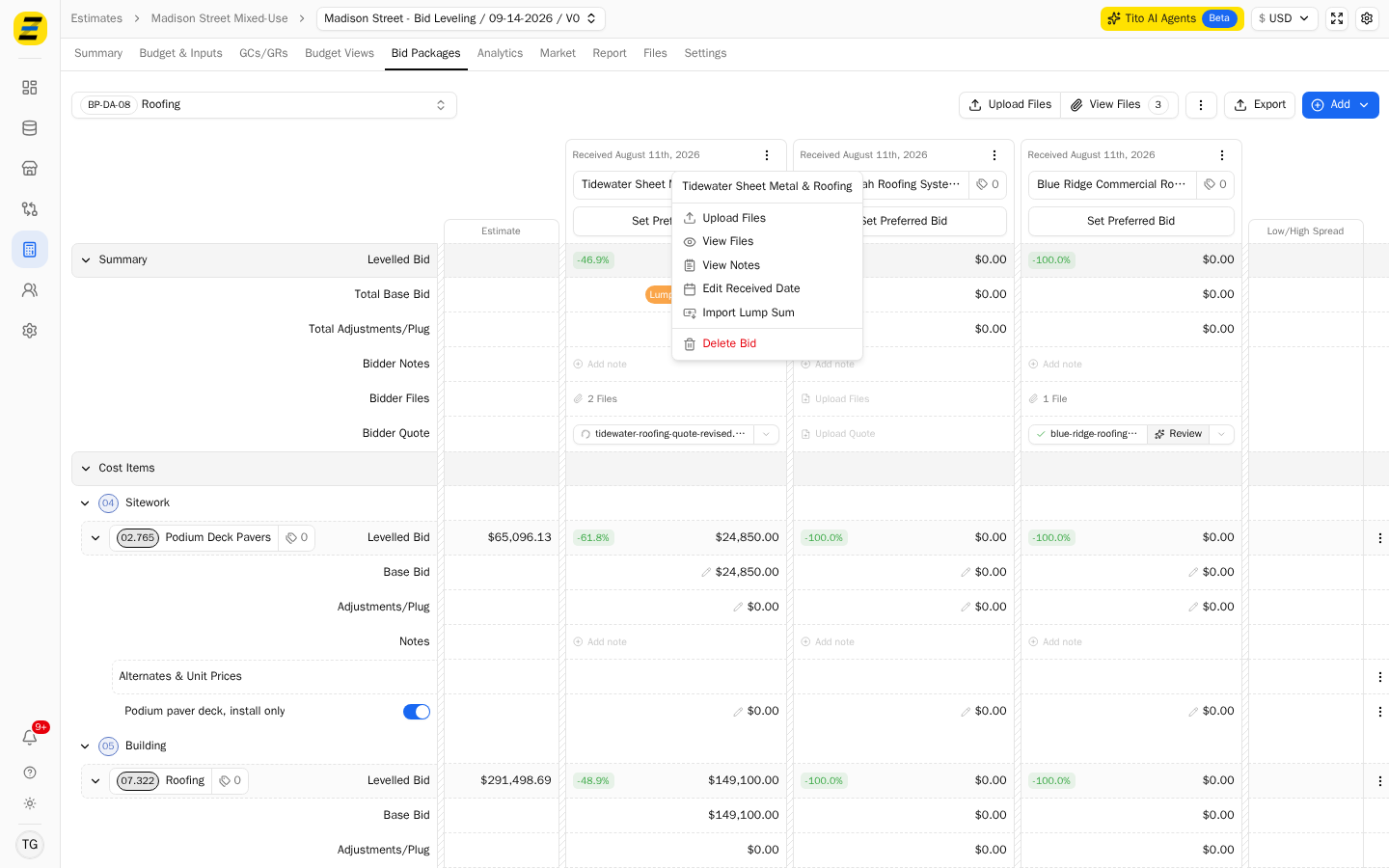
NOTE, this option is unavailable if the bid has already been chosen as the "Selected Bid", or if the estimate is not editable. Revoke the selected bid first if you need to import a lump sum onto it.
Type the total from the bidder into the "Lump Sum Value" field. The value is in the estimate's base currency, shown at the top of the estimate.
Choose a "Distribution Method". This decides how the total is spread across the cost fields on the bid.
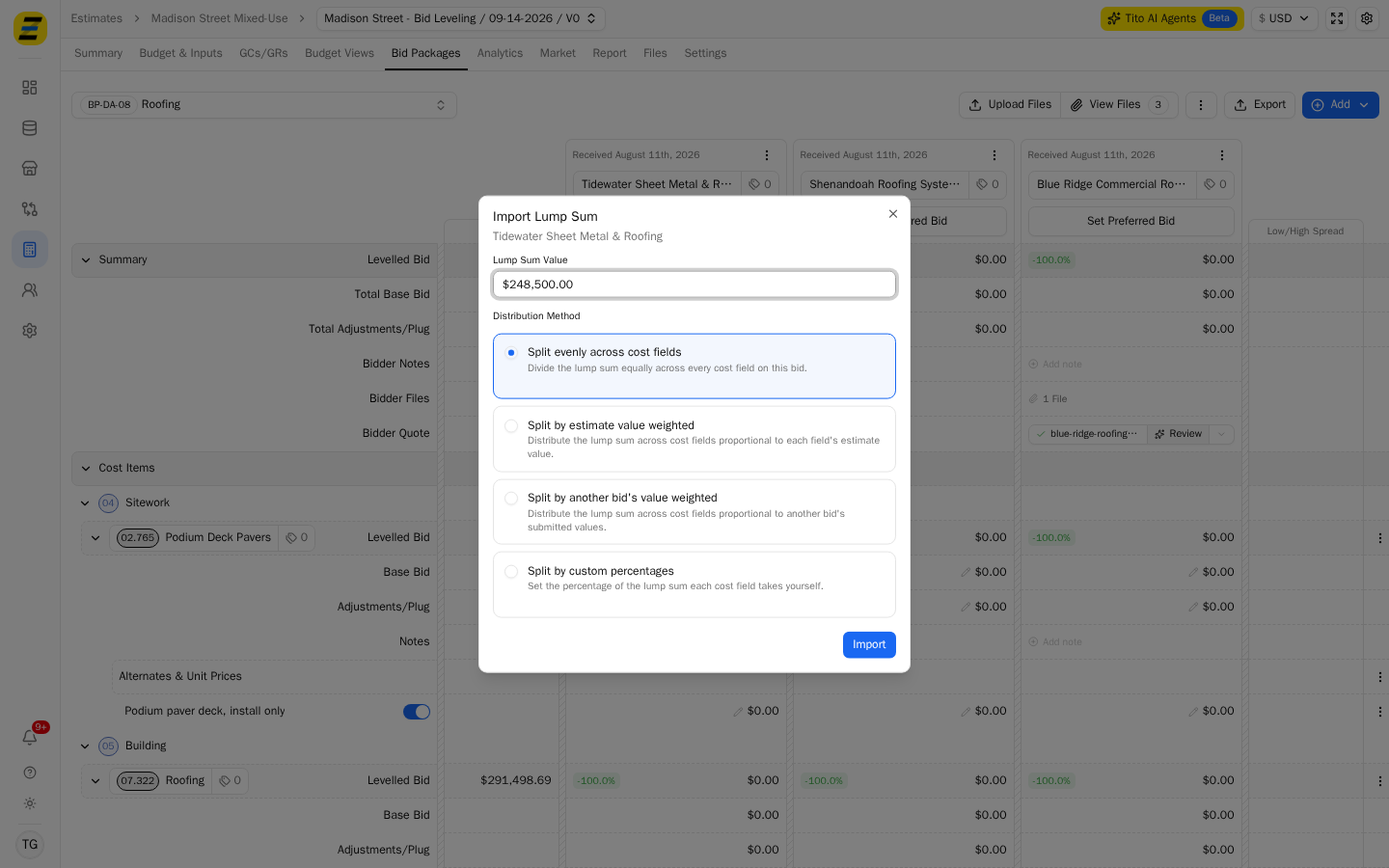
"Split evenly across cost fields" — divides the lump sum equally across every cost field on this bid.
"Split by estimate value weighted" — distributes it proportional to each field's estimate value, so fields you have estimated higher take a larger share.
"Split by another bid's value weighted" — distributes it proportional to another bid's submitted values. Select which bid to follow in the "Reference Bid" dropdown that appears. NOTE, this option is unavailable when there are no other bids in the package.
"Split by custom percentages" — you set the share each cost field takes yourself. NOTE, this option is unavailable when the bid package has no cost fields.
If you chose "Split by custom percentages", type a percentage against each cost field in the "Distribution" list. The "Total" at the bottom must reach 100% before the import will go through — it stays red until it does.
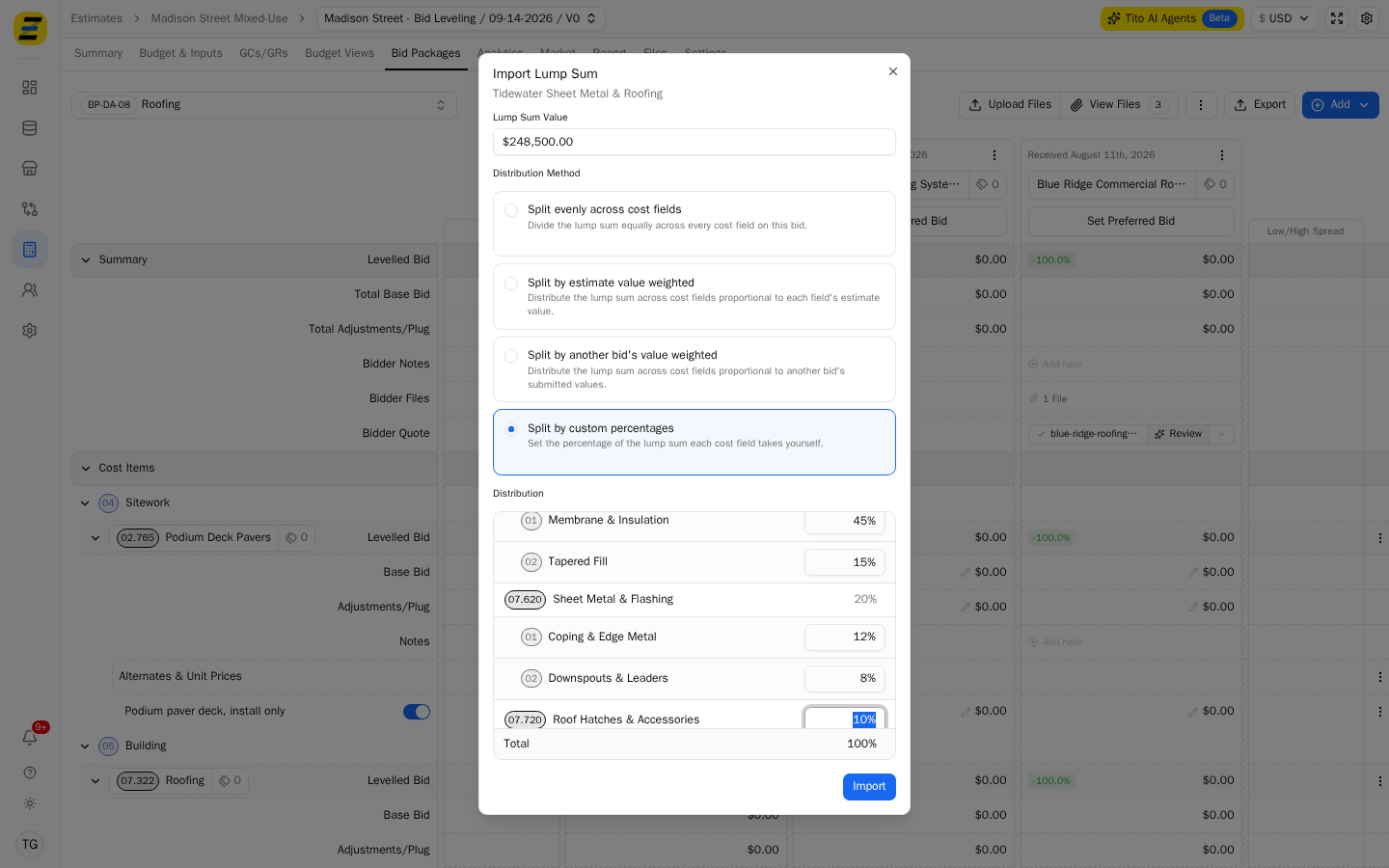
Press the "Import" button.
The bid now shows an orange "Lump Sum" badge against its total, and the lump sum has been spread across the cost fields using the method you chose. Hover the badge to see which distribution method was used.
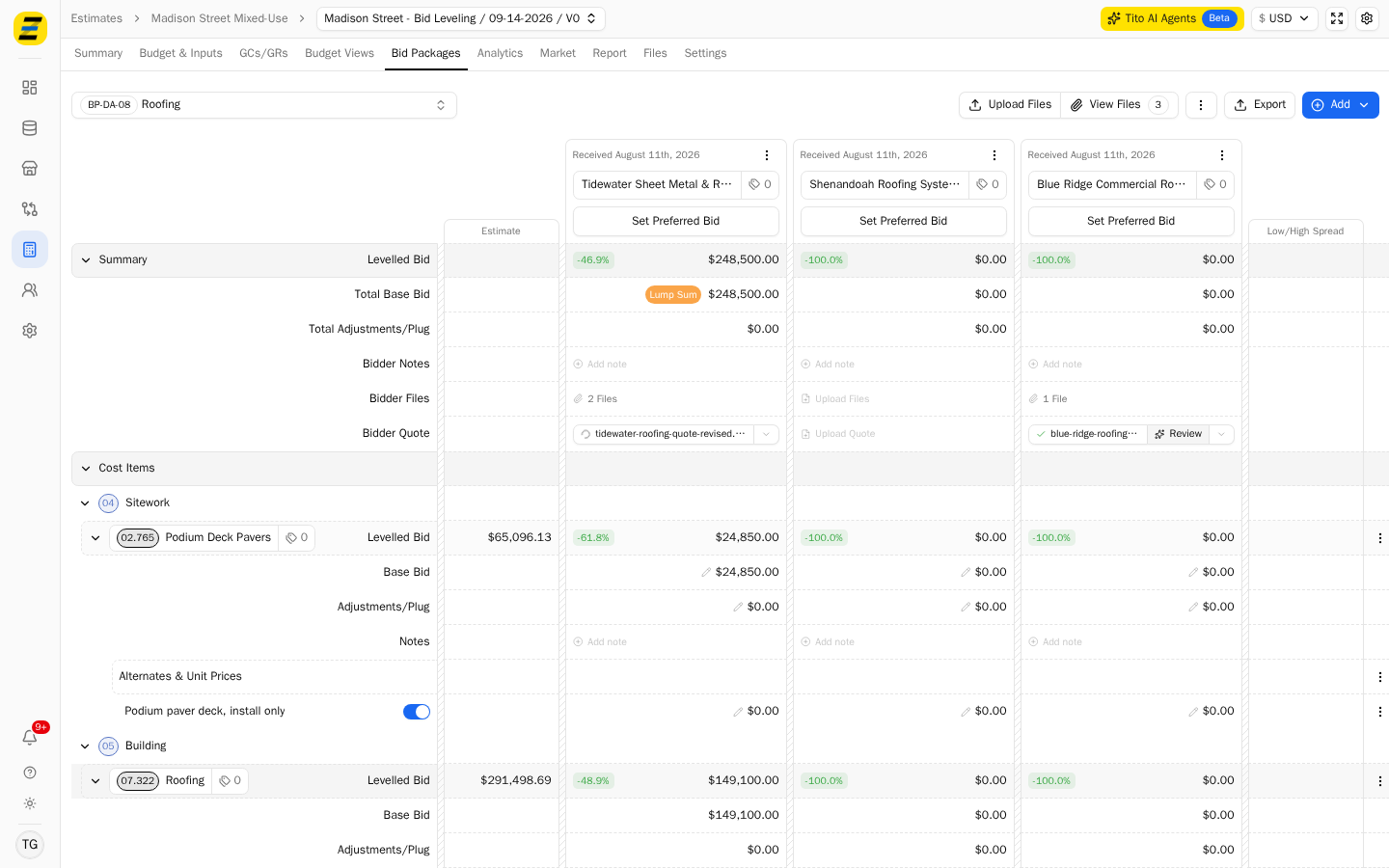
Please note that importing a lump sum replaces the submitted values on that bid's cost fields. If a bidder later sends a properly broken out quote, re-enter those values directly rather than importing again.