---
title: "How To Install The \"Procore\" Integration"
description: "How To Install The \"Procore\" Integration"
---
[Skip to content](https://lp.zebel.io/help/how-to-install-the-procore-integration#main-content)
English
Show submenu for translations

Open main navigation
Close main navigation
- English
Show submenu for translations
How can we help you?
- There are no suggestions because the search field is empty.
1. [Zebel Help Center](https://lp.zebel.io/help?hsLang=en)
2. [Integrations](https://lp.zebel.io/help/integrations?hsLang=en)
# How To Install The "Procore" Integration
To install the "**Procore**" integration in your account follow these steps.
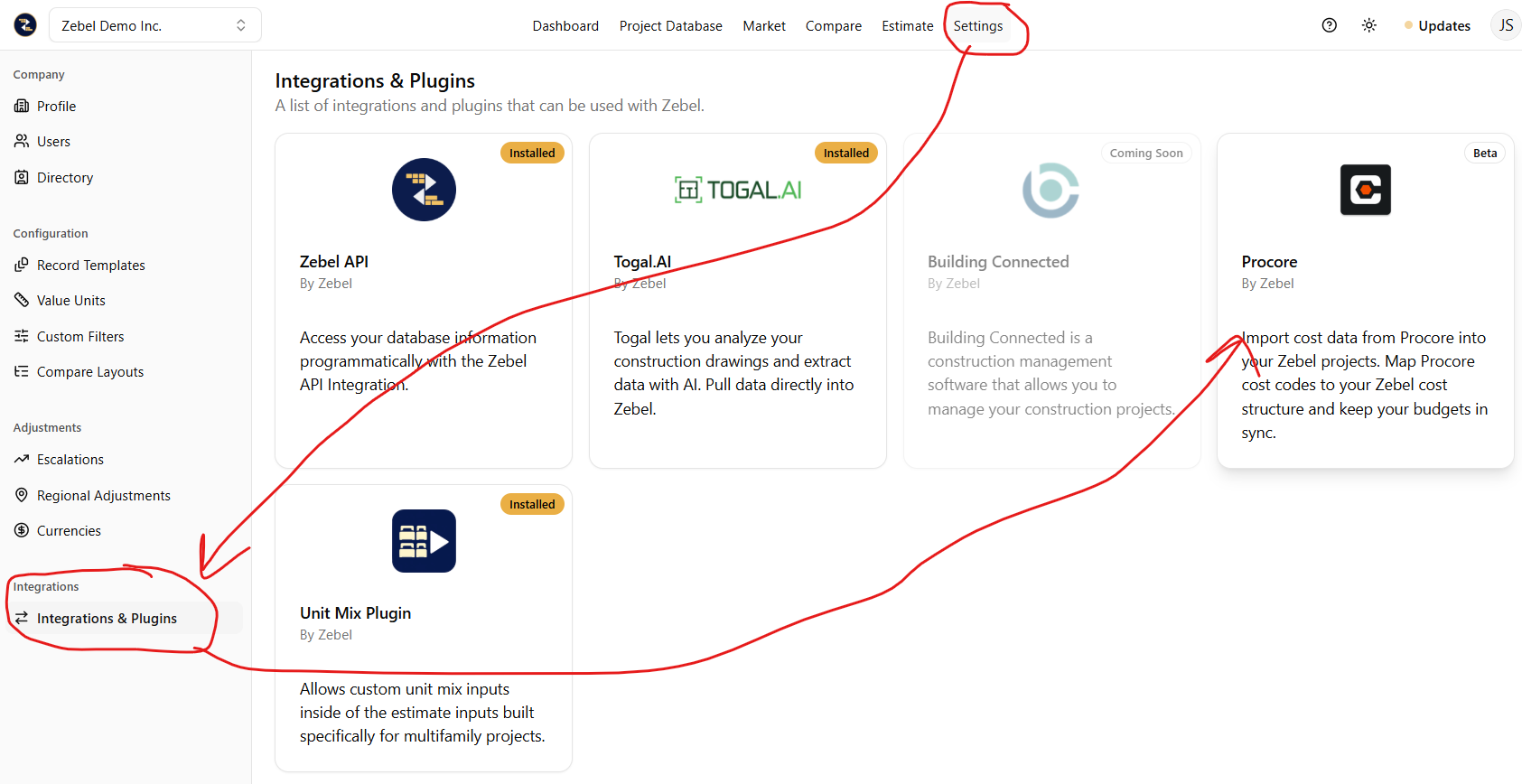
1\. Navigate to global "**Settings**" button located at the horizontal top menu options.
2\. Once in settings, navigate to the "**Integrations & Plugins**" section located on the left vertical menu.
3\. Select the "**Procore**" integration.
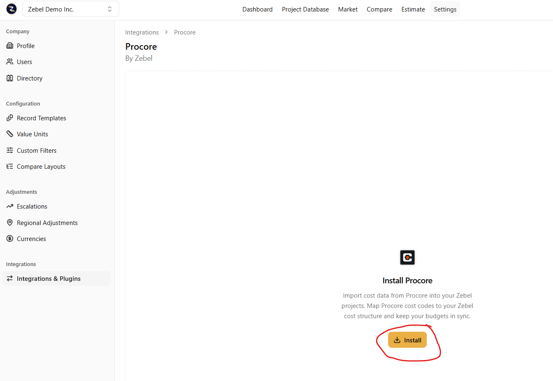
4\. Click the yellow "**Install**" button.
5\. You will be redirected and prompted to enter your "**Procore**" credentials.
6\. Upon successfully entering your "**Procore**" credentials, you will be directed back to the Zebel application and you should see the message "**Connected to Procore**".
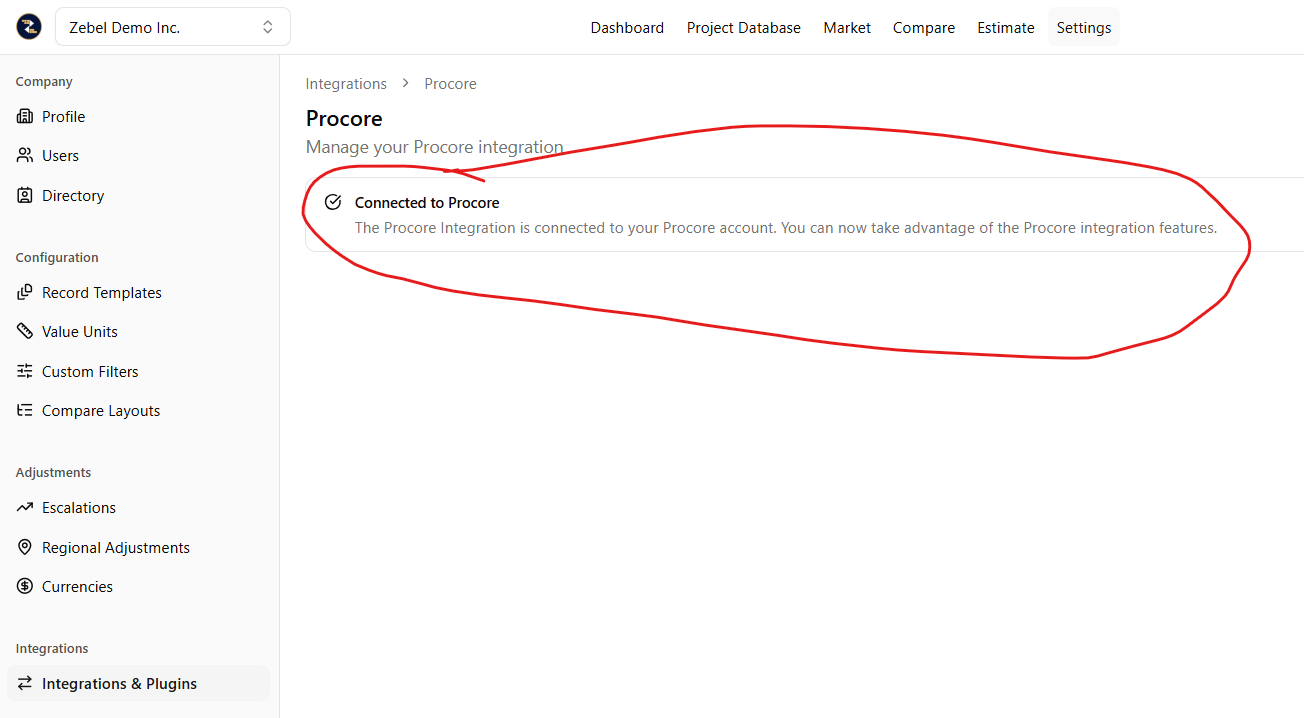
7\. The "**Procore**" interation is now installed and you are now connected to your "**Procore**" account.
Please note that in order to successfully install the "**Procore**" integration, you will need to request that your Procore "**admin**" first install the "**Zebel App**" to your company's "**Procore**" account. The "**Zebel App**" can be found in the Procore "**App Marketplace**". Once the application is installed, your admin will need to grant you access to the specific projects which you'd like to have access to.
- [Getting Started](https://lp.zebel.io/help/getting-started?hsLang=en)
- [Database](https://lp.zebel.io/help/database?hsLang=en)
- [Comparison Reports](https://lp.zebel.io/help/comparison-reports?hsLang=en)
- [Estimates](https://lp.zebel.io/help/estimates?hsLang=en)
- [Account Settings](https://lp.zebel.io/help/account-settings?hsLang=en)
- [Bid Management](https://lp.zebel.io/help/bid-management?hsLang=en)
- [Integrations](https://lp.zebel.io/help/integrations?hsLang=en)
- [Estimate Reports](https://lp.zebel.io/help/estimate-reports?hsLang=en)
- [Value Engineering](https://lp.zebel.io/help/value-engineering?hsLang=en)
[](https://zebel.io/)
[mailto:email@email.com](mailto:email@email.com)
Copyright © 2026, Zebel Group Inc