
Your profile holds the details other people in your workspace see — your name on shared documents and exported reports, and your photo next to your comments and activity. It is also where you change the password you sign in with.
To manage your profile follow these steps.
Press your initials in the bottom left corner of the screen, and choose "My Account".
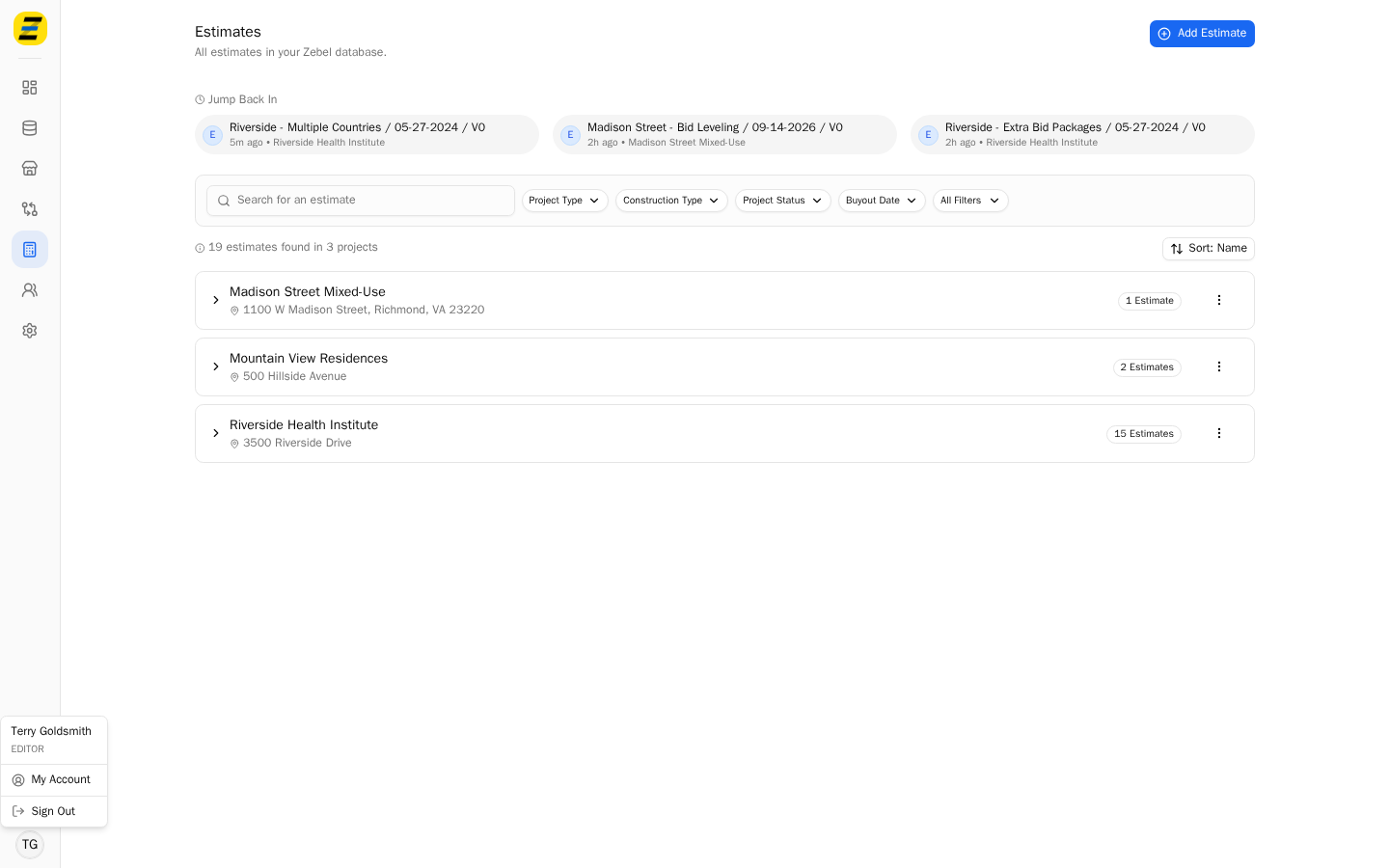
The "My Profile" page opens. It has four cards — "Profile Photo" and "Account" down the left hand side, "Personal Information" and "Password" on the right.
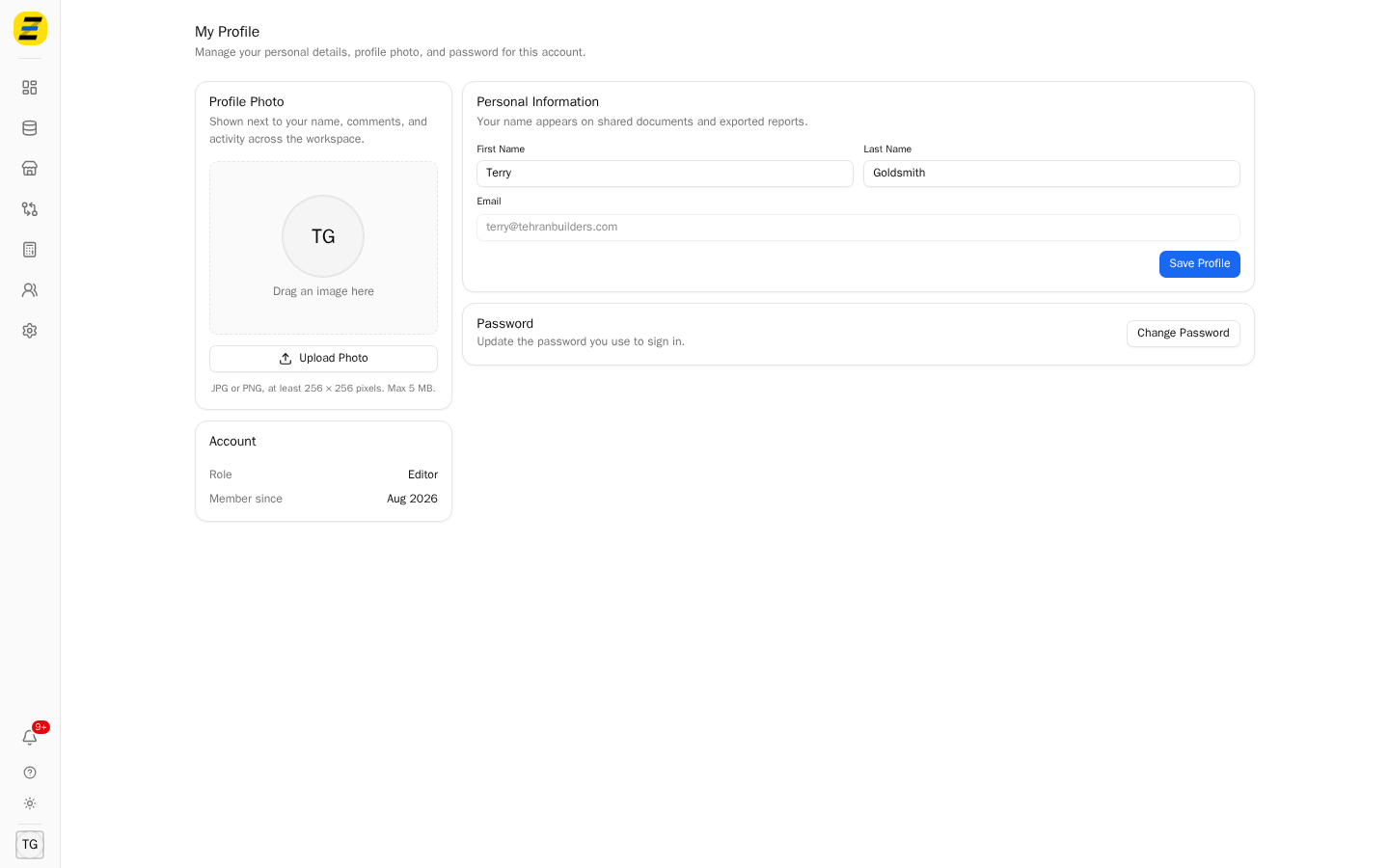
To change your name, edit the "First Name" and "Last Name" fields under "Personal Information" and press "Save Profile". The new name appears everywhere your name is shown straight away, including the menu you came in through.
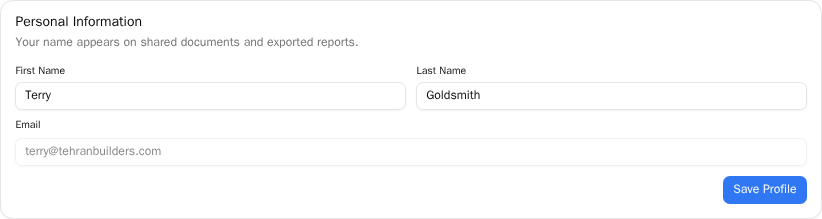
NOTE, your "Email" is shown here but cannot be edited — it is the address you sign in with, and changing it is something a company administrator does for you.
To set your profile photo, drag an image onto the box under "Profile Photo", or press the "Upload Photo" button and pick a file. The photo must be a JPG or a PNG, at least 256 × 256 pixels, and no larger than 5 MB.
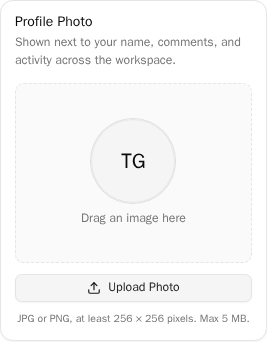
Until you set one, Zebel shows your initials in a circle instead. Once a photo is set the button reads "Replace Photo", and pressing it again swaps the image.
The "Account" card shows your "Role" — Editor, Viewer or Admin — and the month you joined. Both are read only; your role is set by a company administrator.
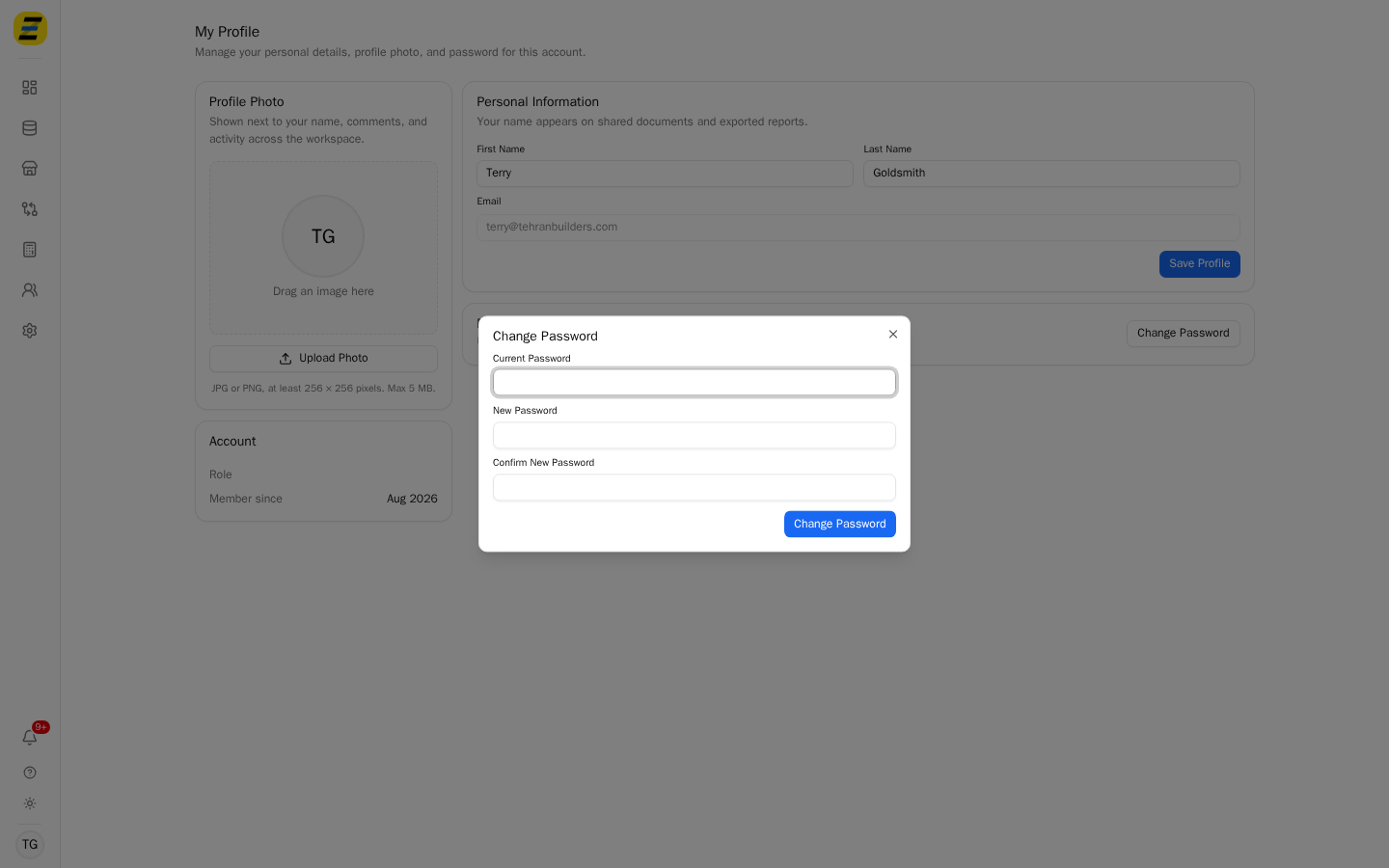
To change your password, press "Change Password", then fill in "Current Password", "New Password" and "Confirm New Password" and press "Change Password" again. The new password must be at least 8 characters, and the two new password fields must match.
Please note that the "Password" card only appears if you sign in with an email address and password. If your company signs in through single sign-on, your password is managed by your identity provider and the card is not shown.