
The "Cost History Analysis" card on your Dashboard page opens on a sector type, a division and a unit of measure. Dashboard Defaults is where you choose which ones it opens on, so the whole company lands on the market data it cares about instead of changing the three dropdowns every visit.
To set your dashboard defaults follow these steps.
Navigate to the "Settings" button located at the horizontal top menu options.
Select "Dashboard" from the "Configuration" section of the left hand menu.
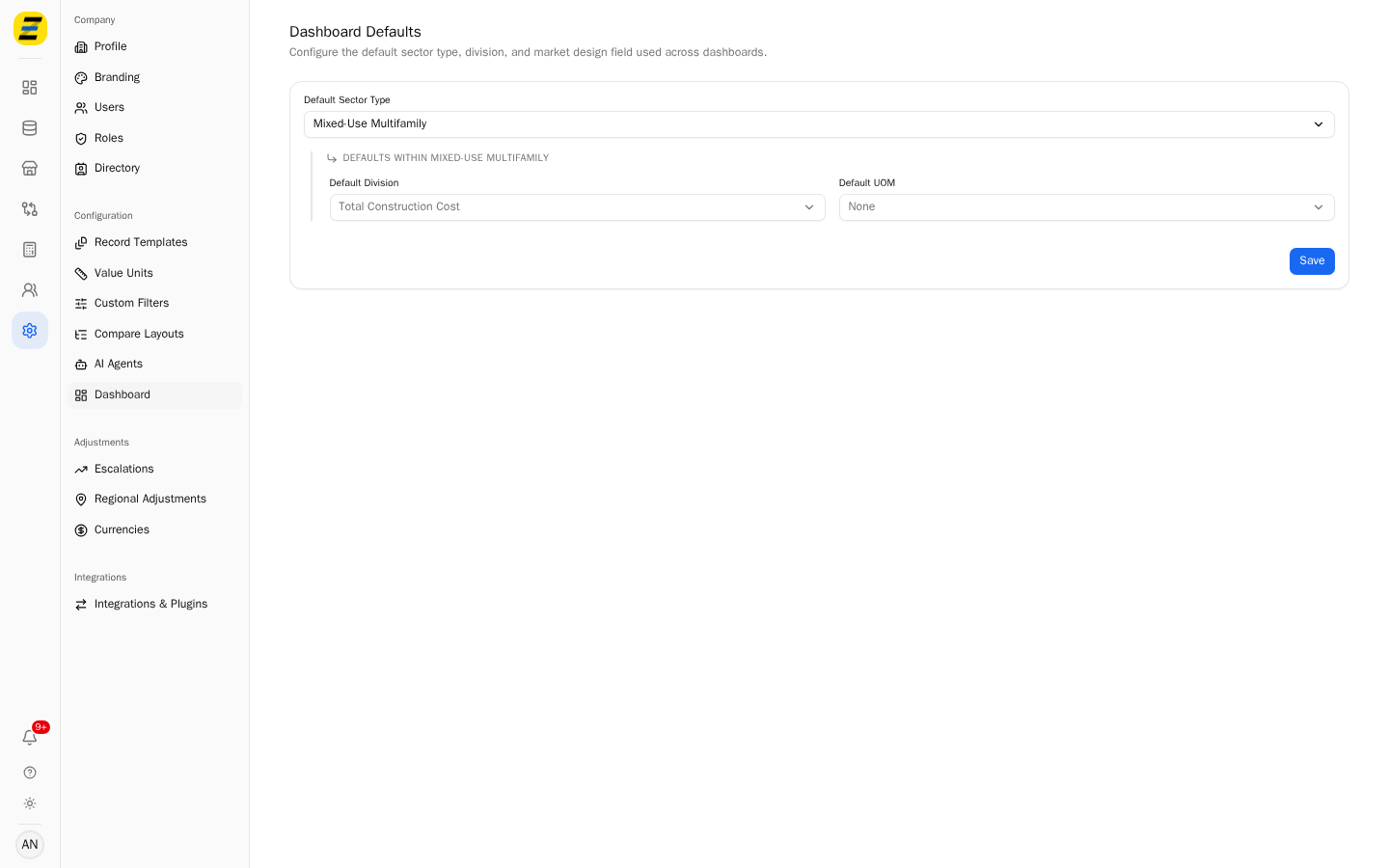
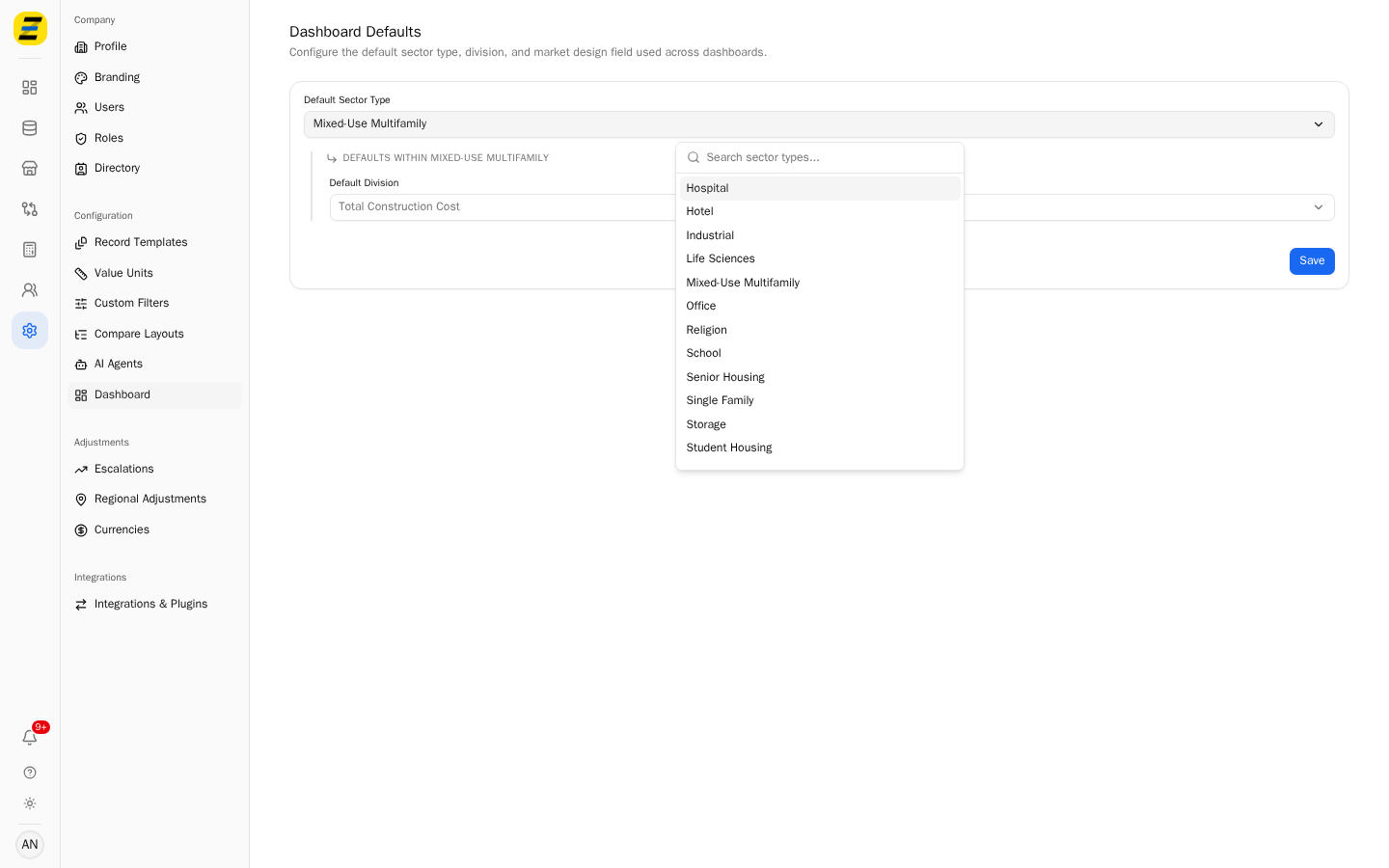
Choose the desired sector type from the "Default Sector Type" dropdown. This is the project type your dashboard opens on.
Choose the desired division from the "Default Division" dropdown. This is the cost the analysis is based on — "Total Construction Cost" is the usual choice.
Choose the desired unit of measure from the "Default UOM" dropdown. This is what the cost is shown per — for example "Lot Size (Gross SF)" gives you a cost per gross square foot.
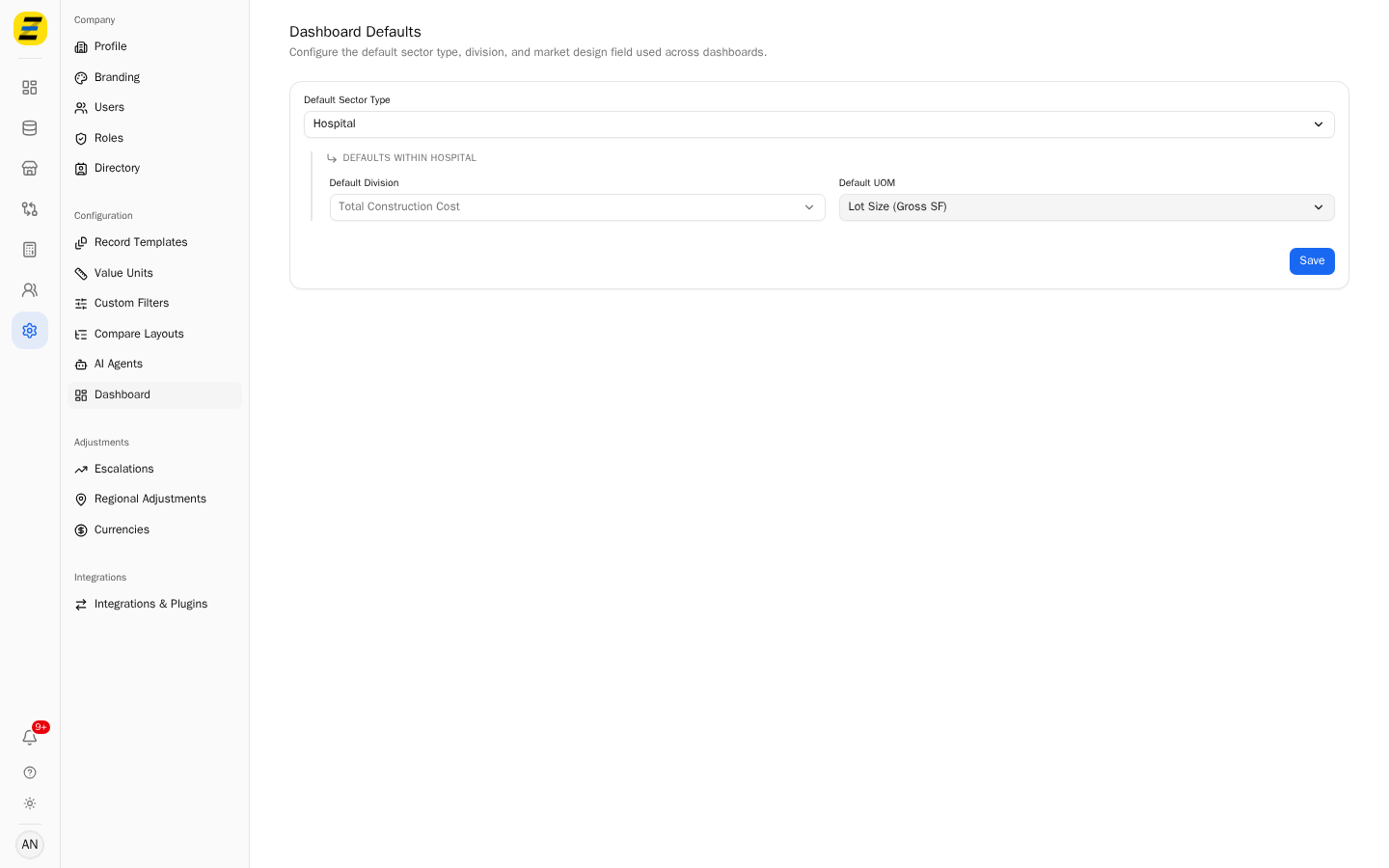
Press the "Save" button.
NOTE, the "Default Division" and "Default UOM" fields sit underneath a heading that reads "Defaults within" your chosen sector type. They belong to that sector type, so changing the sector type in step 3 changes what those two dropdowns are choosing for.
Your Dashboard page now opens on those three values.
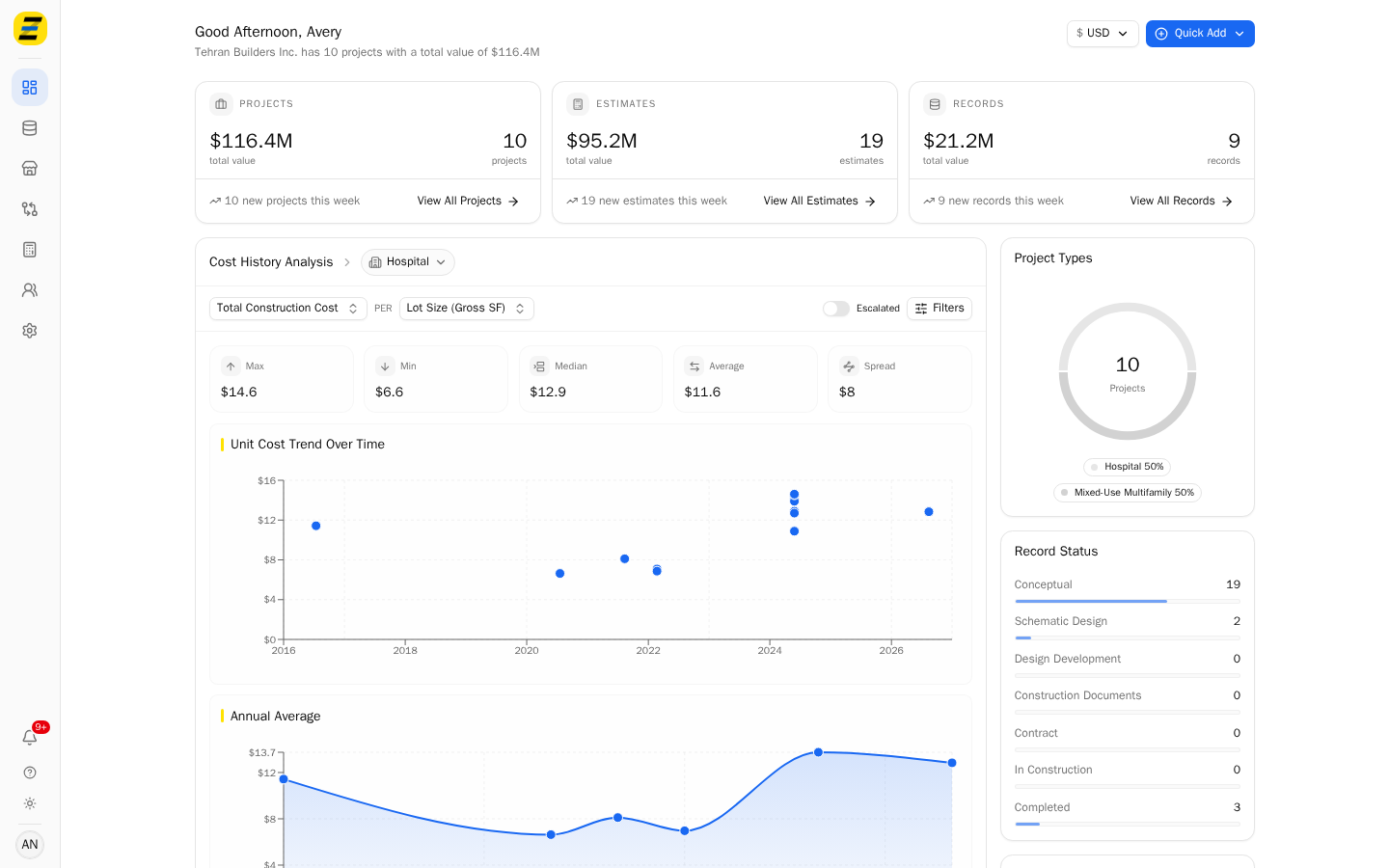
NOTE, these defaults are set for the whole company, not per user. Everyone in your Zebel account will see the dashboard open on them, and only an "Editor" or an "Admin" can change them — a "Viewer" can see the page but cannot save it.
We recommend setting these to the project type you estimate most often. Anyone can still change the three dropdowns on the Dashboard page itself to look at something else — the defaults only decide where the page starts.