
Not every report needs every block. You can switch a block off so it does not appear in the issued report, without deleting it or losing how it was configured — useful when the same report goes to different audiences, or when a section is not ready yet.
To toggle a report block on or off follow these steps.
Navigate to the desired estimate, select the "Report" tab, and open the report you want to change.
Find the block in the "Report Structure" panel on the right hand side.
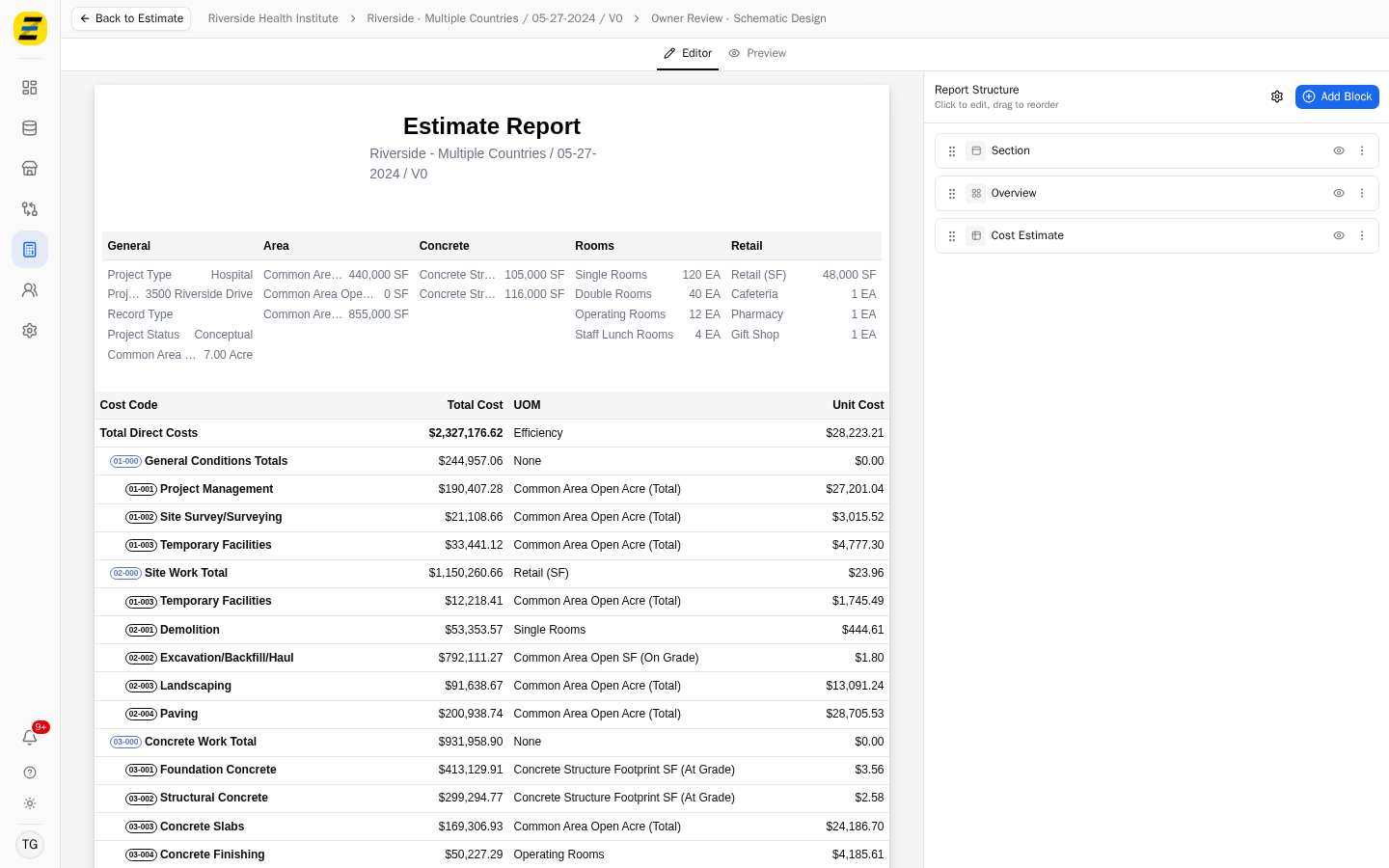
Press the "eye" icon on that block's row.
The block is now switched off. Its name is greyed out with a line through it, the icon changes to a crossed-out eye, and the block disappears from the report rendering on the left.
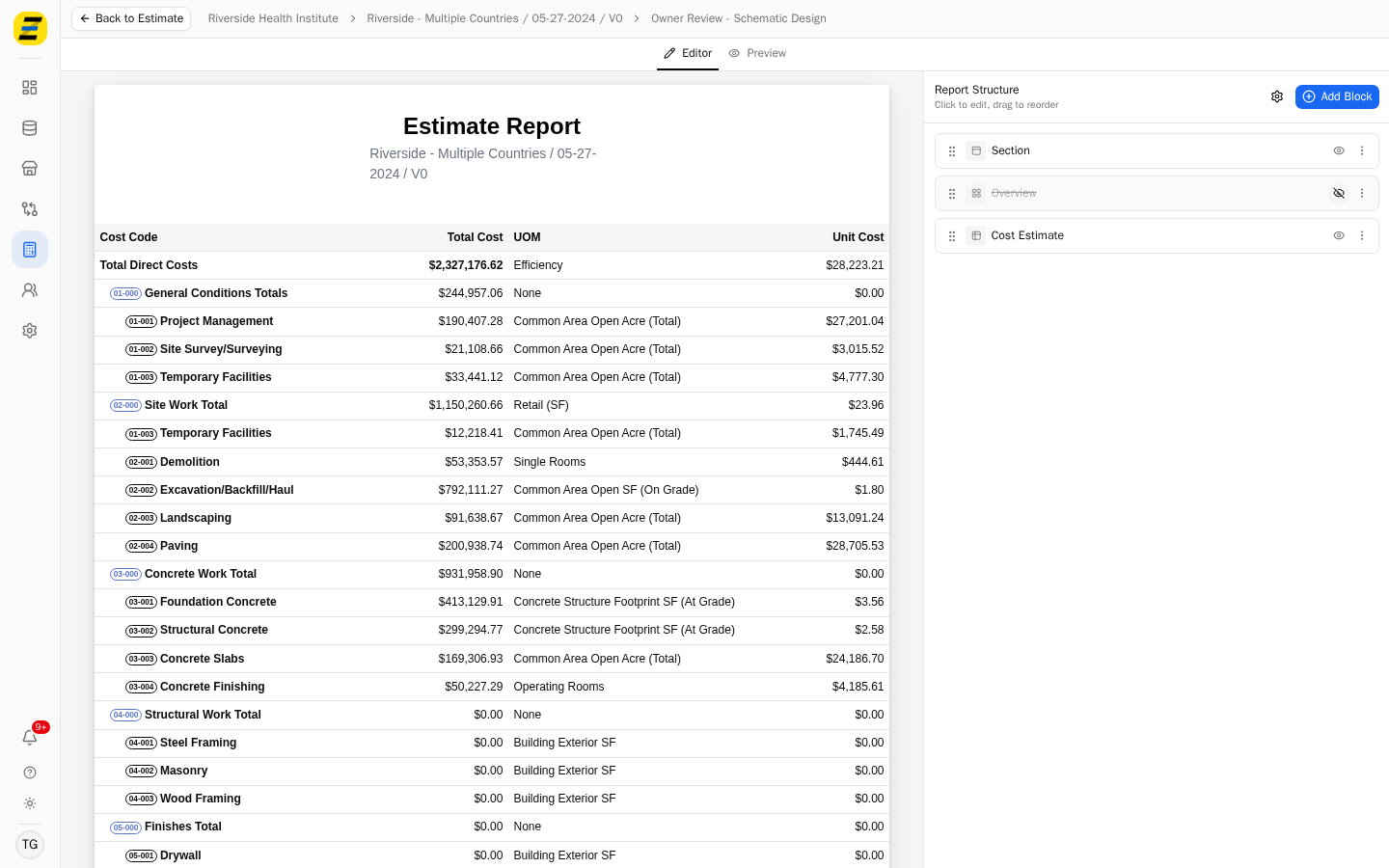
Press the "eye" icon again to switch the block back on. It returns to the report in its original position, with all of its settings intact.
Please note that switching a block off is not the same as deleting it. A switched-off block keeps its configuration and its place in the report structure, so you can turn it back on at any time — whereas deleting it, from the block's "three dot" menu, removes it and its settings for good.