
The "Analytics" page inside "Bid Packages" summarises your whole buyout on one screen — what you estimated, what came in, what you have awarded, and how your bidders and bids break down by tag.
To use bid package analytics follow these steps.
Navigate to the desired estimate and select the "Bid Packages" tab.
Select "Analytics" from the left hand menu.
Read the six tiles across the top.
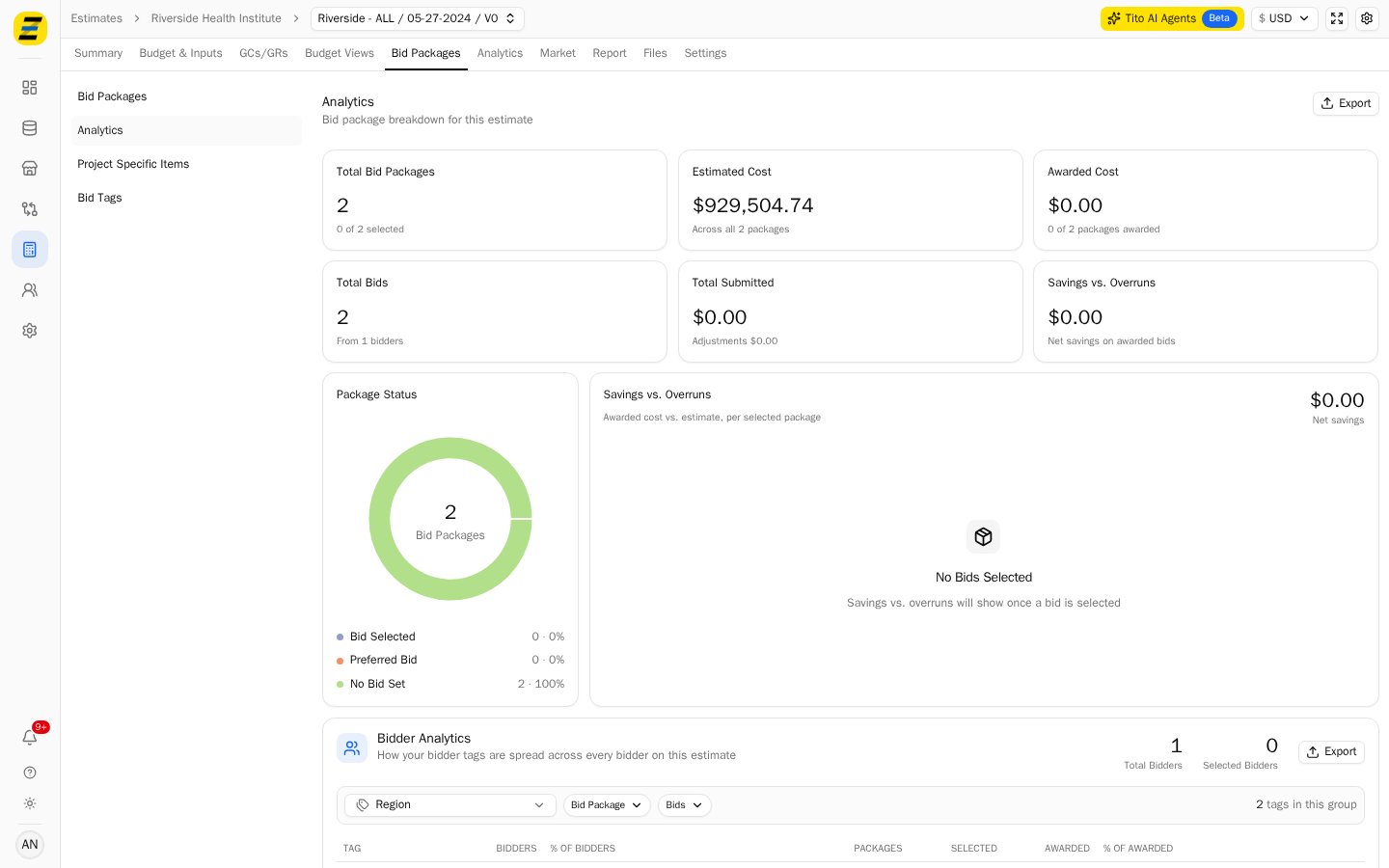
"Total Bid Packages" — how many packages this estimate has, and how many have a bid selected.
"Estimated Cost" — your own estimated cost across all packages. In the example, $929,504.74.
"Awarded Cost" — the value of bids you have awarded.
"Total Bids" — how many bids you have received, and from how many bidders.
"Total Submitted" — the total submitted value, with adjustments shown beneath.
"Savings vs. Overruns" — the net difference between what you awarded and what you estimated.
Use the "Package Status" chart to see how far through buyout you are. It splits every package into "Bid Selected", "Preferred Bid" and "No Bid Set".
Use "Savings vs. Overruns" beside it to see, package by package, whether the bids you selected came in under or over your estimate.
Scroll to "Bidder Analytics" to see how your bidder tags are spread across every bidder on the estimate. Choose the tag group from the dropdown on the left — "Region" in the example — and each tag shows its bidder count, share of bidders, how many packages it covers, and how much has been awarded to it.
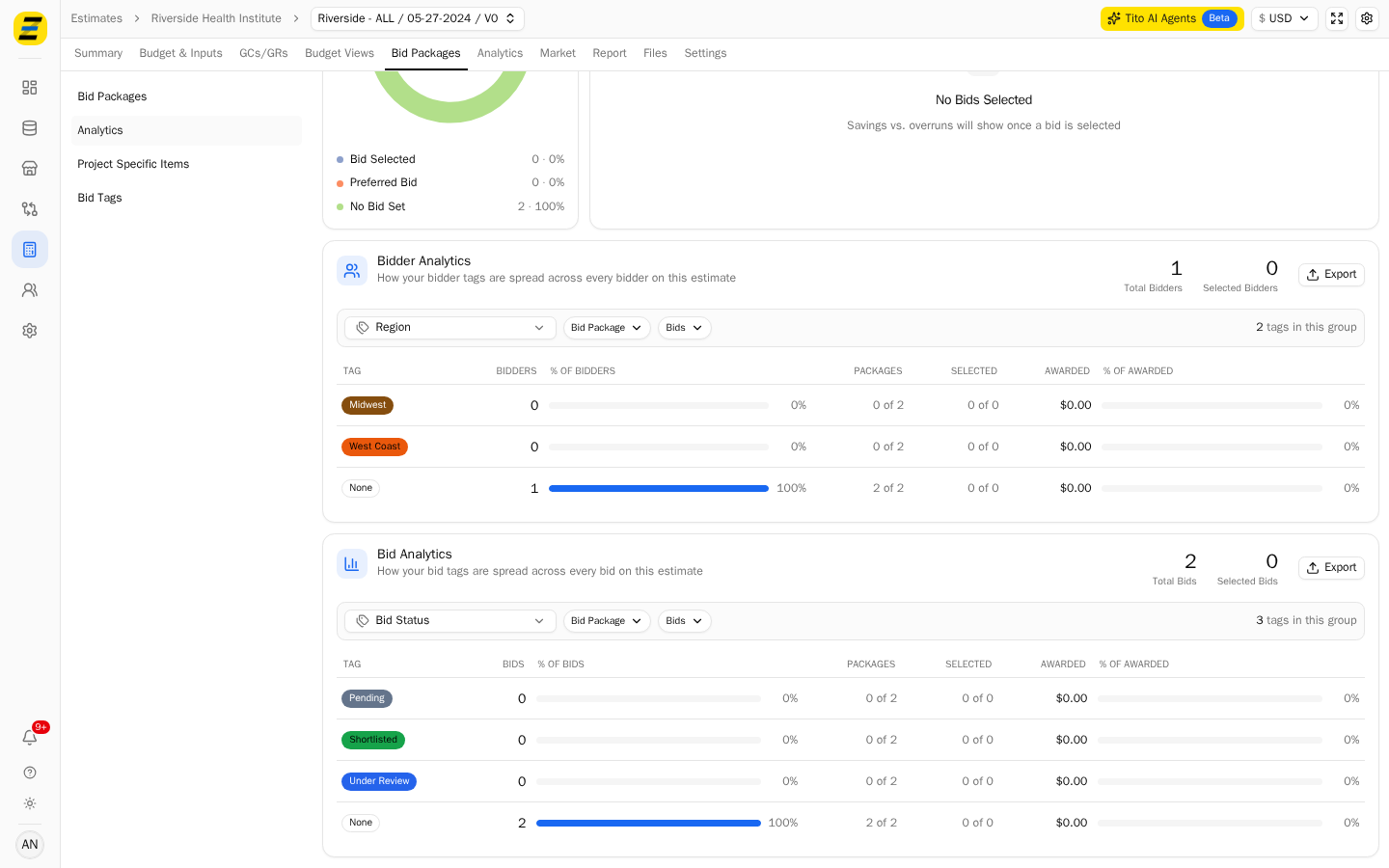
Scroll to "Bid Analytics" for the same breakdown across bids rather than bidders, grouped by a bid tag group such as "Bid Status".
Press the "Export" button on any of these sections to take the numbers out as a CSV.
NOTE, "Savings vs. Overruns" stays empty until you select a bid on at least one package — it compares awarded cost against your estimate, so it has nothing to compare until something is selected. The same is true of the awarded columns in the two tag tables.
NOTE, a bidder or bid with no tag in the chosen group is counted under "None" rather than left out, so the percentages always add up to the full set.
We recommend checking "Package Status" first — it tells you how much of the buyout is still open — and then using "Bidder Analytics" to see whether your coverage is thin in any region or trade before you chase more bids.