
"Bulk Actions" let you change several cost fields at once in the Detailed Budget instead of editing them one row at a time — setting the same UOM across a group of fields, putting the same note on them, applying the same adjustment, or deleting them together.
To use "Bulk Actions" in the Detailed Budget follow these steps.
Navigate to the desired estimate and select the "Budget & Inputs" tab.
Expand the cost buckets you want to work in. The selection checkboxes sit on the cost field rows, so they only appear once the rows beneath a bucket are showing. Pressing the "Expand All" button at the top left of the table opens everything at once.
Tick the checkbox at the left of each cost field you want to change.
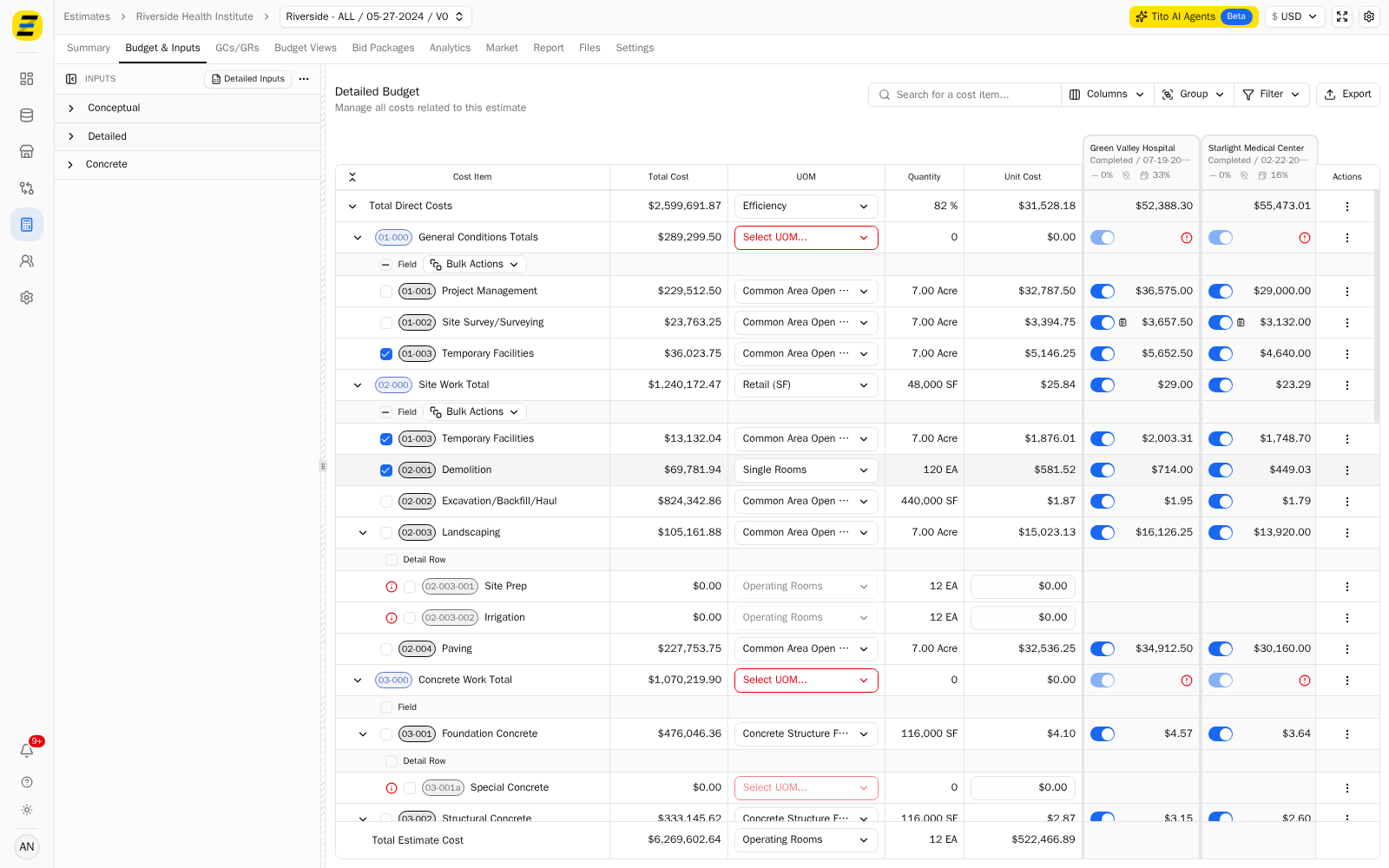
A "Bulk Actions" button appears on the "Field" row inside each cost bucket that has something selected. Press it.
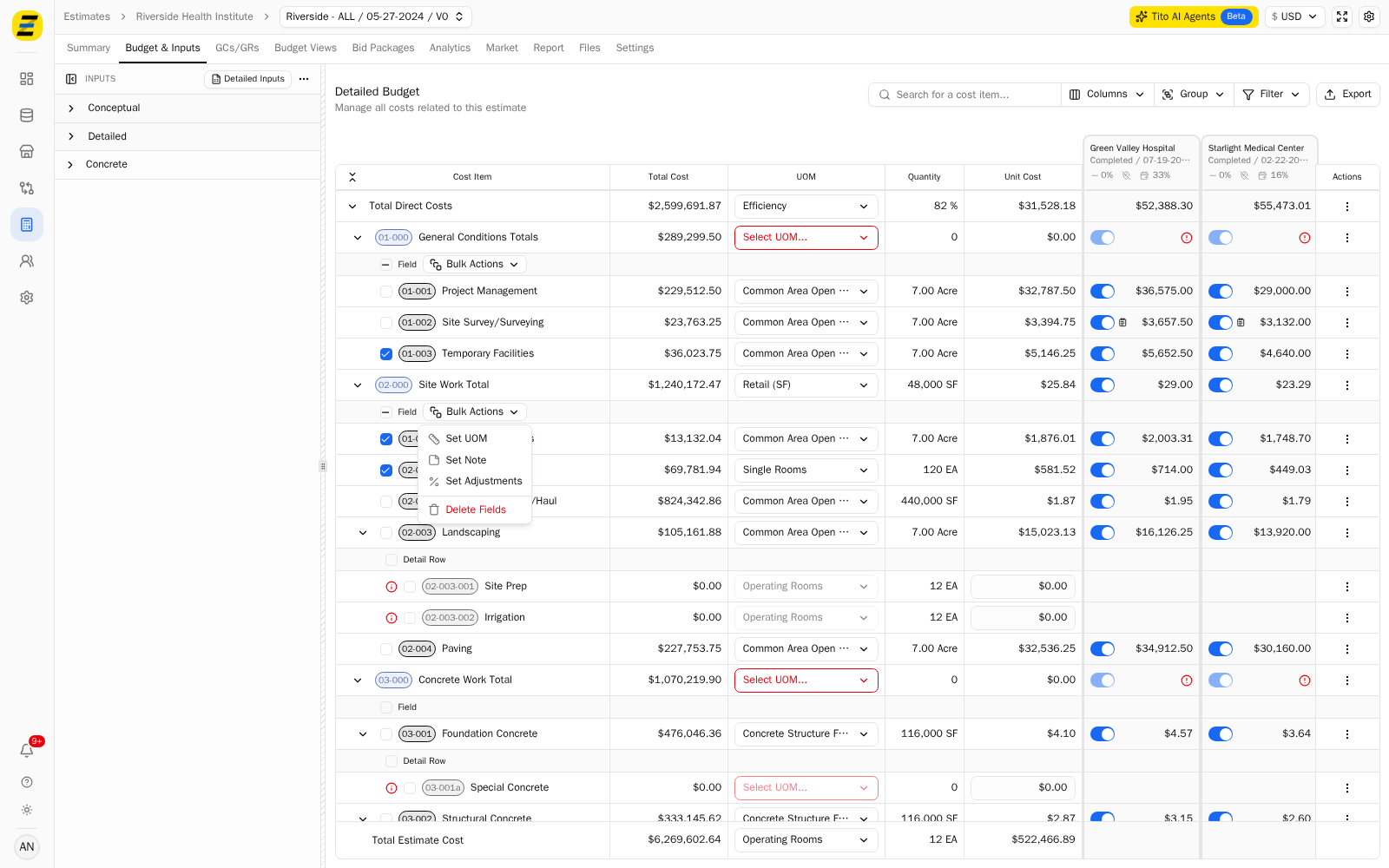
NOTE, selections are counted per cost bucket, not across the whole budget. If you tick fields in two buckets you will get a "Bulk Actions" button in each, and each one acts only on that bucket's selection.
Choose the action you want from the menu.
"Set UOM" — applies one unit of measure to every selected field.
"Set Note" — puts the same note on every selected field.
"Set Adjustments" — applies the same premium to every selected field.
"Delete Fields" — removes the selected fields from the estimate.
For "Set Adjustments", switch on "Premium Percentage" to reveal the two inputs, then type the "Premium Percentage" to apply and what "Percentage of Project" it applies to. The dialog title confirms how many fields you are about to change.
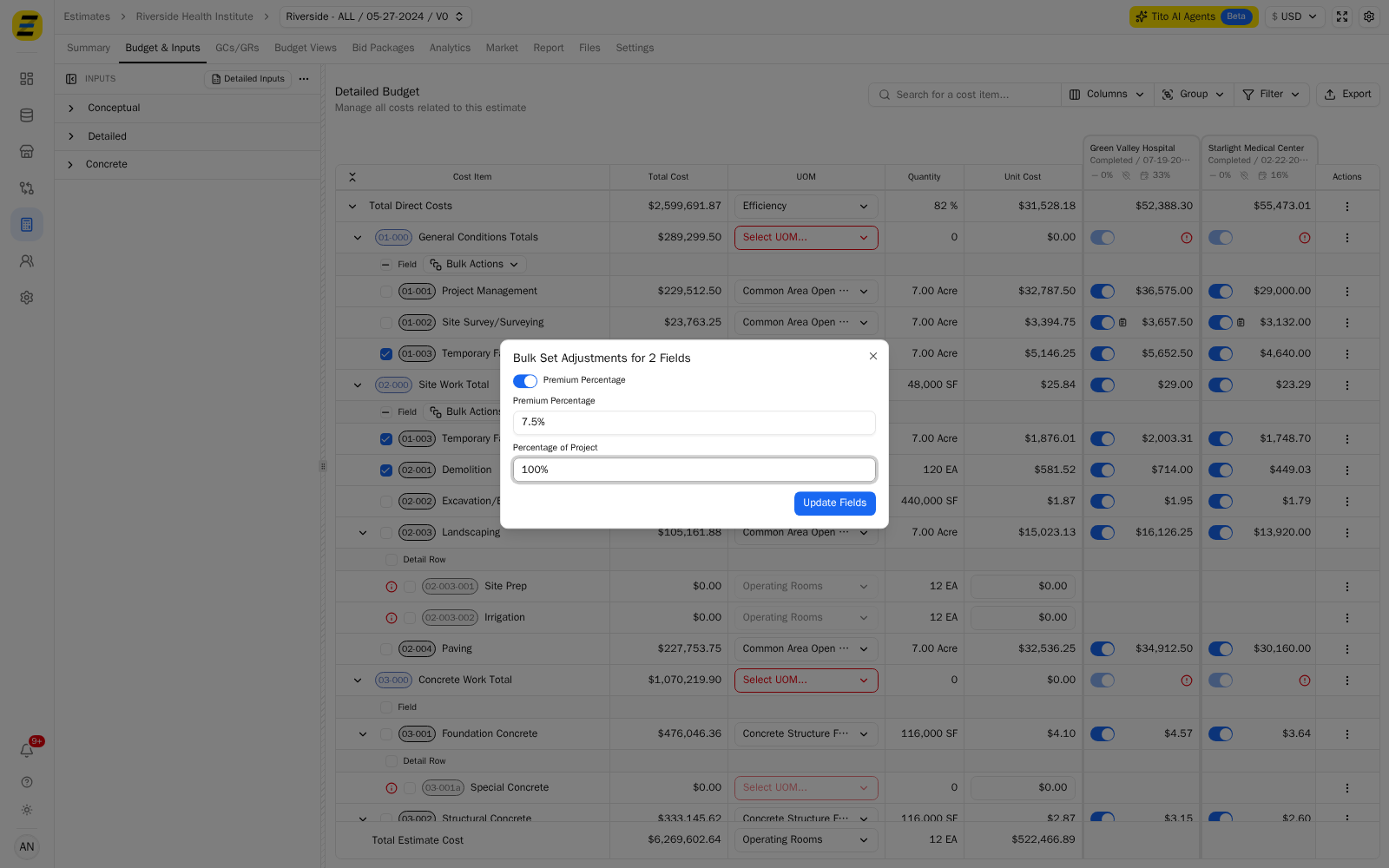
NOTE, "Set Adjustments" is not offered on a consolidated estimate, because its costs come from its child estimates.
Press the blue button to apply — "Update Fields" for the three edit actions.
For "Delete Fields", you must tick "I want to delete these fields" before the red "Delete Fields" button will go through.
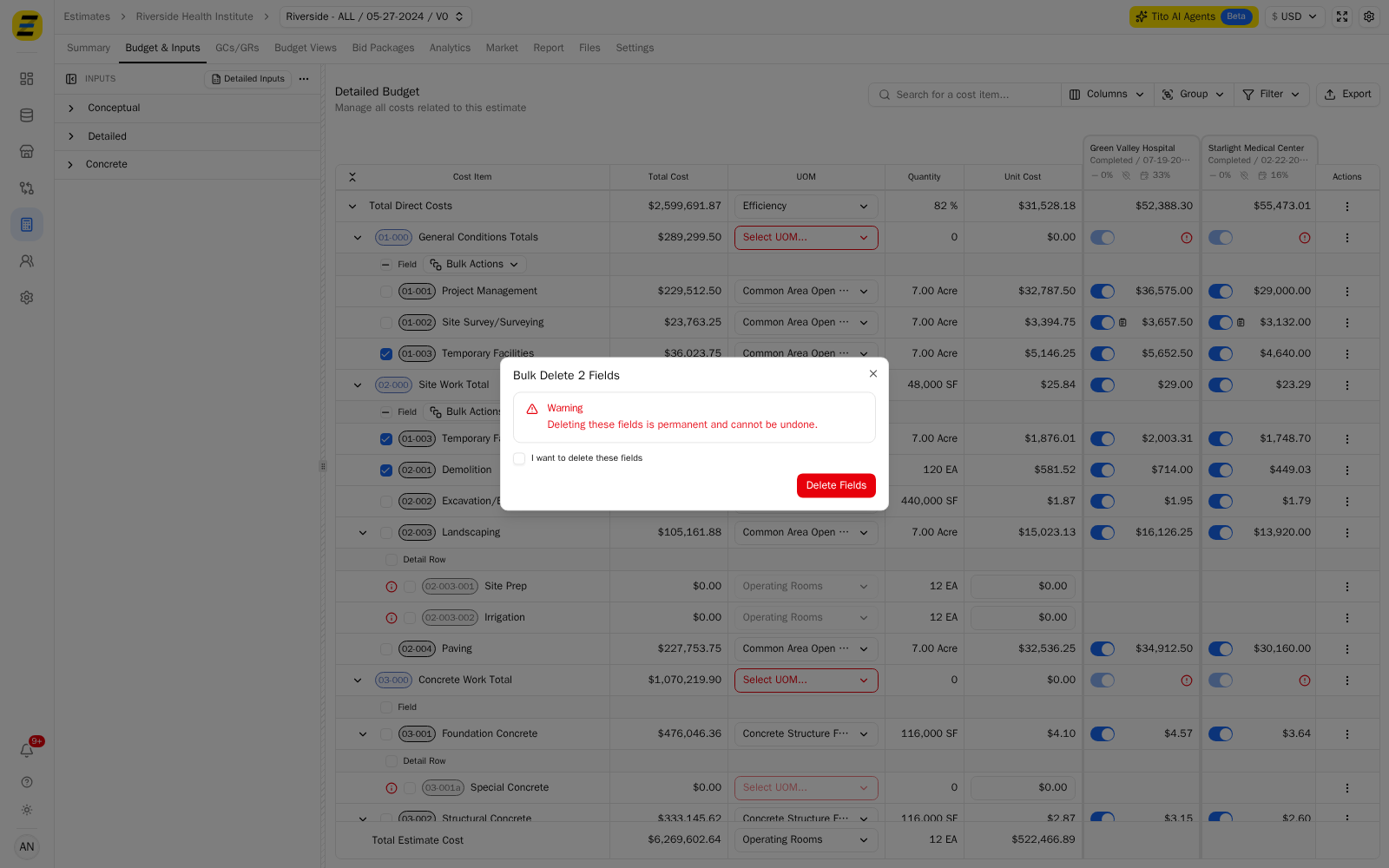
Please note that deleting fields is permanent and cannot be undone, and that every one of these actions applies to all of the selected fields at once. Check the count in the dialog title matches what you meant to select before you apply it.