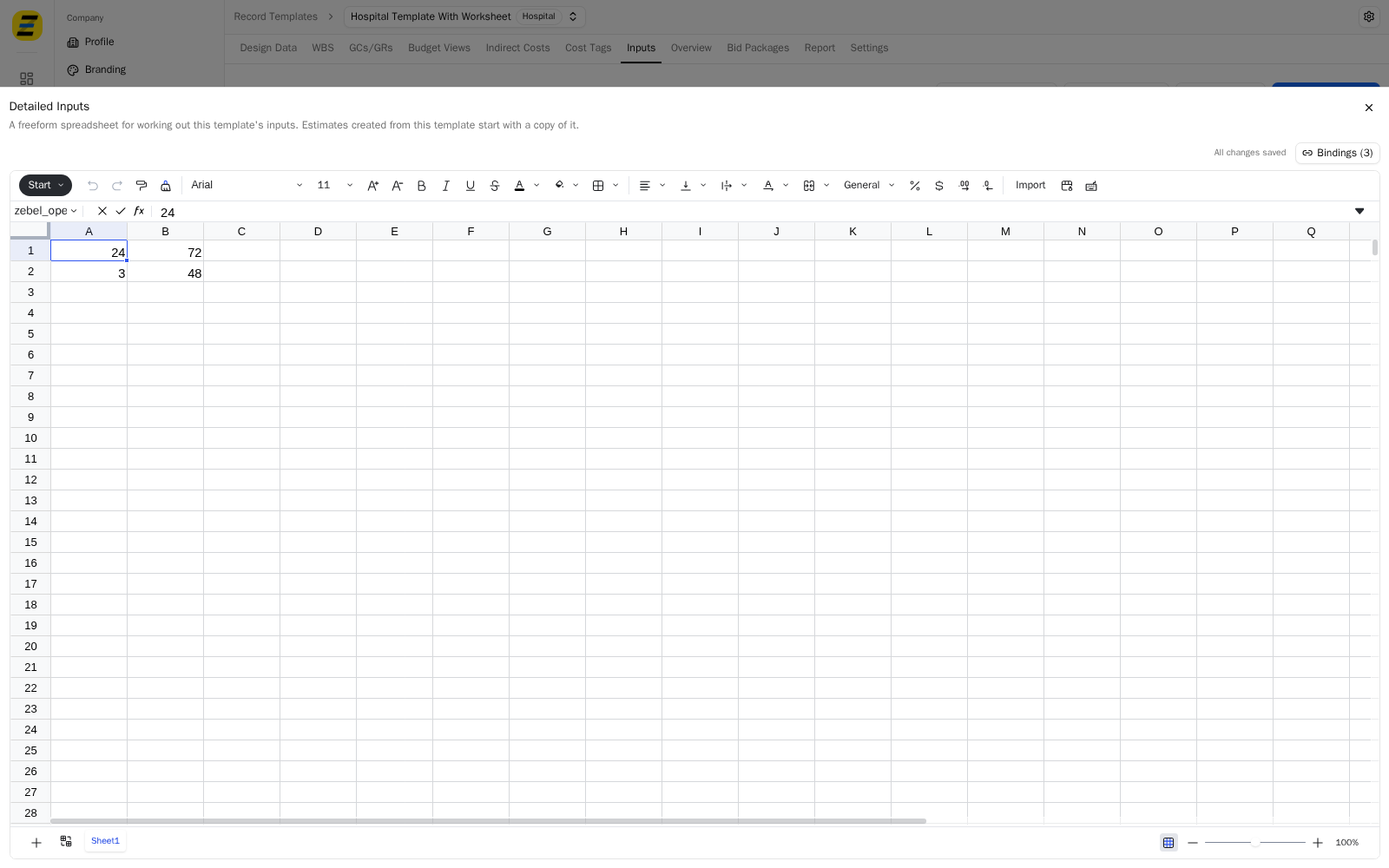
"Detailed Inputs" is a freeform spreadsheet attached to an estimate, for working out input values that are too involved to type straight into the input panel — a takeoff by floor, a phase by phase schedule, a unit mix. You "bind" the cell holding the answer to an input, and from then on that input reads its value from that cell. Whatever working out gets you to the cell is up to you.
To drive an estimate's inputs from "Detailed Inputs" follow these steps.
Navigate to the desired estimate.
Once inside the estimate, select the "Budget & Inputs" tab. Make sure the vertical input panel on the left is expanded, then press the "Detailed Inputs" button at the top of that panel.
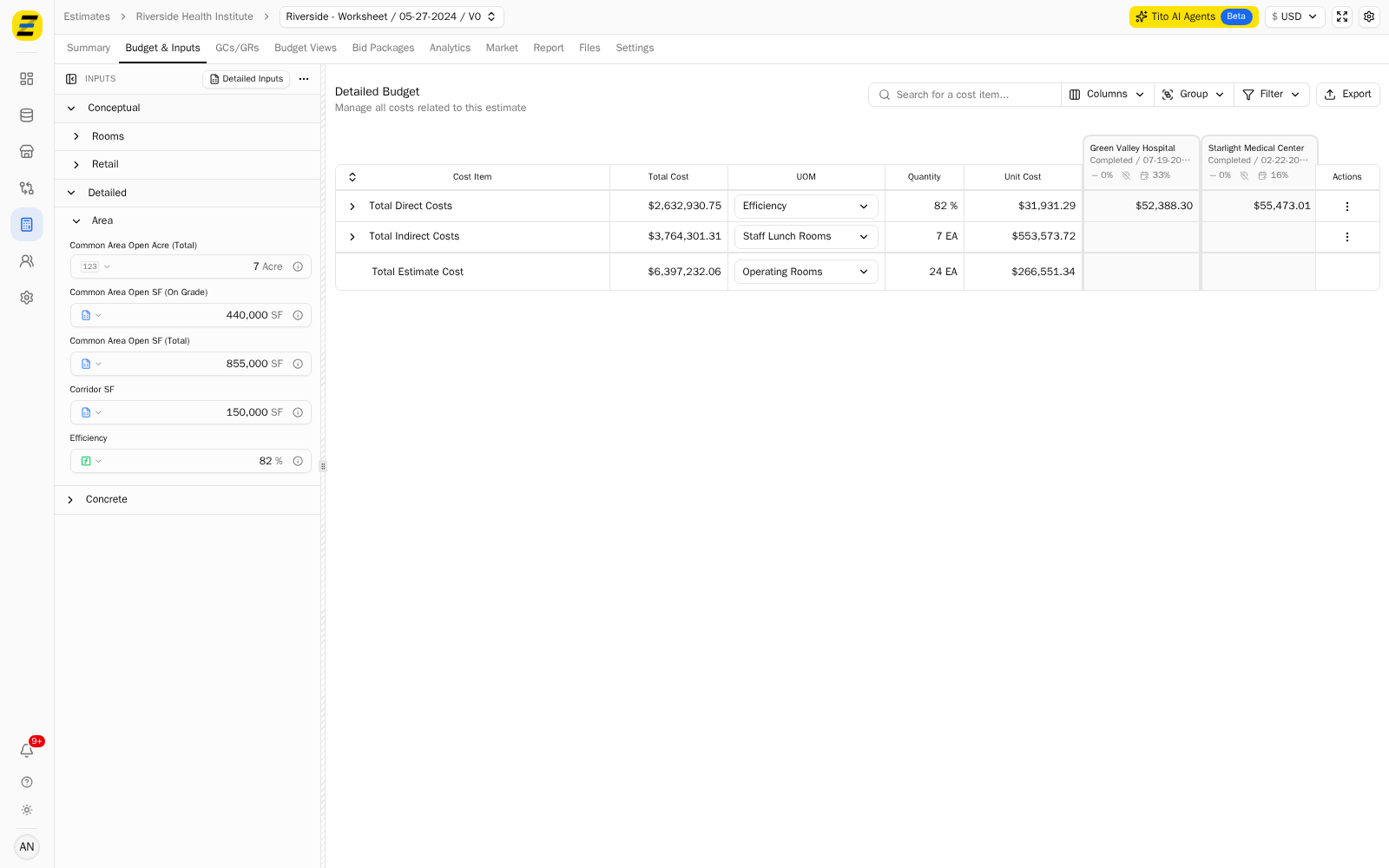
The spreadsheet opens as a drawer over the budget, leaving the input panel visible and editable beside it. Build your working out in the grid the way you would in Excel — type values, write formulas, add more sheets with the "+" at the bottom left. There is no save button; the header reads "All changes saved".
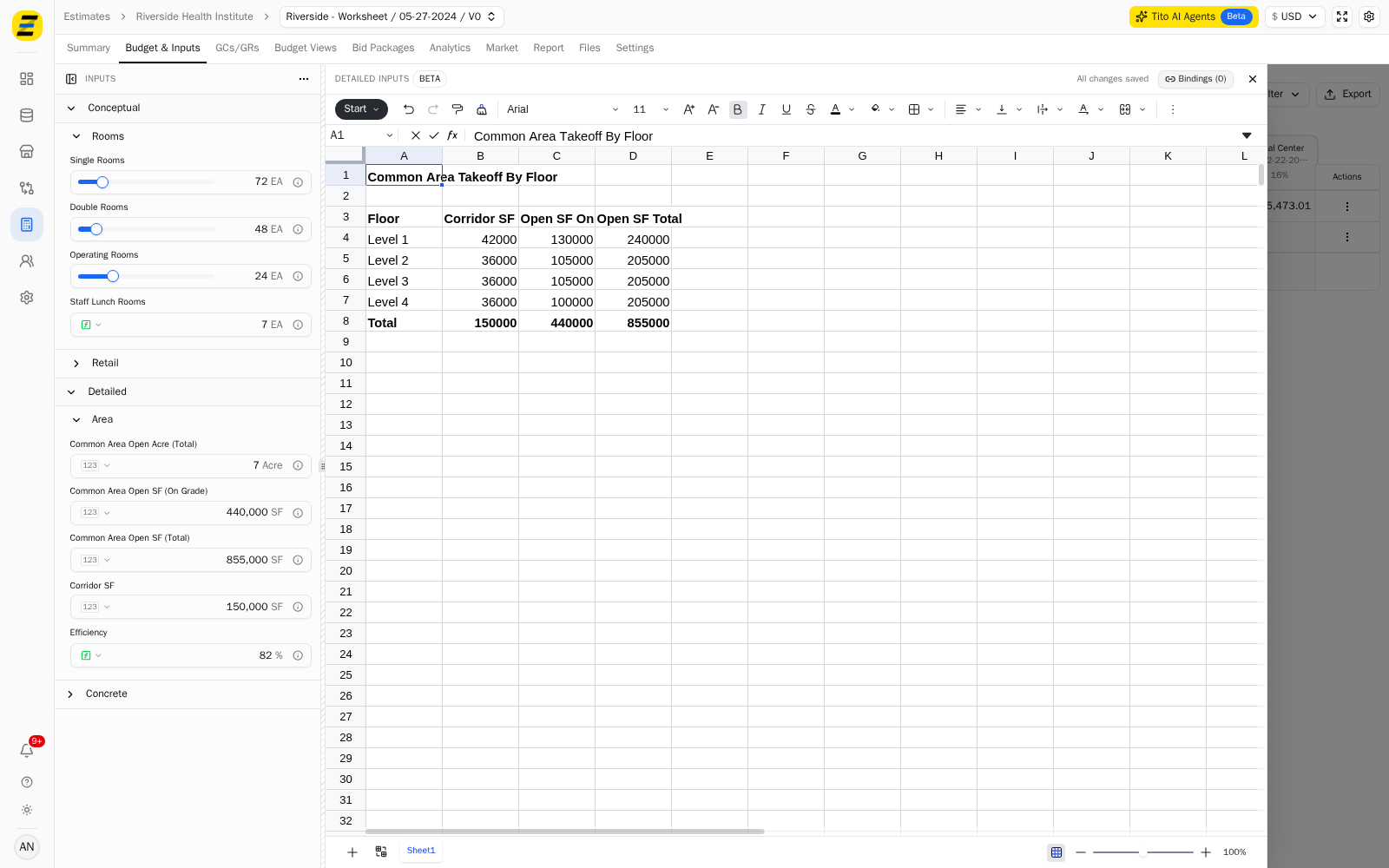
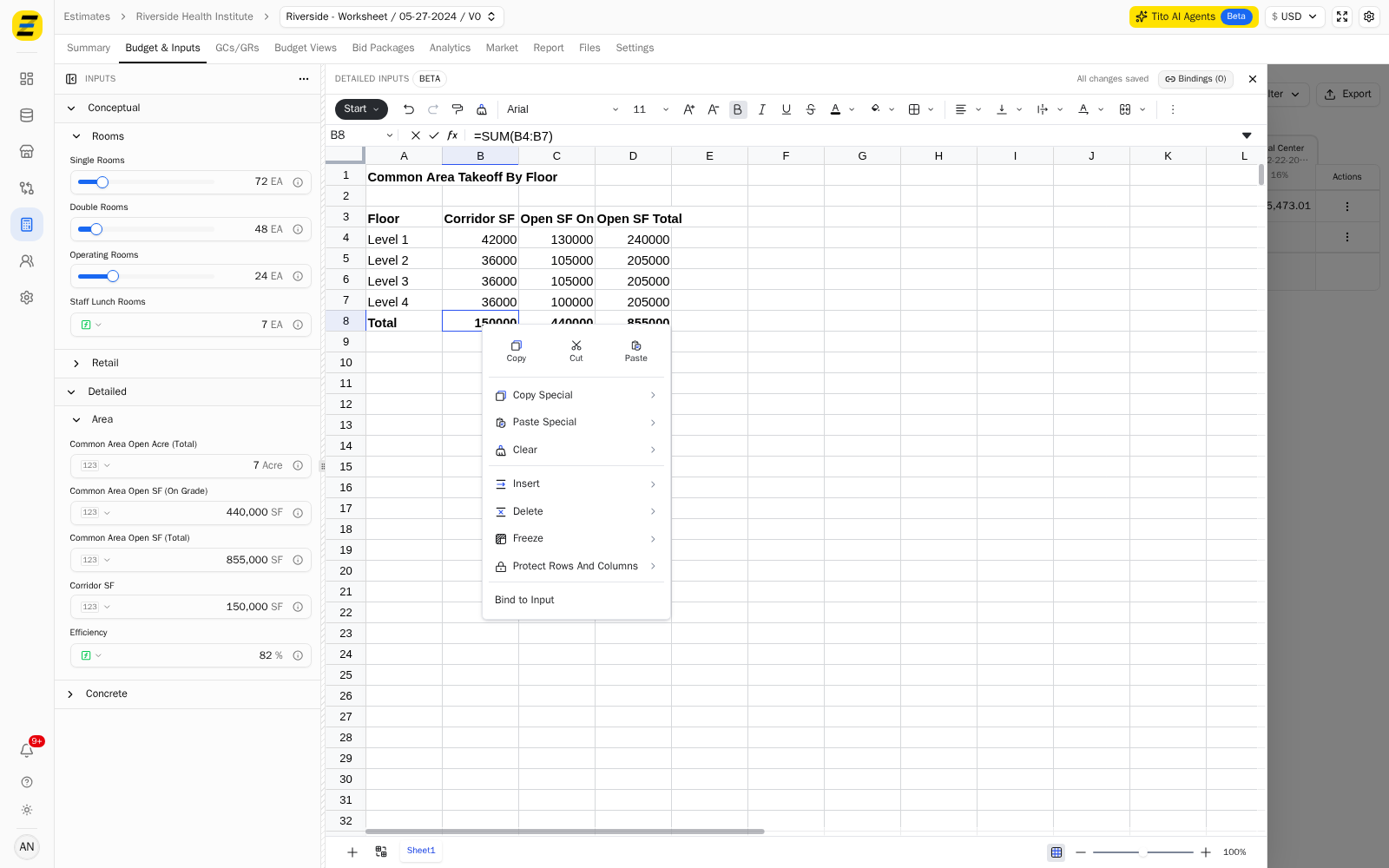
Right click the cell holding the value you want an input to take, and select "Bind to Input".
Select the input this cell will drive. The list is grouped the same way your input panel is, and the "Search inputs…" box at the top filters it.
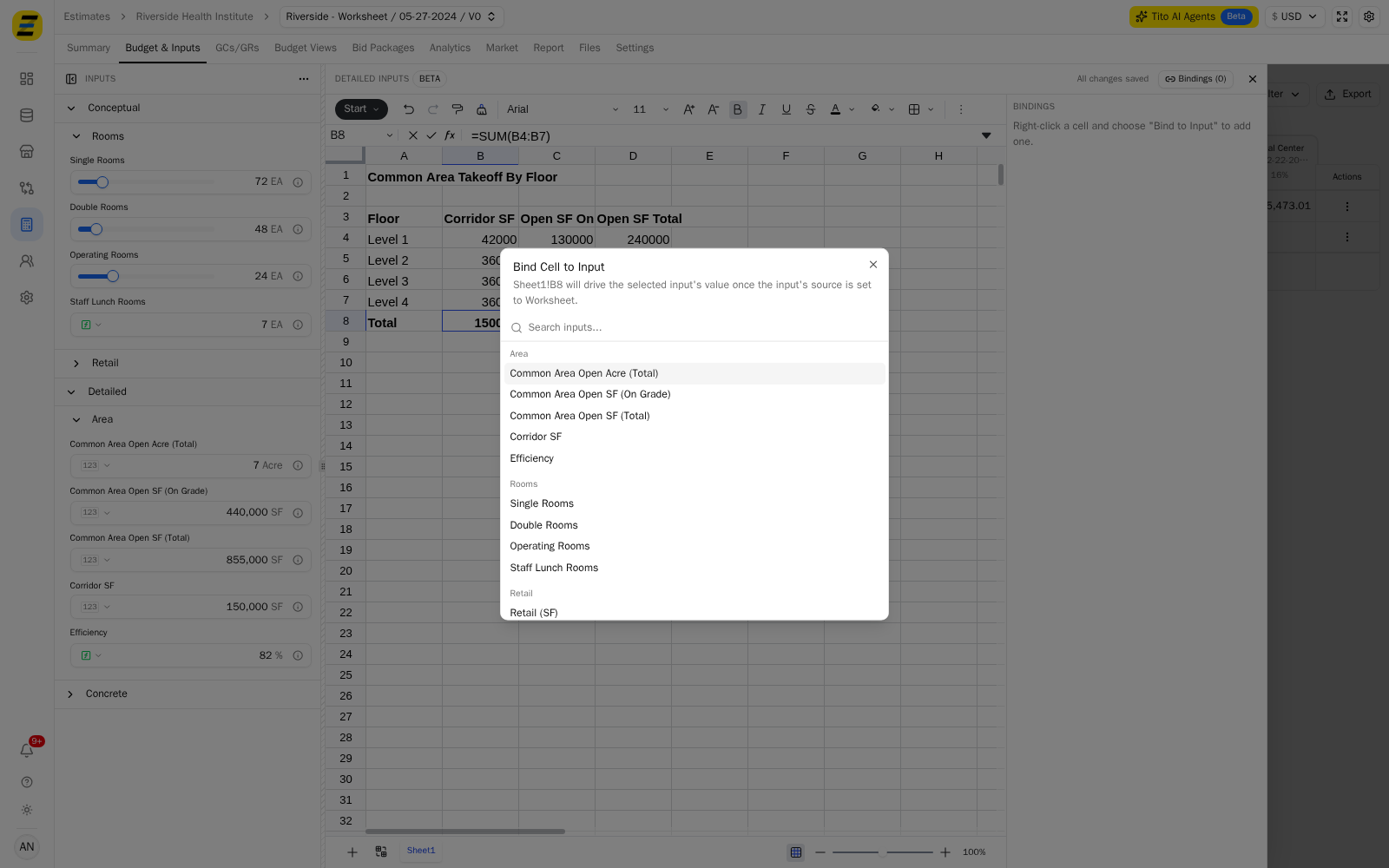
The input now reads its value from that cell, and a blue "spreadsheet" icon appears to the left of its value in the input panel. Repeat steps 4 and 5 for every cell you want to drive an input. NOTE, an input can only be driven by one cell — an input that is already bound is greyed out with a "Bound" badge and cannot be picked again.
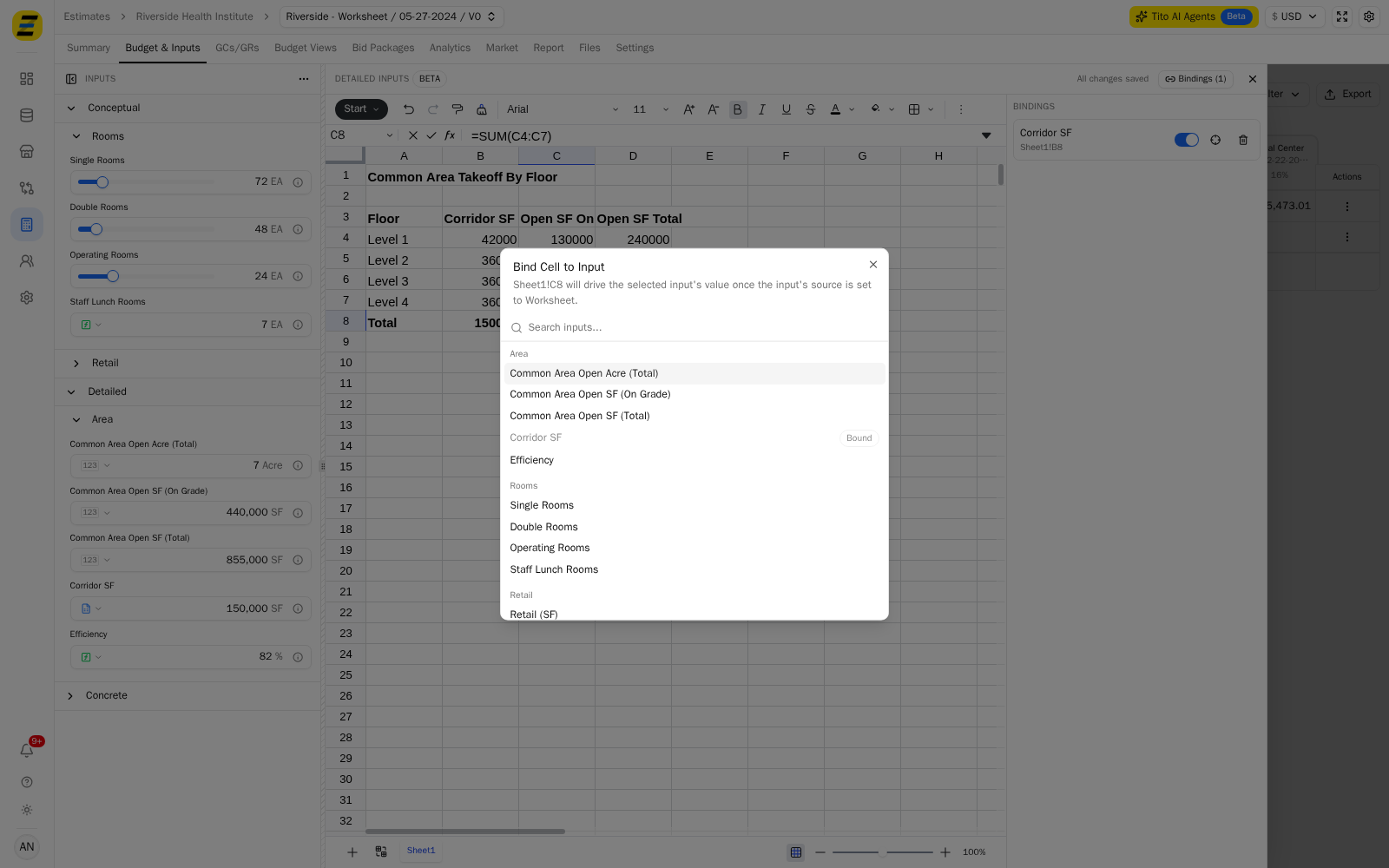
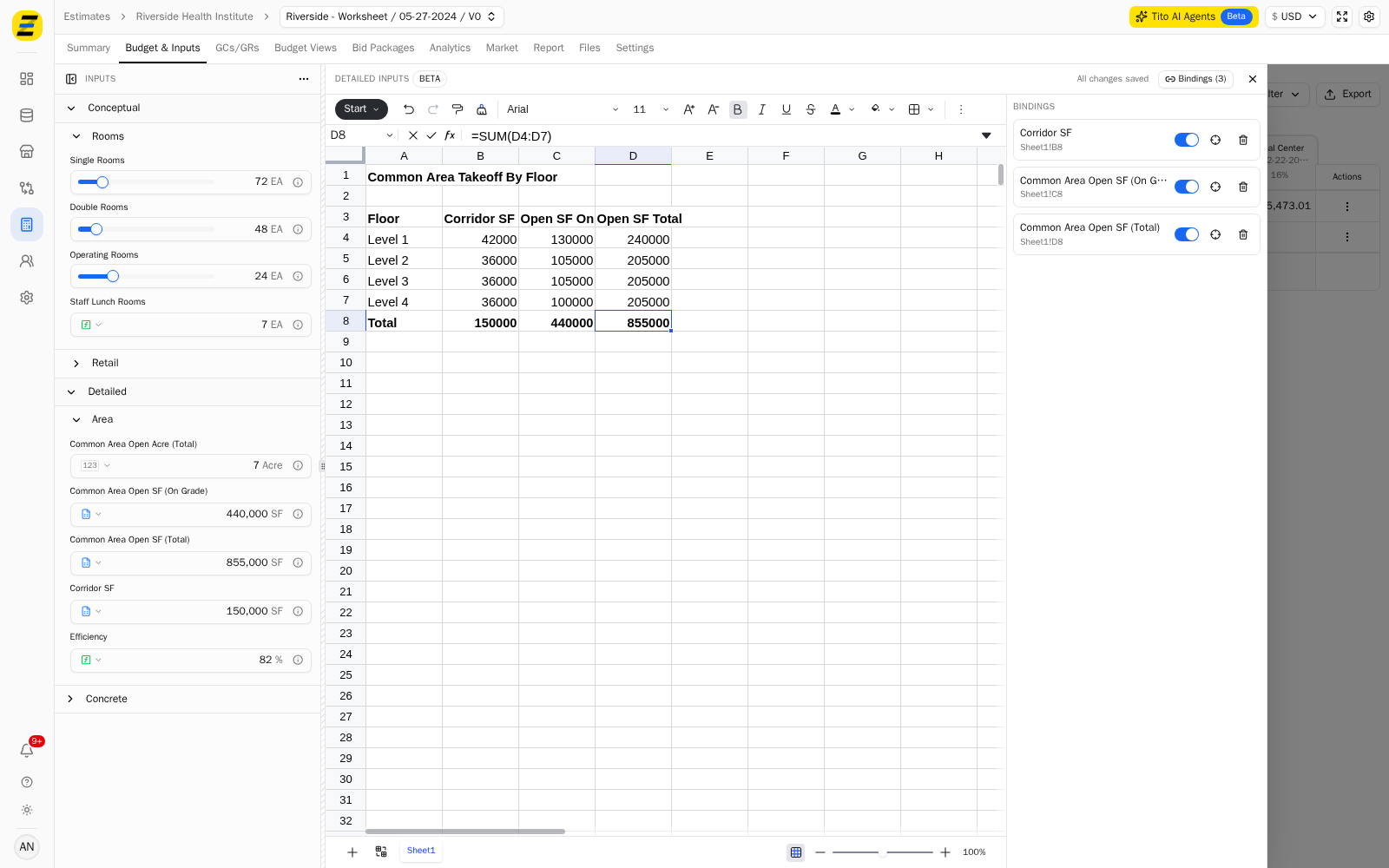
Press the "Bindings" button in the upper right of the drawer to see every binding on the sheet — the input, the cell it reads, a switch to turn the binding off, a "crosshair" to jump to that cell, and a "bin" to remove the binding.
Back in the input panel, press the blue "spreadsheet" icon on a driven input to see its "Value Source".
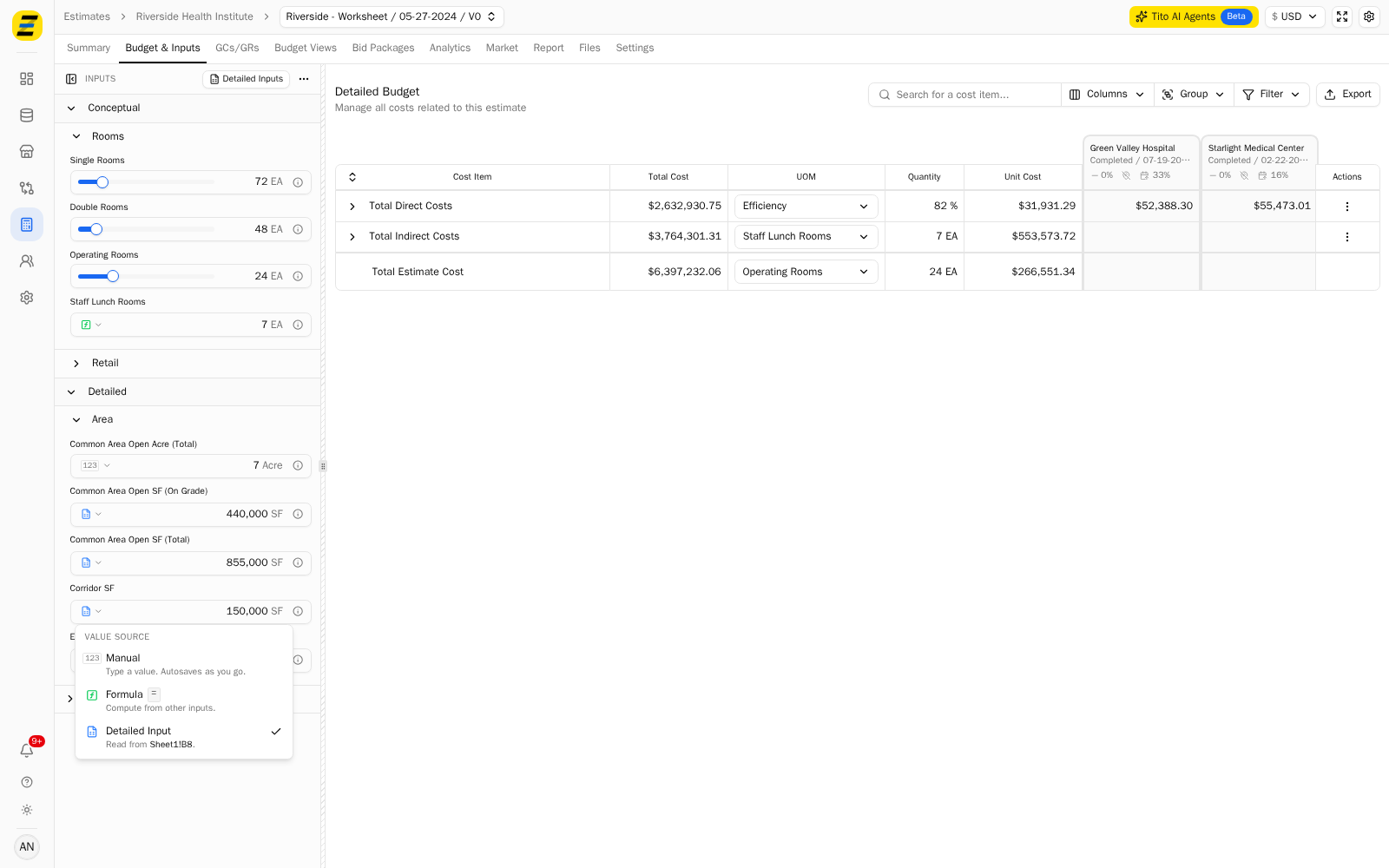
There are three, and they are exclusive — choosing one clears the others.
"Manual" — you type the value.
"Formula" — computed from other inputs.
"Detailed Input" — read from the bound cell. The cell is named here, for example "Read from Sheet1!B8".
To hand an input back to an estimator, select "Manual" (or "Formula") from that same menu. This does NOT delete the binding — it goes dormant, the row dims in the "Bindings" panel, and selecting "Detailed Input" again picks it back up. Use the "bin" in the "Bindings" panel only when you want the mapping gone for good.
Please note the following.
A bound cell has to read as a number. If it reads "#DIV/0!", text, or nothing at all, the input keeps its last good value rather than blanking out, and its row in the "Bindings" panel shows an amber warning explaining why the value has stopped moving.
Inputs shown as a slider cannot be driven this way. A slider is always driven by its slider, so it has no "Value Source" menu — binding a cell to one has no effect on the estimate. Bind cells to inputs that show a value box.
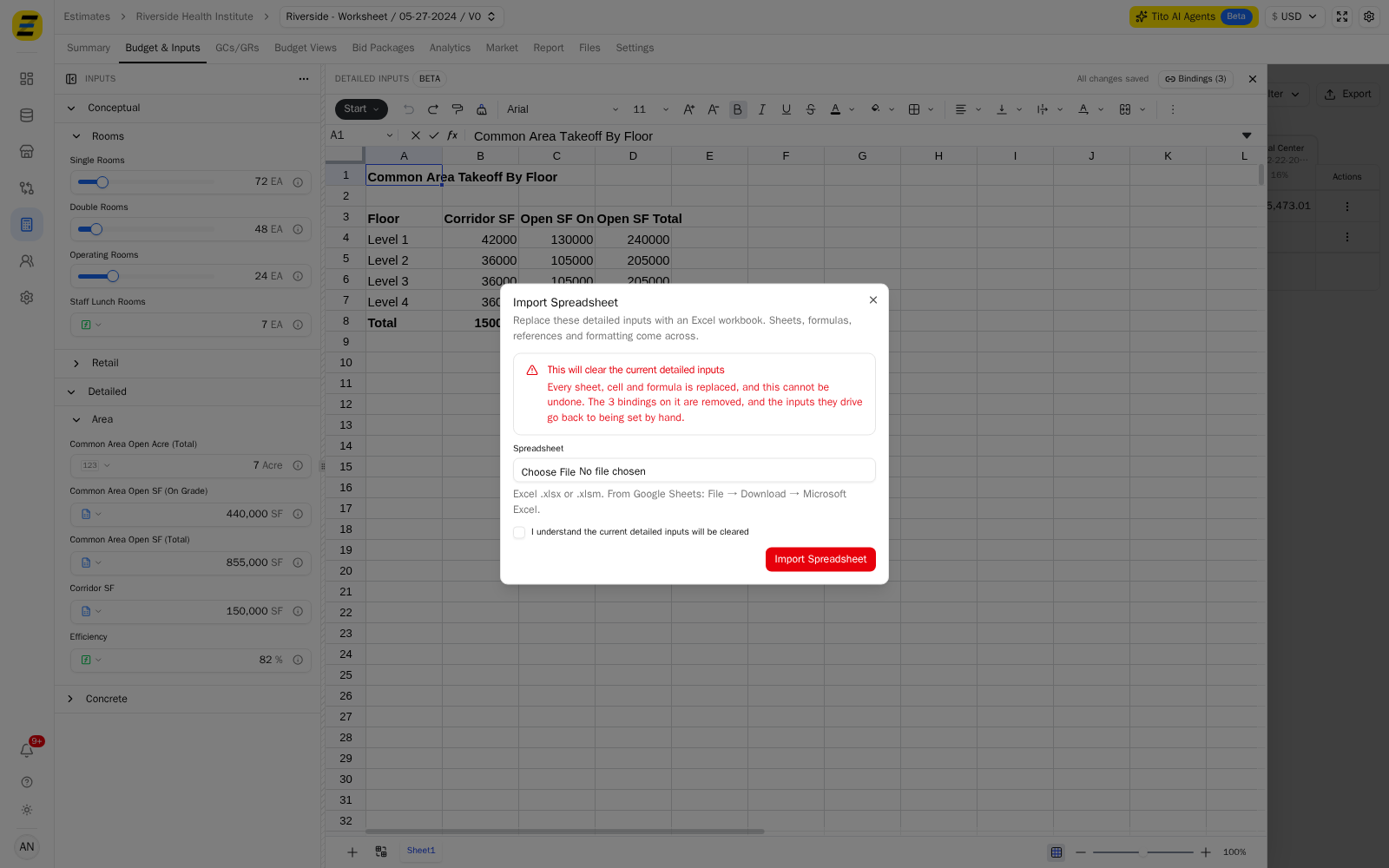
"Import" replaces everything. The "Import" button in the toolbar (under the "3 dot" overflow at the right end if the drawer is narrow) takes an Excel .xlsx or .xlsm file and replaces the whole worksheet — every sheet, cell and formula. It also removes every binding on it, and the inputs they drove go back to being set by hand. This cannot be undone, so the dialog asks you to tick a confirmation first. From Google Sheets, use File → Download → Microsoft Excel to get a file it will accept.
The same spreadsheet exists on a record template. Go to "Settings" → "Record Templates" → the desired template → the "Inputs" tab → the "Detailed Inputs" button in the upper right. It opens across the bottom of the page and works the same way, except the right click option reads "Bind to Programming Item". Estimates created from that template start with a copy of the sheet and its bindings, so setting the working out up once in the template saves doing it in every estimate.