
A note lets you record why a line in a "Budget View" is what it is — an assumption, an exclusion, an agreement with the owner — and keep it against that line where the next person will see it. The notes columns are hidden until you turn them on.
To show the "Notes" columns on a budget view follow these steps.
Navigate to the desired estimate and select the "Budget Views" tab.
Select the budget view you want to work in.
Press the "Columns" button above the table.
Under "Notes" turn on either or both of the two ways of showing them.
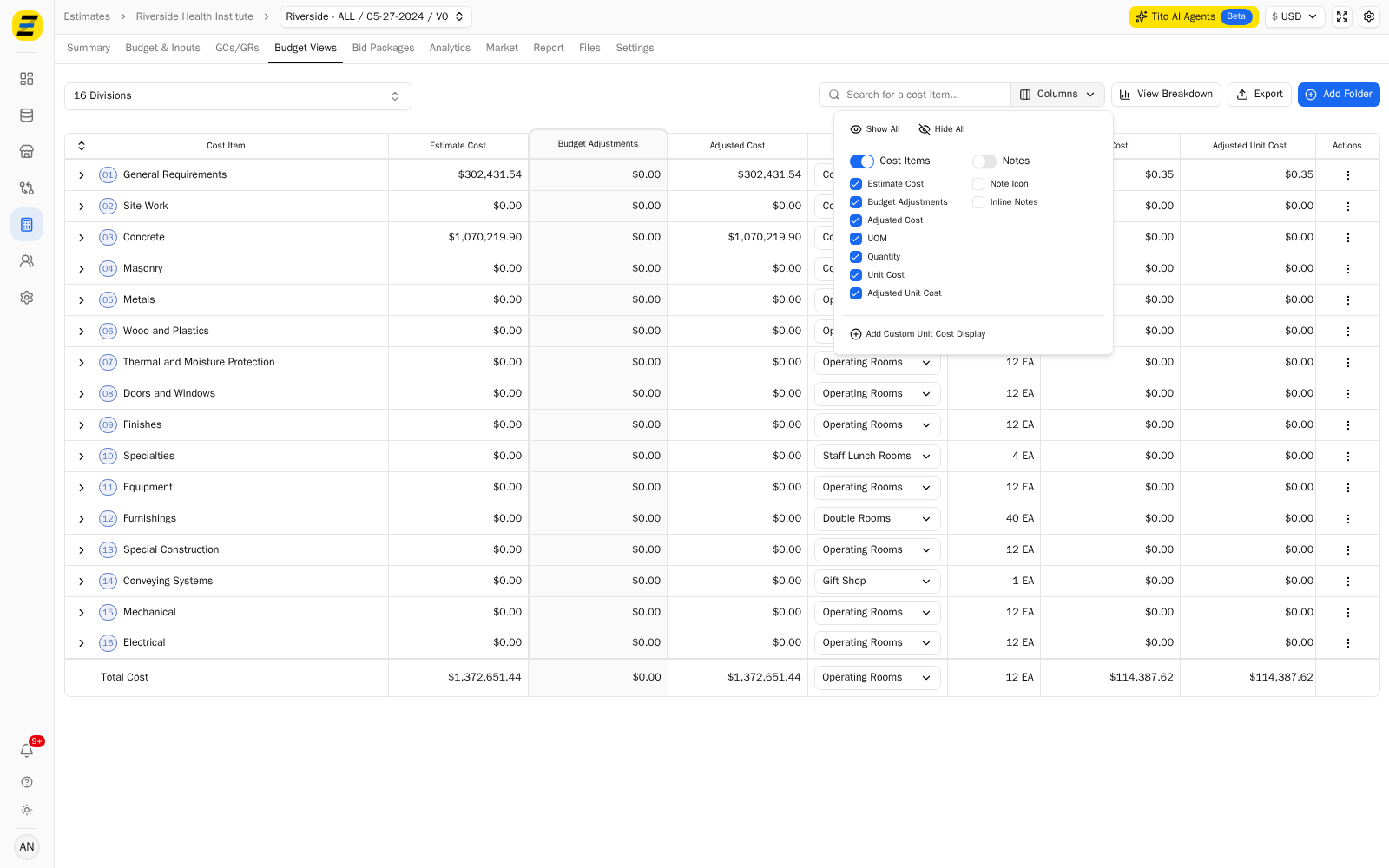
"Note Icon" — a narrow "Note" column showing a small icon on the lines that have a note, so the table stays compact.
"Inline Notes" — a wider "Notes" column showing the note itself, so you can read them all at a glance.
To add or edit a note follow these steps.
Expand the budget view down to the line you want, using the arrows or the expand button at the top left of the table. Notes belong to the individual lines, not the groupings above them.
Open the note for that line. There are three ways in, and all of them open the same box.
Press the note in the "Notes" column.
Press the icon in the "Note" column.
Press the "three dot" menu at the end of the row and select "View Notes".
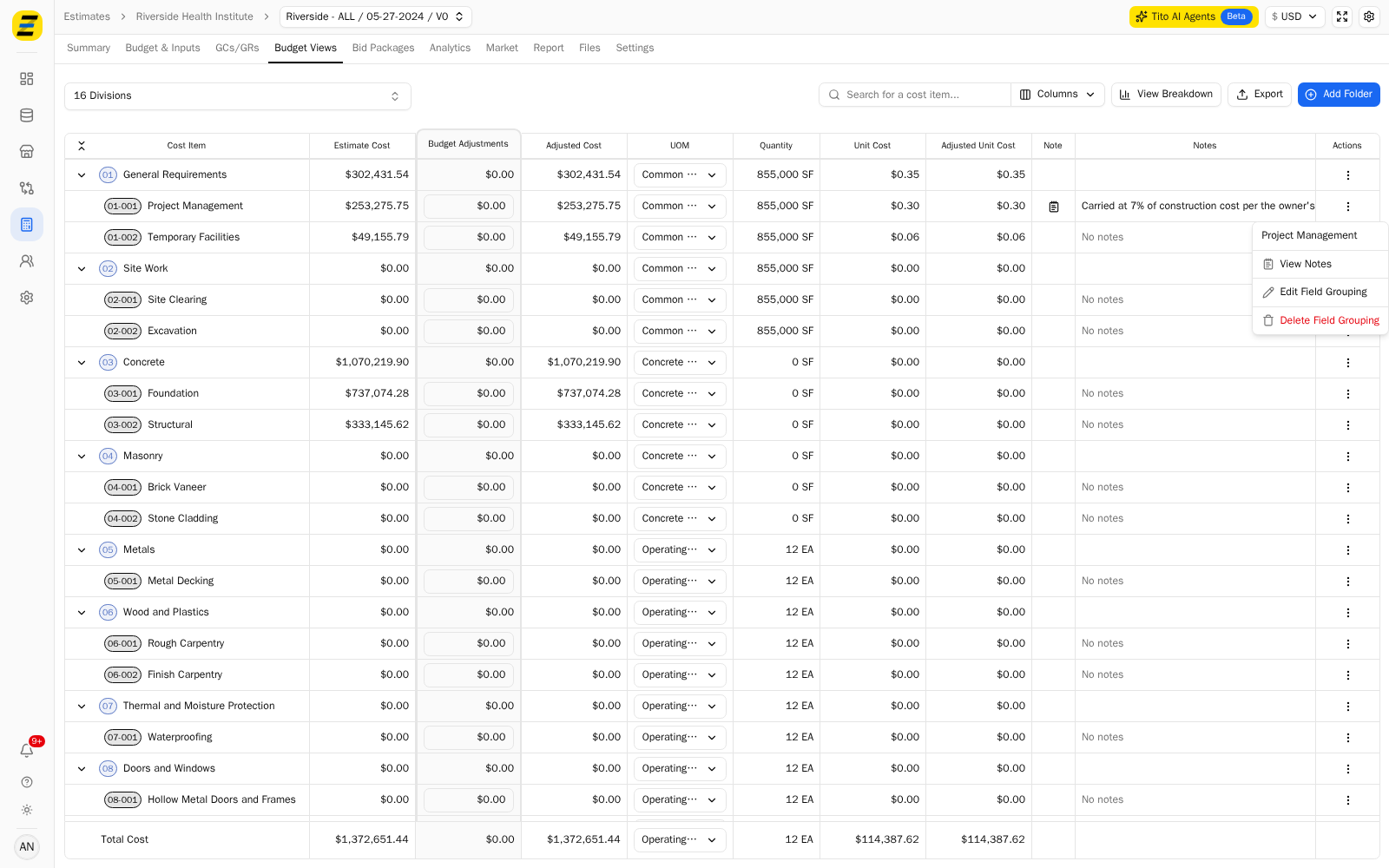
Type the note.
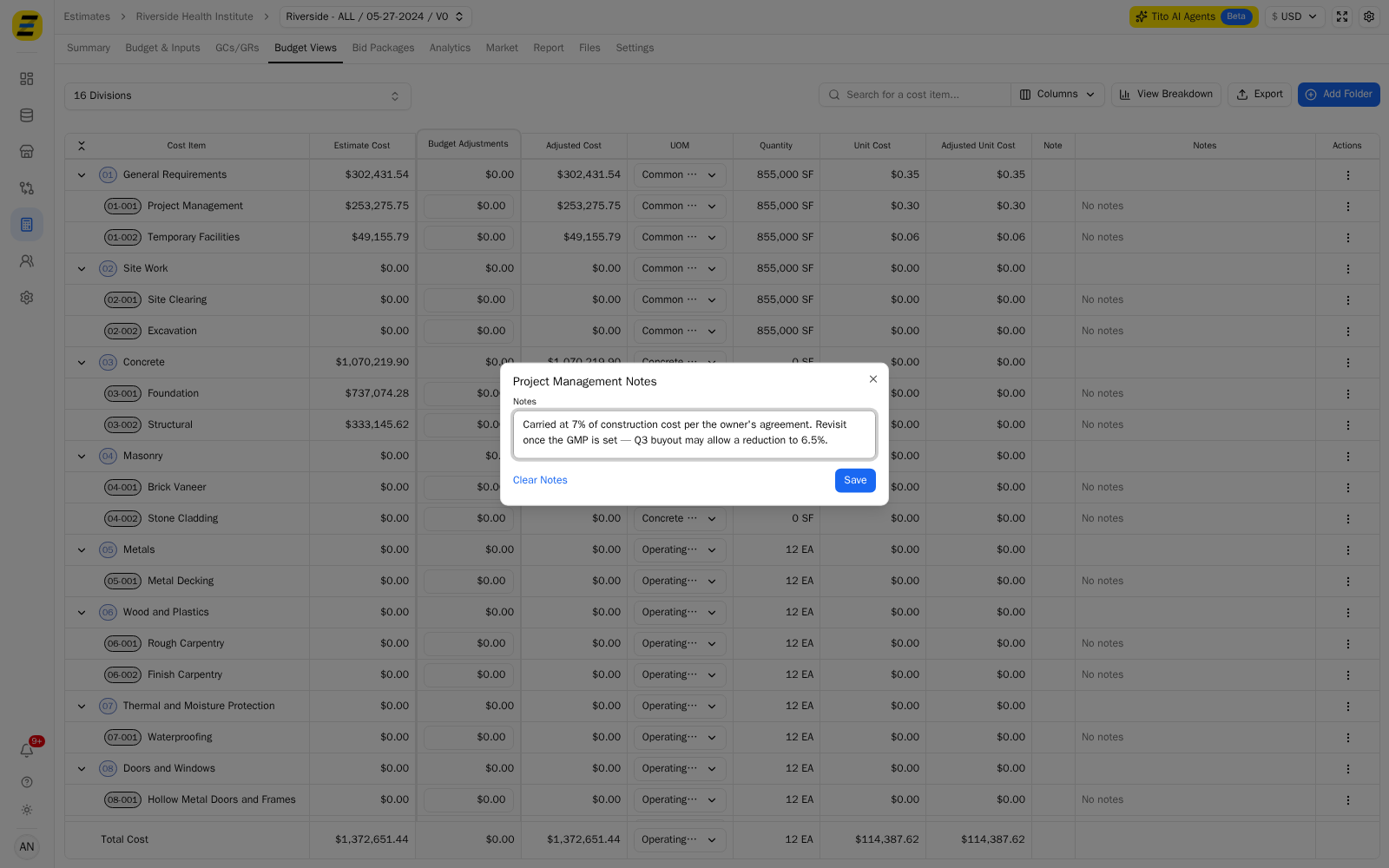
Press the blue "Save" button.
The note now shows against that line — as the text itself in the "Notes" column, and as an icon in the "Note" column. Lines without a note read "No notes".
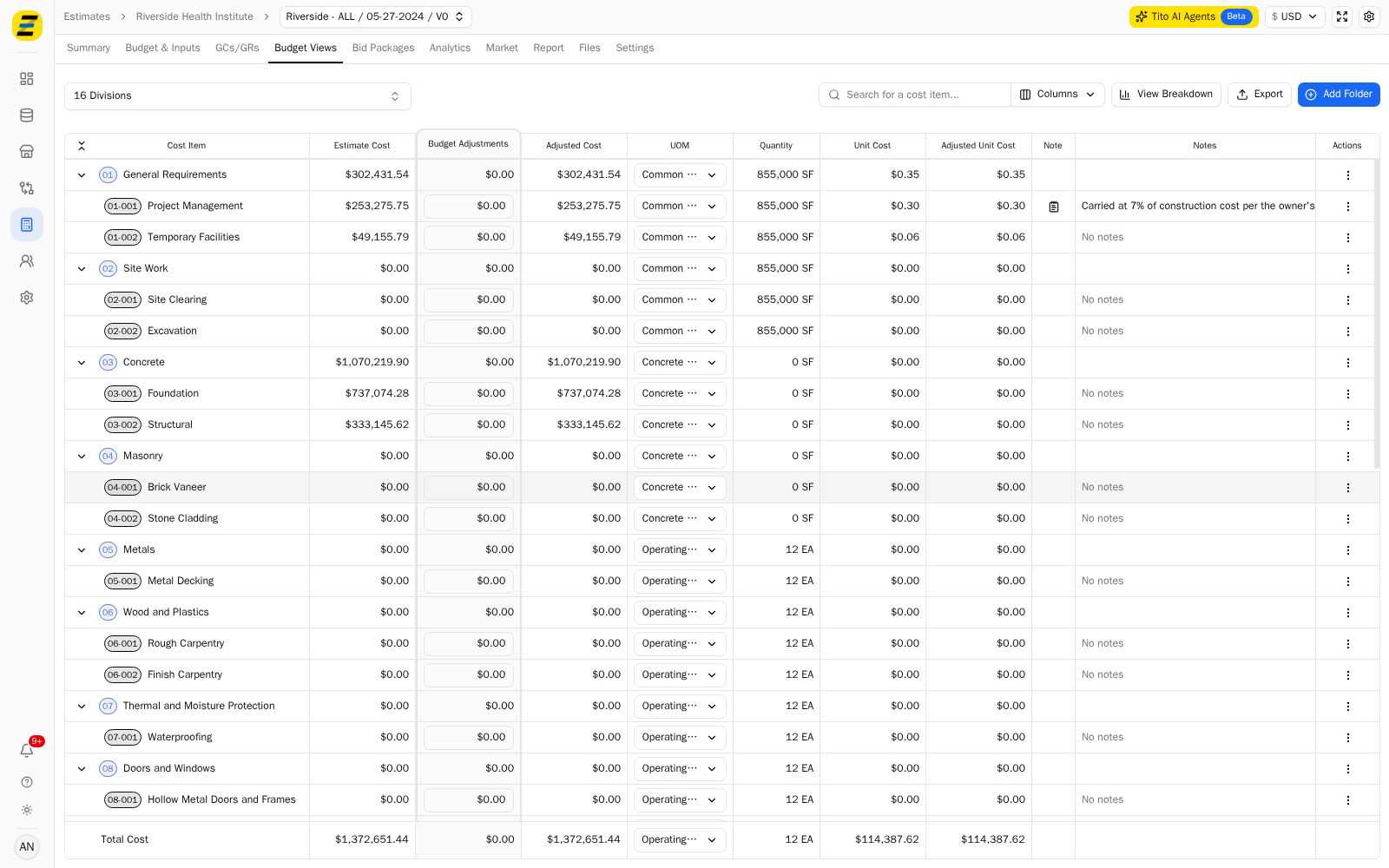
NOTE, if you cannot edit the estimate you can still open a note and read it, but the box will not let you change it.
Please note that a note belongs to one line of one budget view, so the same cost item in a different budget view does not carry it. If a note applies to the whole estimate rather than a single line, it is better recorded where the whole team will look for it.