
Tags let you describe the contacts in your "Directory" — what trade they work in, what region they cover, whether you have approved them — and then find the right ones quickly when you are adding a bid. You group tags together, so "Trade" might hold "Concrete", "Electrical" and "Plumbing", and each contact takes one value from each group.
To set up and use tags follow these steps.
Navigate to "Settings" and select "Directory".
Select the "Tags" tab. Any tag groups you already have are listed here.
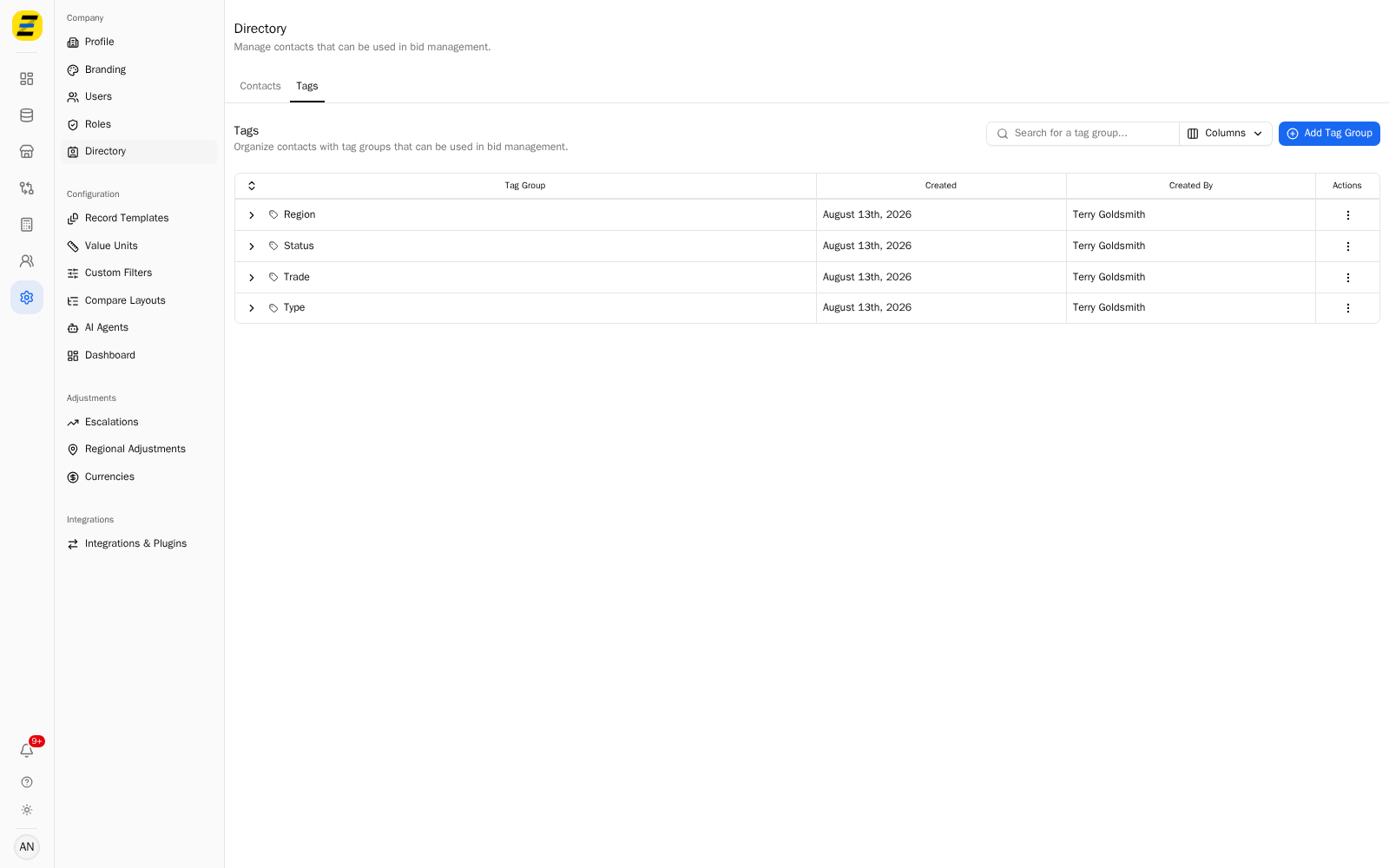
Press "Add Tag Group" to create a new one.
Enter a "Group Label" — the category name, such as "Trade" or "Region".
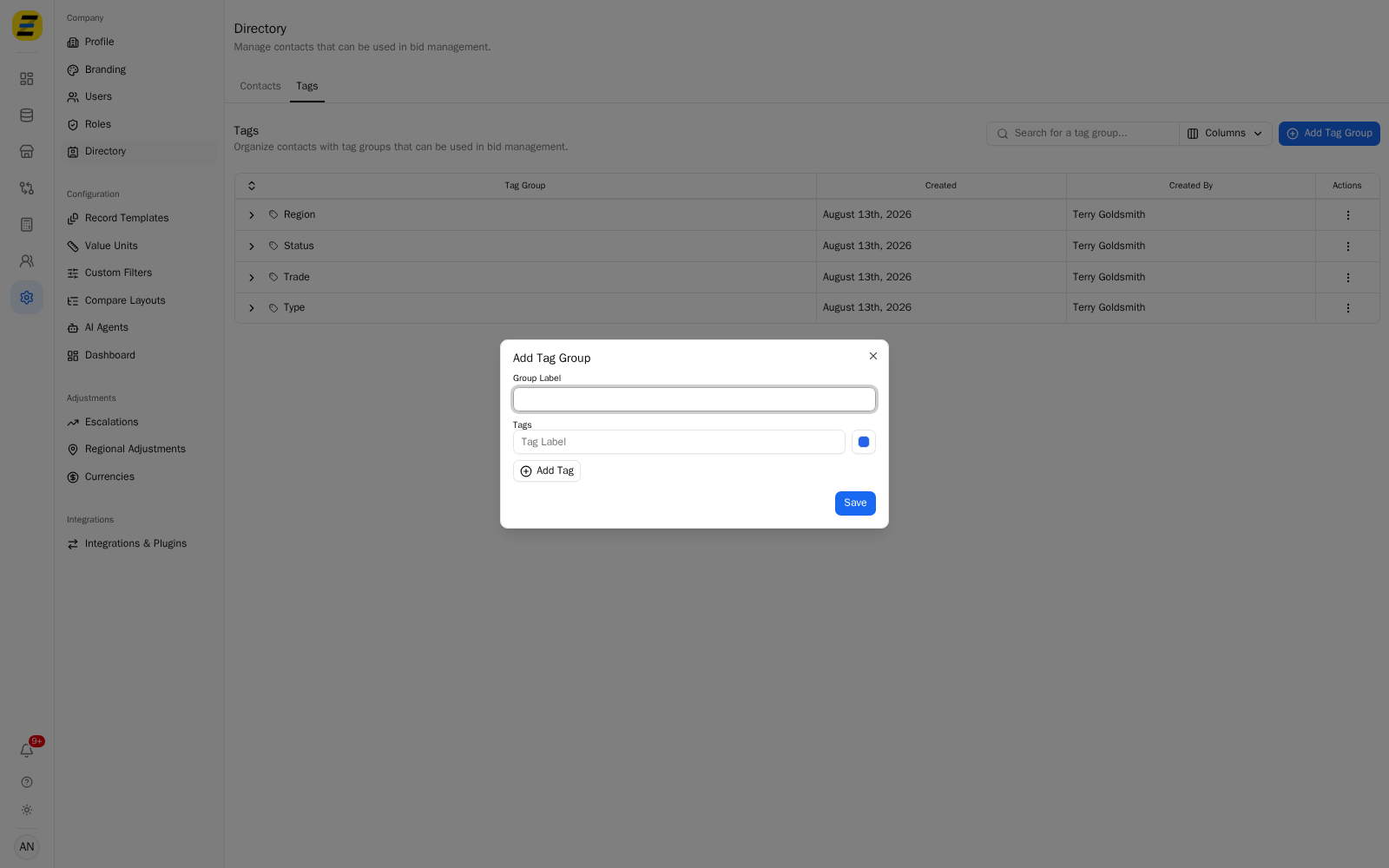
Under "Tags", enter a "Label" for the first value and pick a "Color" for it.
Press "Add Tag" for each further value in the group, then press "Save".
Return to the "Contacts" tab. Each tag group now has its own column in the table.
Press the cell where a contact meets a tag group and choose a value from the list.
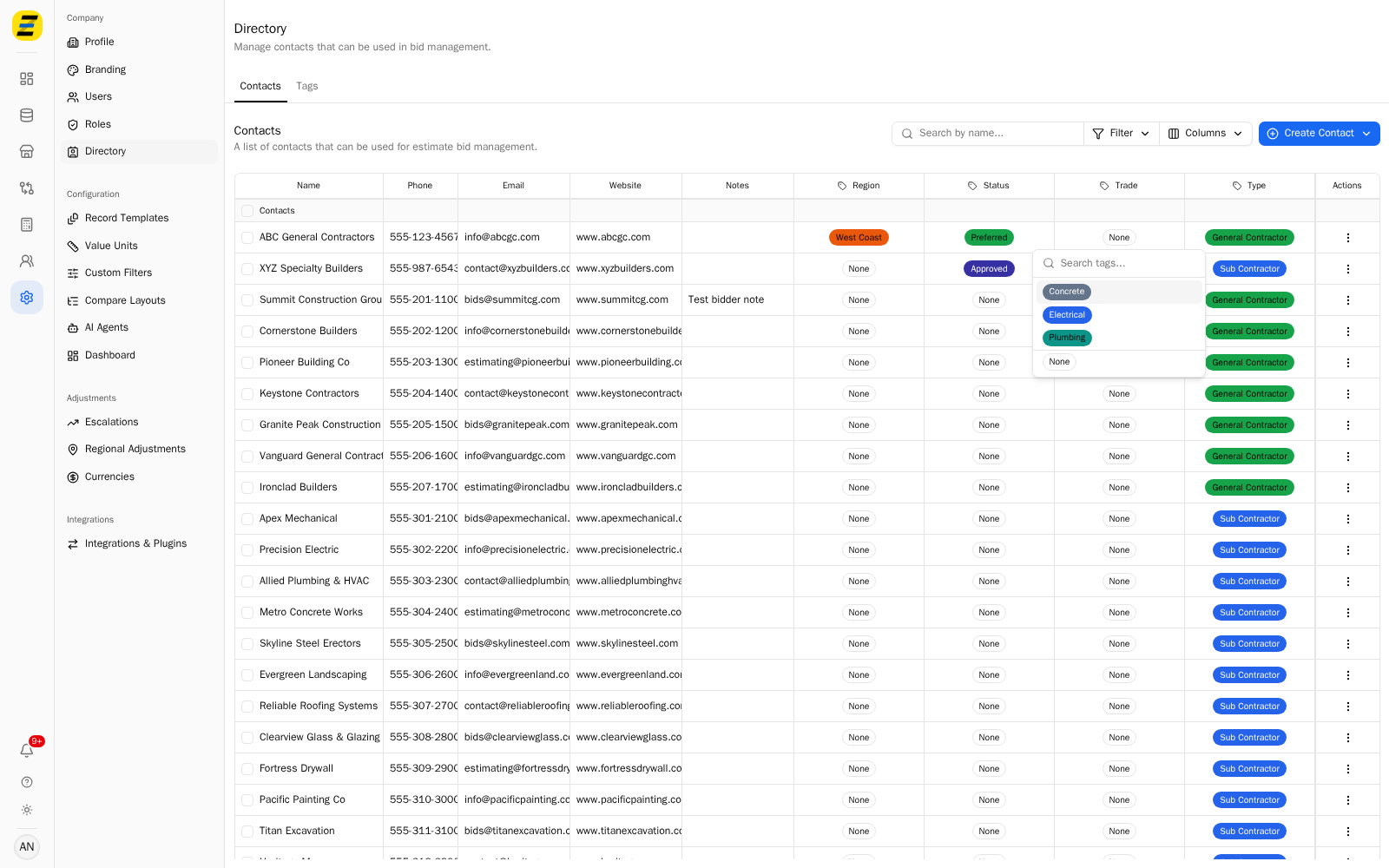
The change saves as you make it — there is no separate edit screen.
When you add a bid to a bid package, press "Select bidder" and use the filters above the list — one per tag group — to narrow it to the contacts you want.
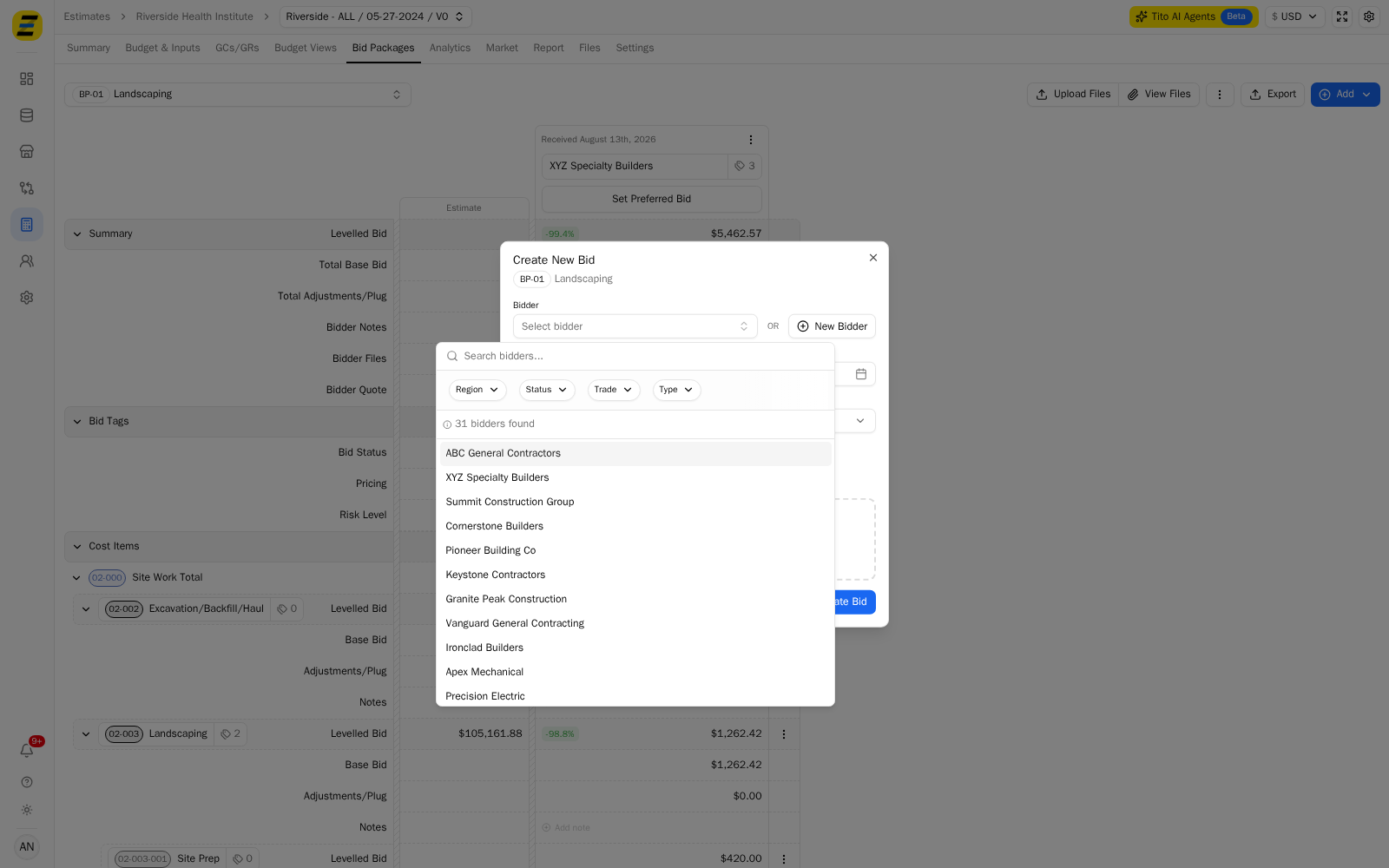
The count above the list tells you how many contacts match.
NOTE, a contact takes one value per group, not several. That is what makes the filters predictable — picking "Electrical" under "Trade" asks a question each contact has exactly one answer to.
NOTE, tag groups also become columns in the CSV import template, so a bulk import can set them. Values must already exist in the group — the import will not create new ones.
NOTE, changing a tag group's values affects every contact using them. Use "Edit" on the group rather than deleting and rebuilding it, so contacts keep their tags.
We recommend setting up your groups before importing a contact list, not after. The import template is generated from your tag groups, so creating them first means your spreadsheet has the right columns from the start and every contact arrives already sorted.