
The "Comps" section on an estimate's Summary page shows the projects your estimate is based on — now with a map, so you can see where those projects are before you lean on their costs. A comp two states away carries different weight to one across the street.
To use the "Comps" map follow these steps.
Navigate to the desired estimate and select the "Summary" tab. The "Comps" card sits in the middle column, headed "This estimate is based on the following projects".
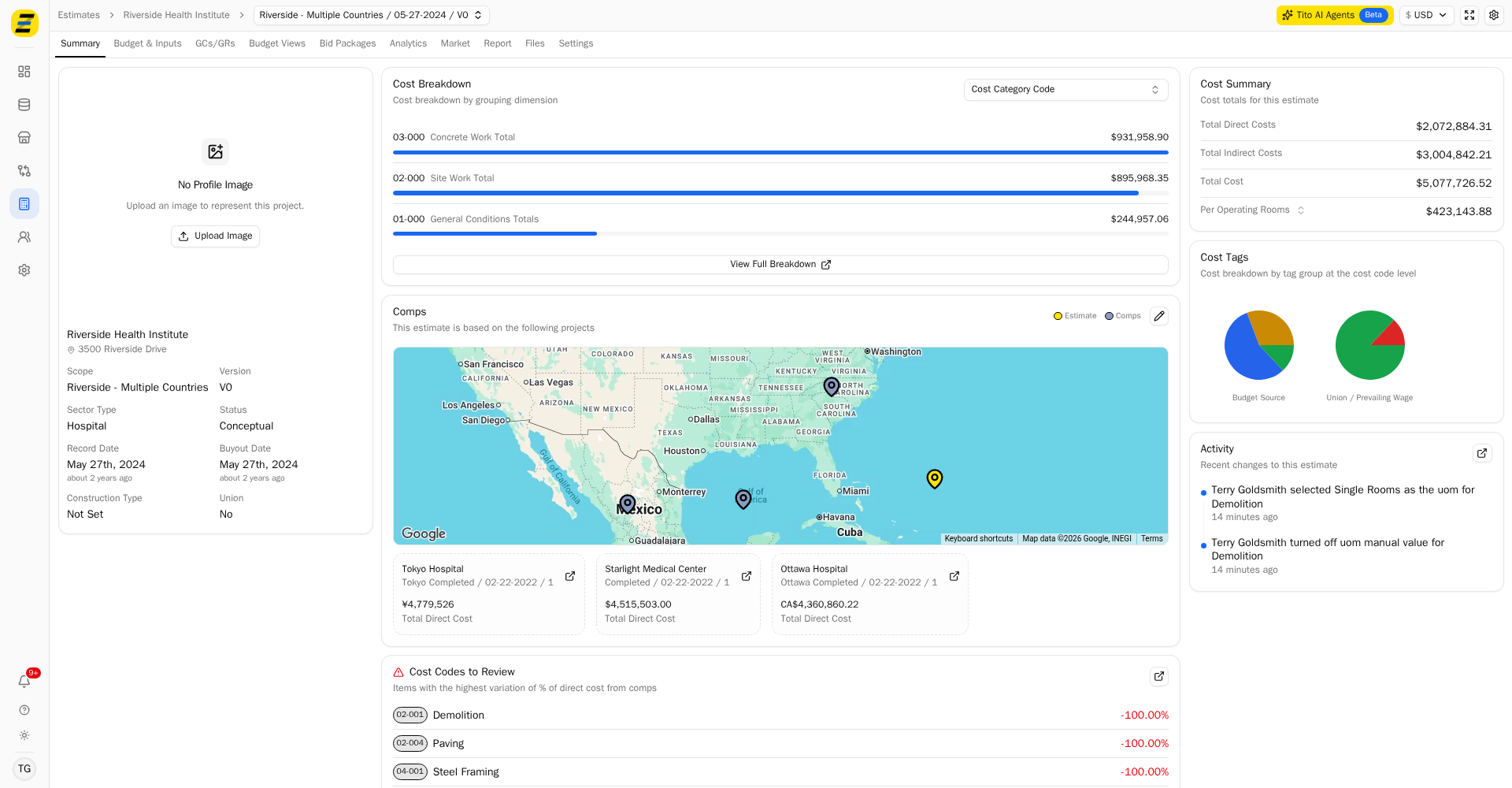
The map plots this estimate and every comp behind it. The legend in the top right corner tells you which is which — your estimate is the yellow pin, the comps are the blue-grey ones.
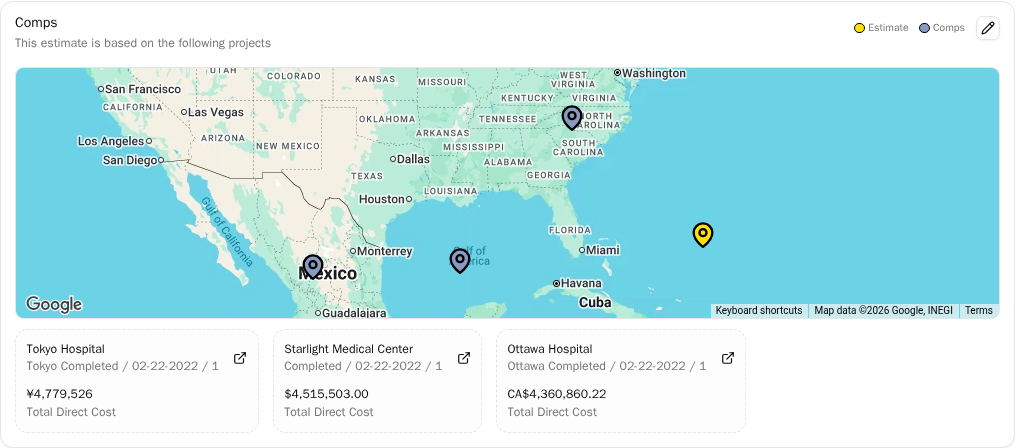
Hover any pin to see the project's name and address.
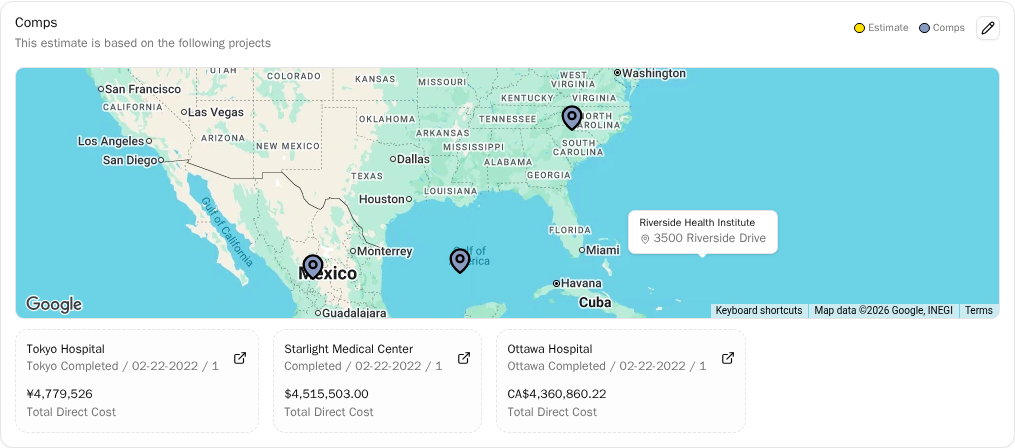
Beneath the map, each comp has a card carrying its project name, its record and buyout date, and its "Total Direct Cost" in that project's own currency. I.e.. "Tokyo Hospital" at ¥4,779,526 and "Ottawa Hospital" at CA$4,360,860.22.
Press the arrows at either end of the row to scroll through the cards when there are more comps than fit, or scroll the row with your mouse wheel.
Press the icon in the corner of a comp's card to open that project record in a new tab, where you can see the full record behind the comp.
Press the "pencil" button in the top right corner of the card to manage which comps this estimate uses — it takes you to the estimate's comp settings.
NOTE, the map draws itself around whatever it has to show: it zooms to fit every pin, so an estimate whose comps are spread across the country opens zoomed out, and one with local comps opens close in. A comp with no address on its project record has no pin, though its card still appears beneath the map.
Please note that an estimate with no comps shows "No Comps — This estimate does not have any comps" in place of the map, and the "pencil" button is where you add some.