---
title: "How To Use The \"Procore\" Integration"
description: "How To Use The \"Procore\" Integration"
---
[Skip to content](https://lp.zebel.io/help/how-to-use-the-procore-integration#main-content)
English
Show submenu for translations

Open main navigation
Close main navigation
- English
Show submenu for translations
How can we help you?
- There are no suggestions because the search field is empty.
1. [Zebel Help Center](https://lp.zebel.io/help?hsLang=en)
2. [Integrations](https://lp.zebel.io/help/integrations?hsLang=en)
# How To Use The "Procore" Integration
You will have the ability to import cost data from your "**Procore**" project budgets once the "**Procore**" integration is successfully installed. See "**How To Install The "Procore" Integration**" article. In order to import cost data from your "**Procore**" project budget, follow these steps.
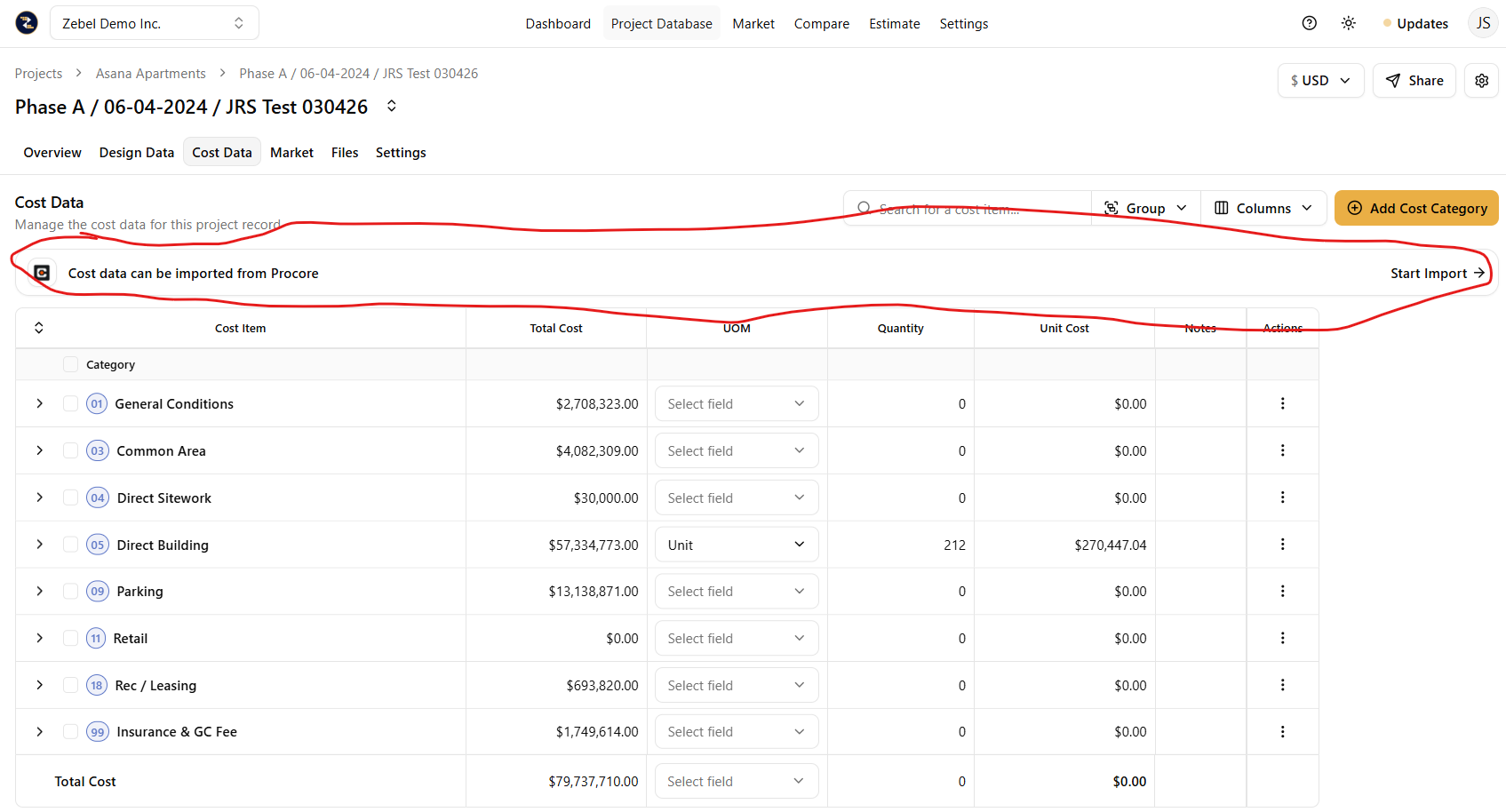
1\. Select desired project from the Project Database page.
2\. Select the desired historical project record. Historical project records are identified with an "**H**" on the left.
3\. Click on the "**Cost Data**" tab.
4\. Navigate to the "**Cost data can be imported from Procore**" area and click the "**Start Import**" button.
5\. Select the desired "**Procore Company**" from the first dropdown.
6\. Select the desired "**Procore Project**" from the second dropdown.
7\. Select the desired Procore "**Budget View**" from the third dropdown.
8\. Select the desired "**Budget Column**" which you wish to import from the fourth dropdown.
9\. You will have (3) options for "**Cost Code Mapping**". These are "**Auto Match Cost Codes**", "**Previous Mapping Template**" & "**None**".
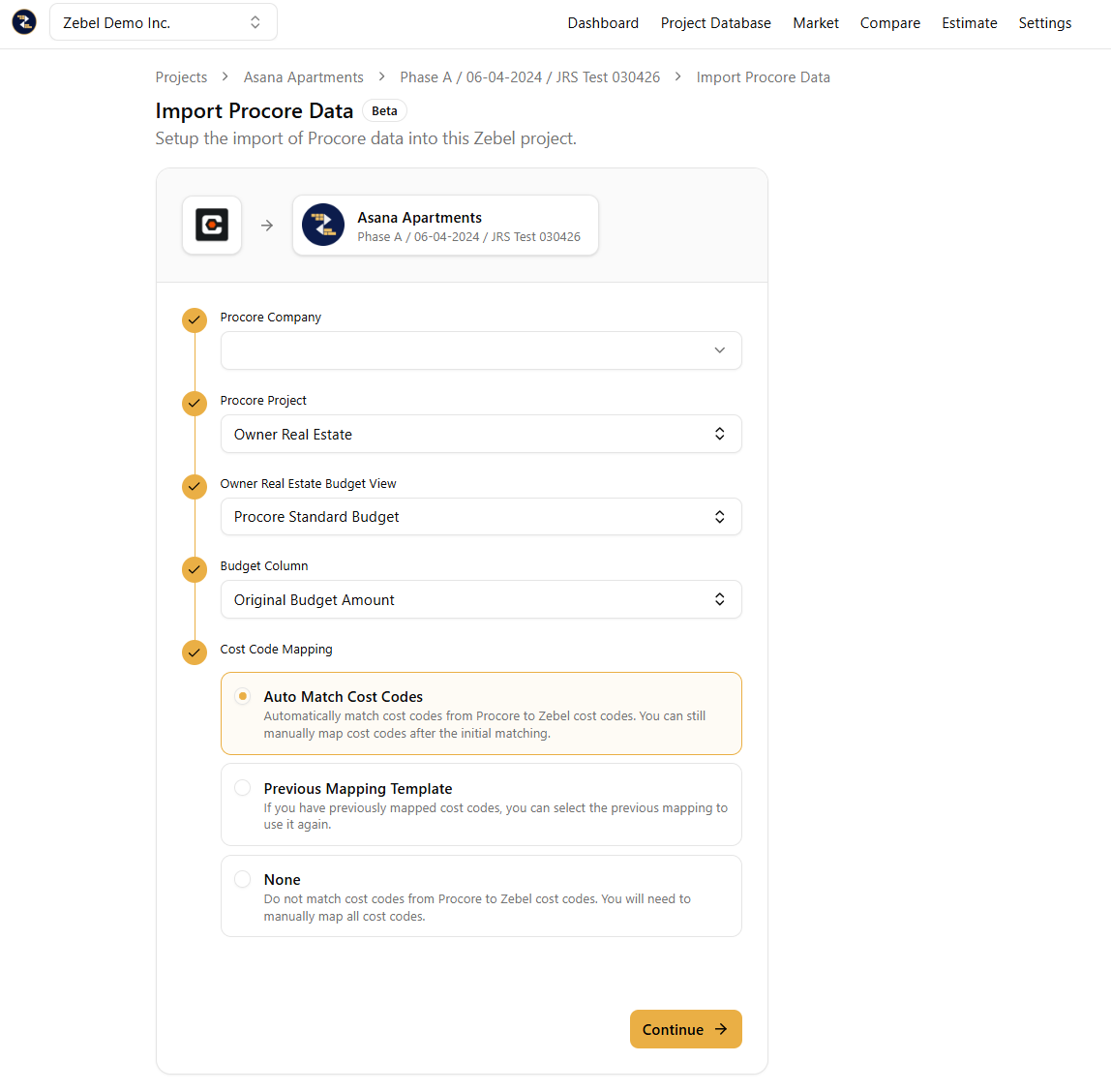
10\. If your Procore cost codes match those in your Zebel template, the "**Auto Match Cost Codes**" is the best option. Select "**None**" if the Procore cost codes will not match those in your Zebel template. The "**Previous Mapping Template**" option can be used if you have previously mapped cost data and saved the mapping template.
11\. Once a "**Cost Code Mapping**" option has been selected, click on the yellow "**Continue**" button located on the lower right corner.
12\. You will see all of the "**Procore Cost Codes**" listed vertically to the left, "**Mapped Zebel Cost Codes**" listed vertically in the middle column and your Zebel template cost codes listed vertically on the right column.
13\. You have the ability to "**drag & drop**" cost codes from your Zebel template listed on the right column to the corresponding "**Procore Cost Codes**" listed vertically on the left.
14\. In addition to the "**drag & drop**", you can also click the "**+**" button in the "**Mapped Zebel Cost Codes**" column in order to map cost codes from your Zebel template to the corresponding "**Procore Cost Codes**" to the left. The "**+**" button allows you to select multiple cost codes from your Zebel template at a time.
15\. You also have the ability to allocate a specific % of your Zebel template cost codes to their corresponding "**Procore Cost Codes**". By default all allocations are set to 100%. However, for example, you can allocate 50% of the same Zebel template cost code to one Procore Cost Code and the remaining 50% to another Procore Cost Code if you wish to do so.
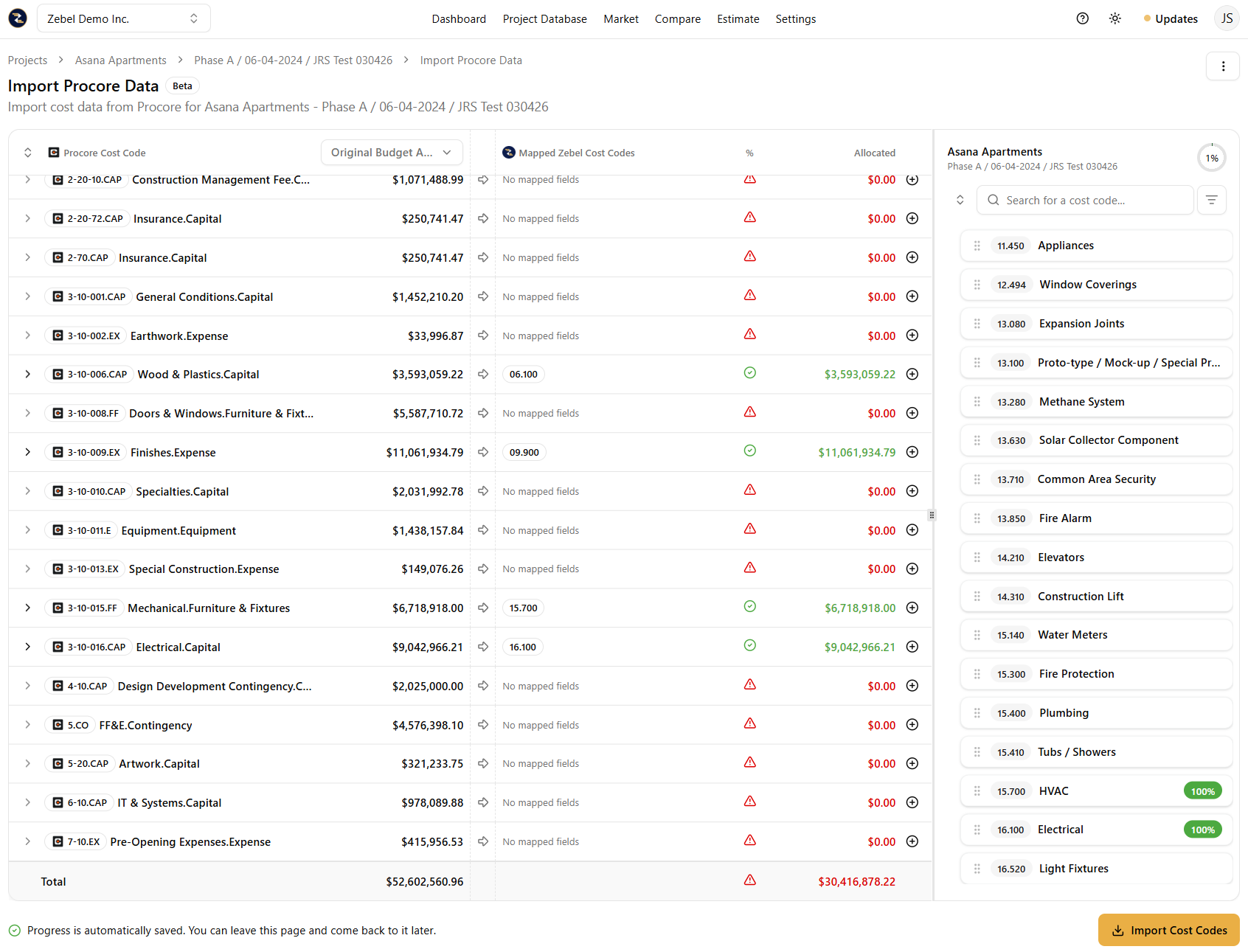
16\. Once you have finished mapping cost codes from your Zebel template to their corresponding "**Procore Cost Codes**" click the yellow "**Import Cost Codes**" button located in the lower right corner.
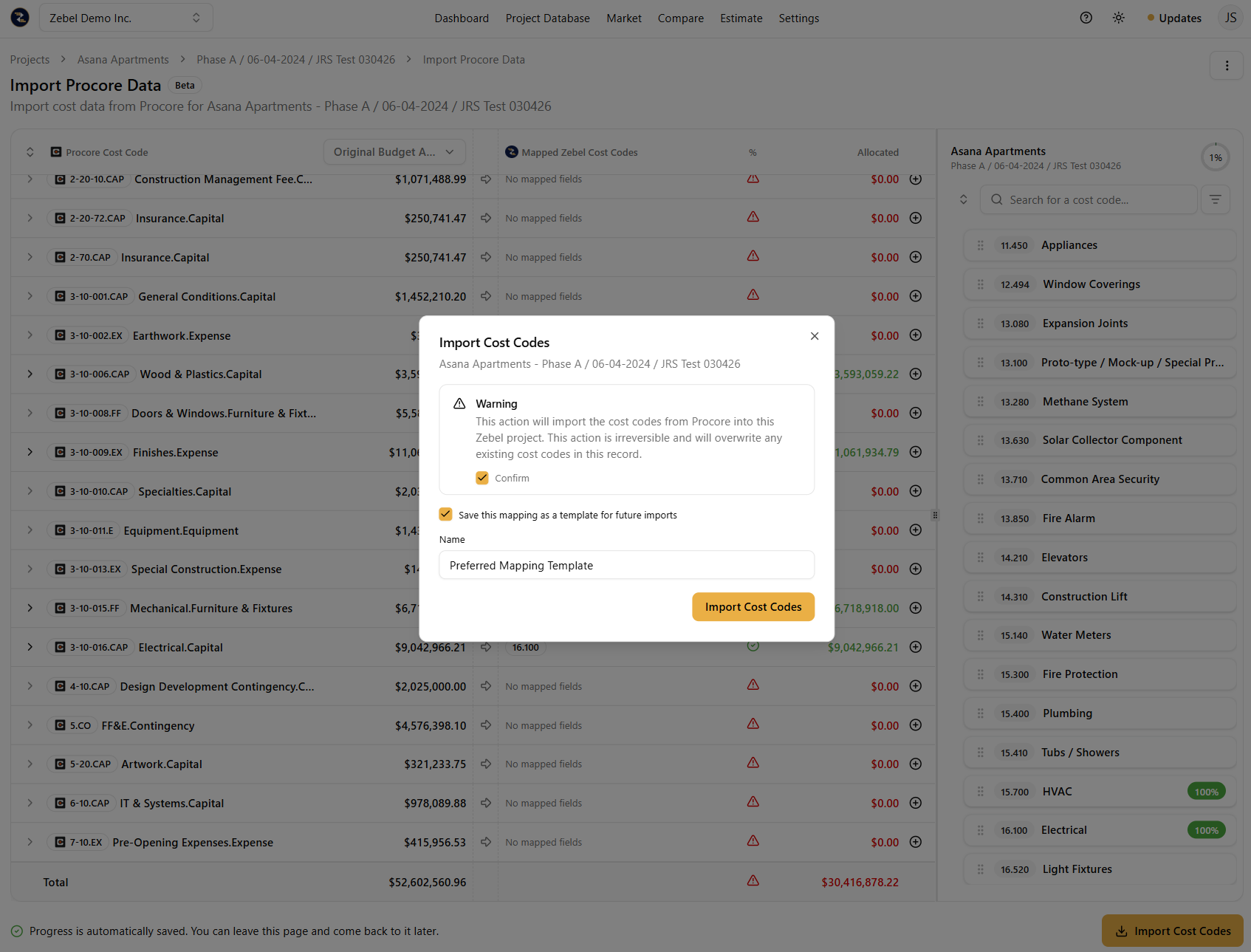
17\. A pop up "**Import Cost Codes**" box will appear. "**Confirm**" you are going to import cost codes from Procore into the Zebel historical project. Here you will also have the option to "**Save this mappping as a template for future imports**".
18\. If you check the "**Save this mapping as a template for future imports**" you will be asked to give this template a "**Name**".
19\. Click the yellow "**Import Cost Codes**".
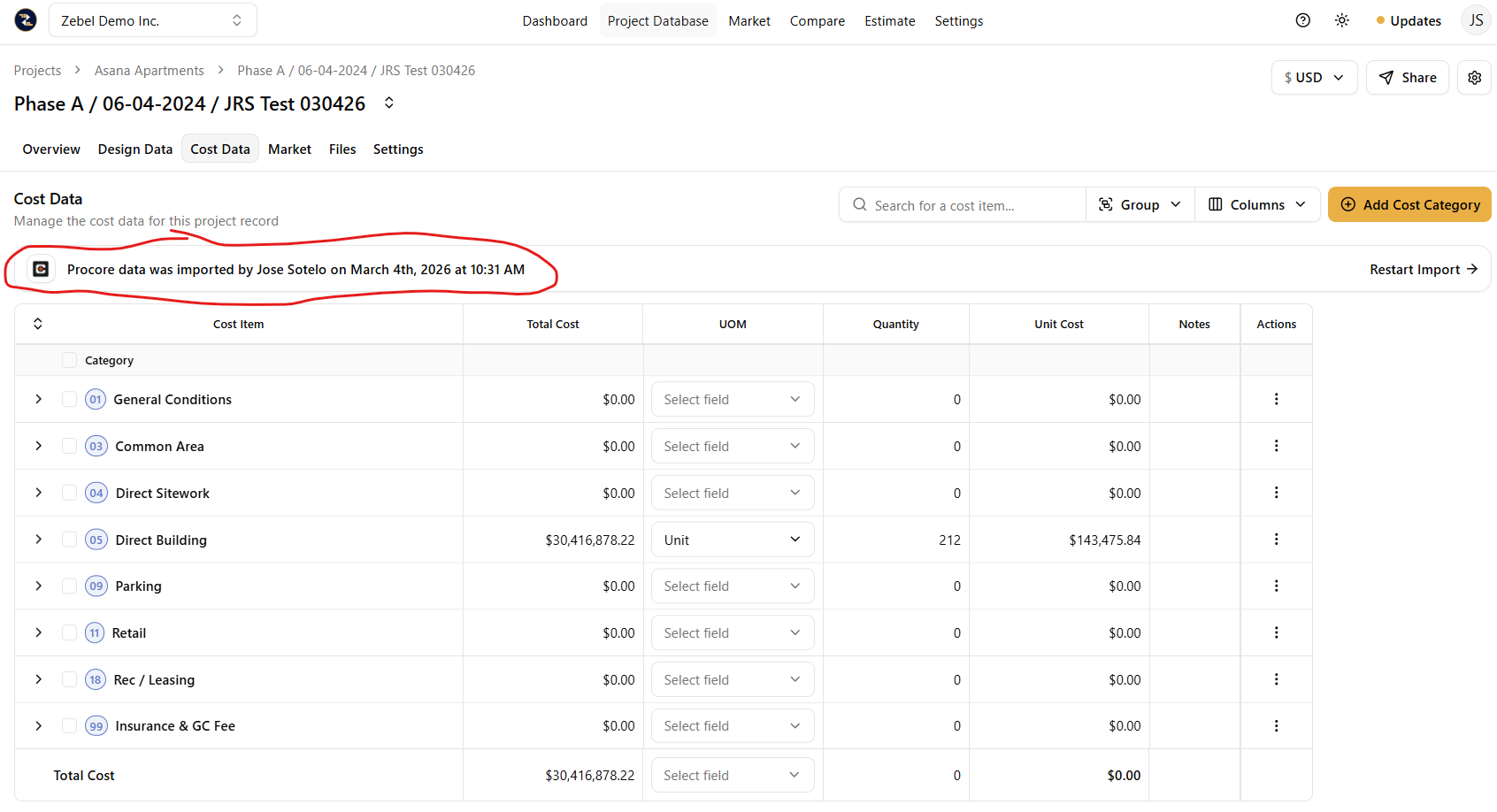
20\. Your "**Procore**" budget cost data is now mapped and imported to the Zebel historical project record. You will see the following message "**Procore Data was imported by User Name on Month Day, Year at Time**". Ie. the system automatically logs the user who imported the data and sets a date and time stamp as well.
Please note that when you save a mapping template for future imports, the effort required to map cost codes from your Zebel template to their corresponding "**Procore Cost Codes**" will be greatly reduced. We highly recommend saving mapping templates for future imports.
- [Getting Started](https://lp.zebel.io/help/getting-started?hsLang=en)
- [Database](https://lp.zebel.io/help/database?hsLang=en)
- [Comparison Reports](https://lp.zebel.io/help/comparison-reports?hsLang=en)
- [Estimates](https://lp.zebel.io/help/estimates?hsLang=en)
- [Account Settings](https://lp.zebel.io/help/account-settings?hsLang=en)
- [Bid Management](https://lp.zebel.io/help/bid-management?hsLang=en)
- [Integrations](https://lp.zebel.io/help/integrations?hsLang=en)
- [Estimate Reports](https://lp.zebel.io/help/estimate-reports?hsLang=en)
- [Value Engineering](https://lp.zebel.io/help/value-engineering?hsLang=en)
[](https://zebel.io/)
[mailto:email@email.com](mailto:email@email.com)
Copyright © 2026, Zebel Group Inc