
You will have the ability to import cost data from your "Procore" project budgets once the "Procore" integration is successfully installed. See "How To Install The "Procore" Integration" article. In order to import cost data from your "Procore" project budget, follow these steps.
1. Select desired project from the Project Database page.
2. Select the desired historical project record. Historical project records are identified with an "H" on the left.
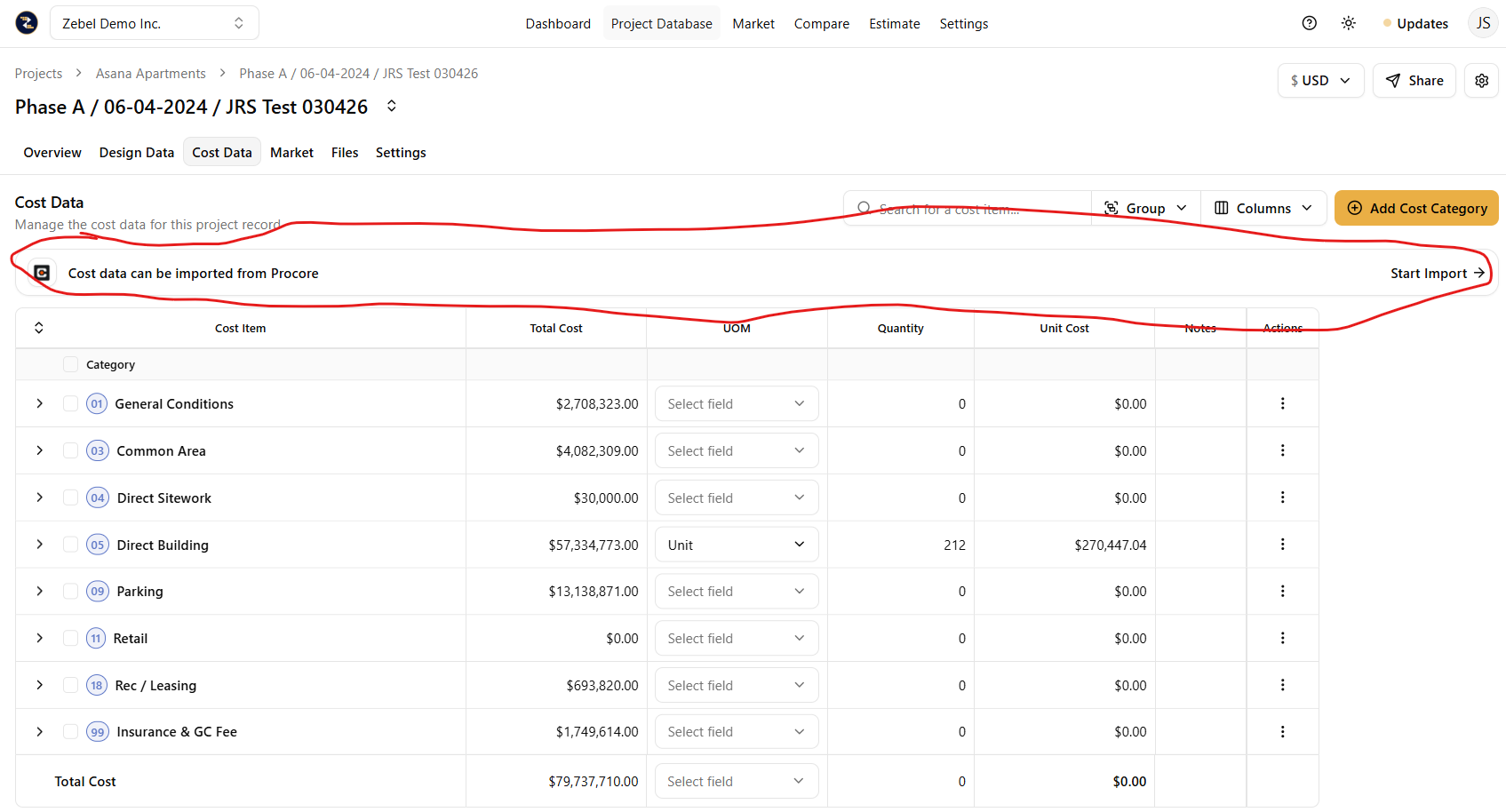
3. Click on the "Cost Data" tab.
4. Navigate to the "Cost data can be imported from Procore" area and click the "Start Import" button.
5. Select the desired "Procore Company" from the first dropdown.
6. Select the desired "Procore Project" from the second dropdown.
7. Select the desired Procore "Budget View" from the third dropdown.
8. Select the desired "Budget Column" which you wish to import from the fourth dropdown.
9. You will have (3) options for "Cost Code Mapping". These are "Auto Match Cost Codes", "Previous Mapping Template" & "None".
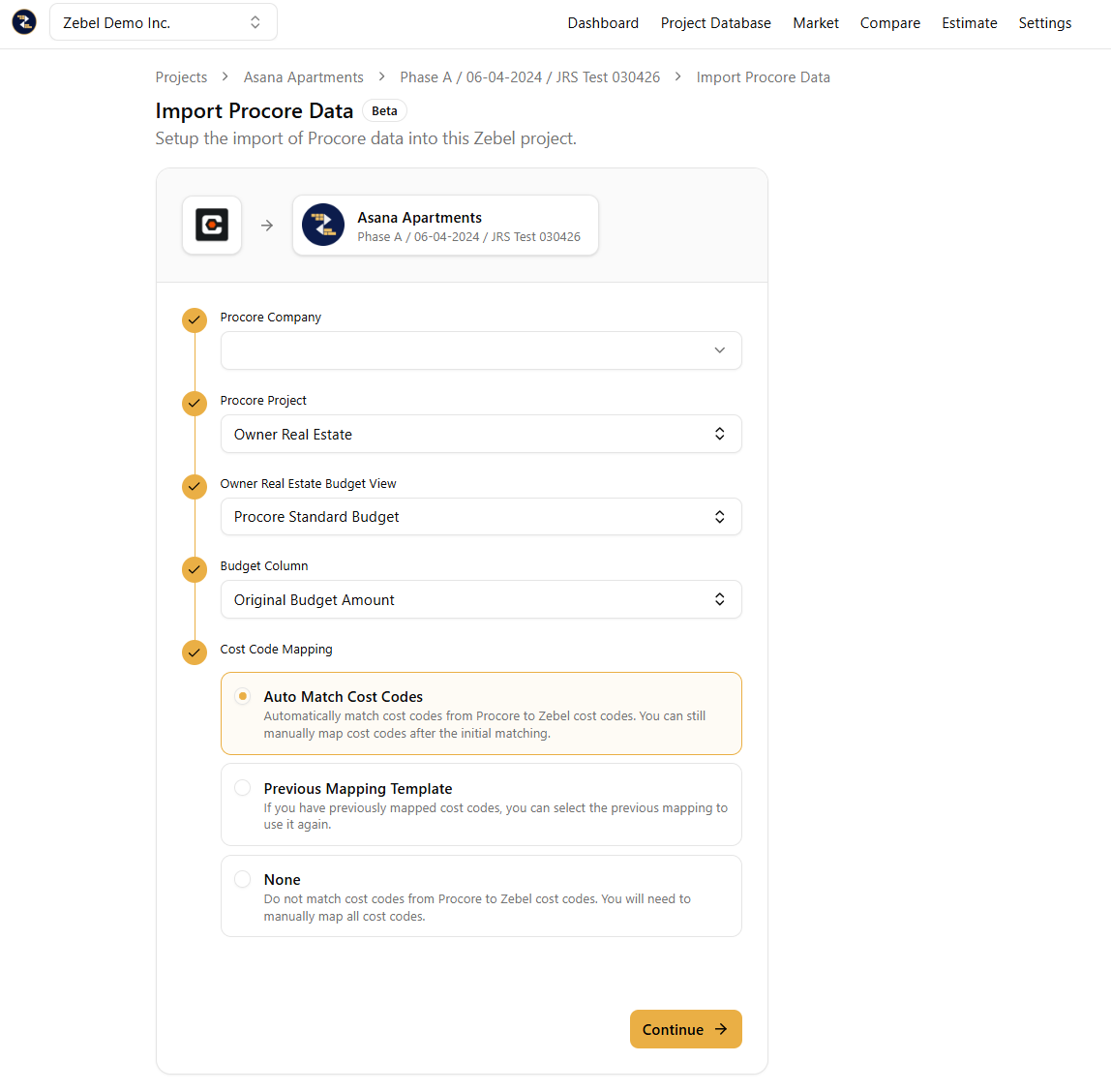
10. If your Procore cost codes match those in your Zebel template, the "Auto Match Cost Codes" is the best option. Select "None" if the Procore cost codes will not match those in your Zebel template. The "Previous Mapping Template" option can be used if you have previously mapped cost data and saved the mapping template.
11. Once a "Cost Code Mapping" option has been selected, click on the yellow "Continue" button located on the lower right corner.
12. You will see all of the "Procore Cost Codes" listed vertically to the left, "Mapped Zebel Cost Codes" listed vertically in the middle column and your Zebel template cost codes listed vertically on the right column.
13. You have the ability to "drag & drop" cost codes from your Zebel template listed on the right column to the corresponding "Procore Cost Codes" listed vertically on the left.
14. In addition to the "drag & drop", you can also click the "+" button in the "Mapped Zebel Cost Codes" column in order to map cost codes from your Zebel template to the corresponding "Procore Cost Codes" to the left. The "+" button allows you to select multiple cost codes from your Zebel template at a time.
15. You also have the ability to allocate a specific % of your Zebel template cost codes to their corresponding "Procore Cost Codes". By default all allocations are set to 100%. However, for example, you can allocate 50% of the same Zebel template cost code to one Procore Cost Code and the remaining 50% to another Procore Cost Code if you wish to do so.
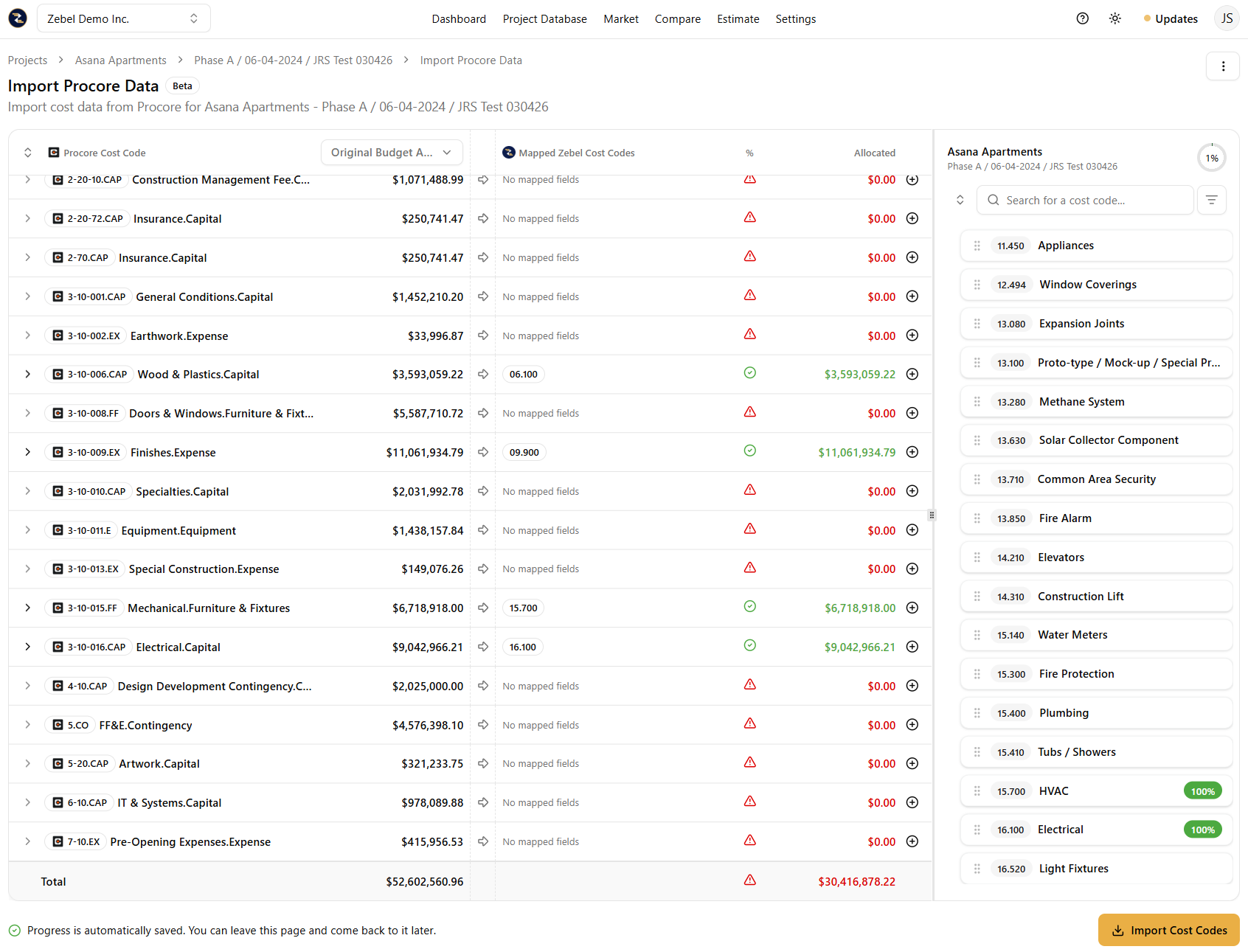
16. Once you have finished mapping cost codes from your Zebel template to their corresponding "Procore Cost Codes" click the yellow "Import Cost Codes" button located in the lower right corner.
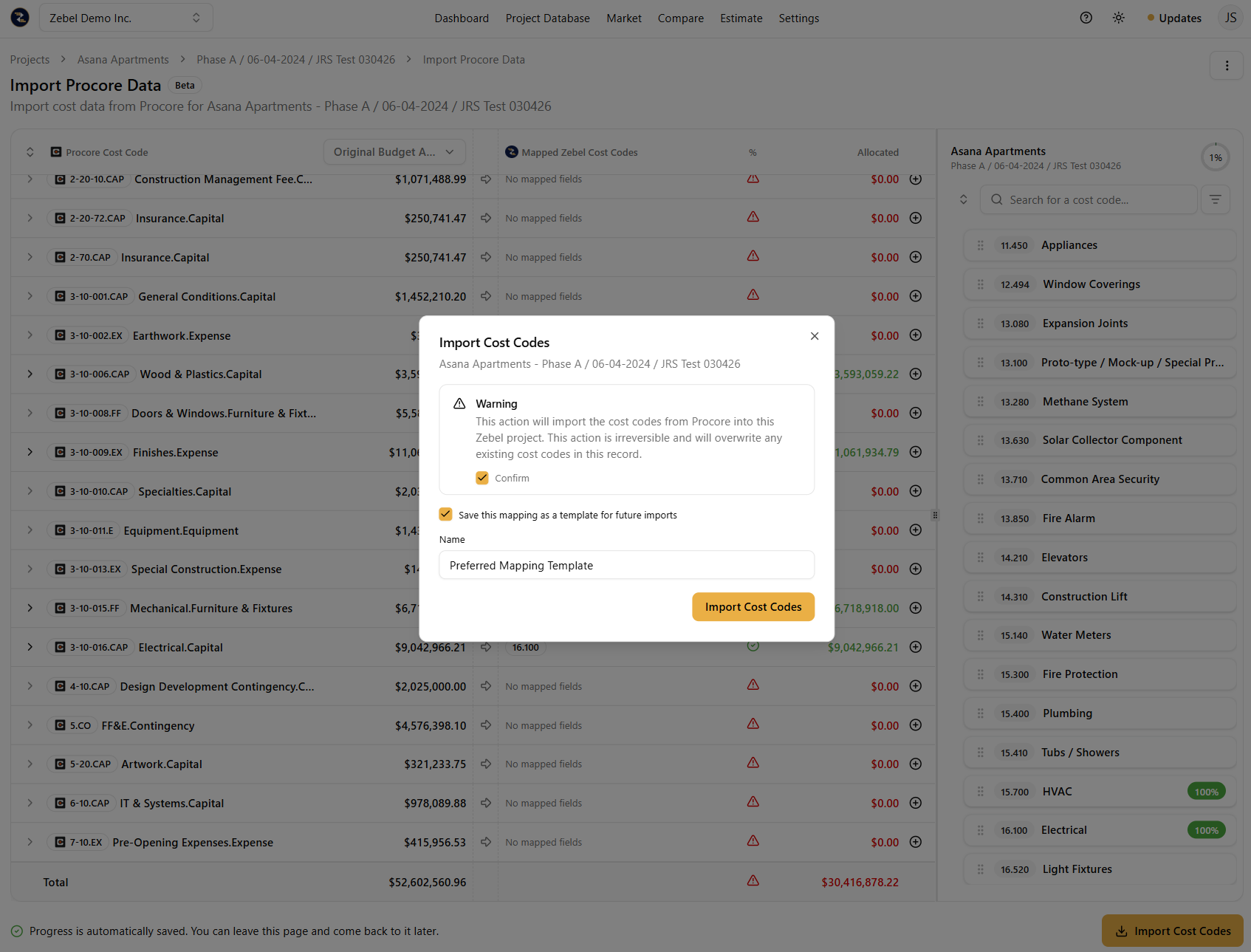
17. A pop up "Import Cost Codes" box will appear. "Confirm" you are going to import cost codes from Procore into the Zebel historical project. Here you will also have the option to "Save this mappping as a template for future imports".
18. If you check the "Save this mapping as a template for future imports" you will be asked to give this template a "Name".
19. Click the yellow "Import Cost Codes".
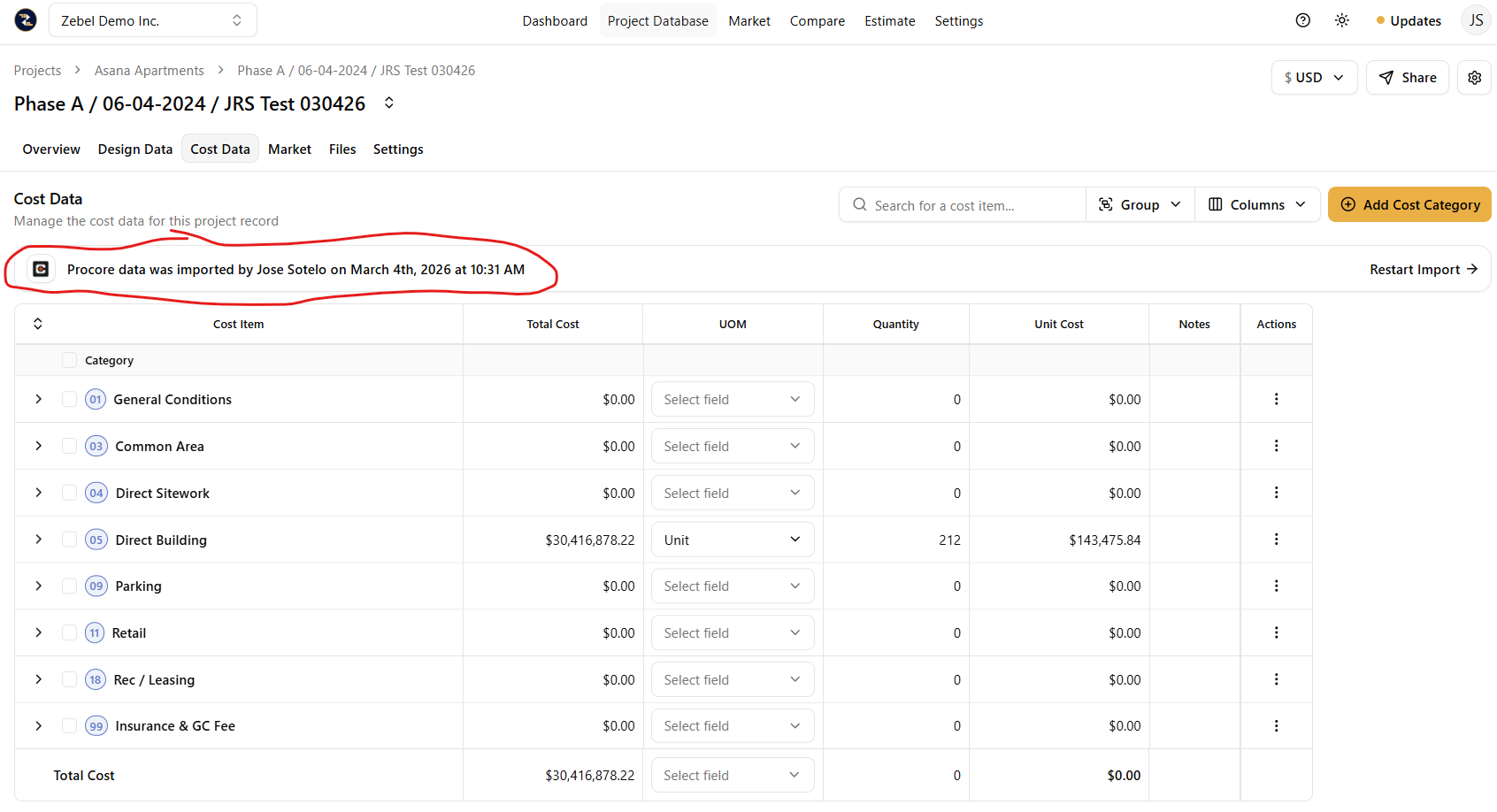
20. Your "Procore" budget cost data is now mapped and imported to the Zebel historical project record. You will see the following message "Procore Data was imported by User Name on Month Day, Year at Time". Ie. the system automatically logs the user who imported the data and sets a date and time stamp as well.
Please note that when you save a mapping template for future imports, the effort required to map cost codes from your Zebel template to their corresponding "Procore Cost Codes" will be greatly reduced. We highly recommend saving mapping templates for future imports.