
To use the Togal AI integration in a "new" estimate follow these steps.
1. Navigate to "Estimate" button located at the horizontal top menu options.
2. Press the yellow "Add Estimate" button located on the upper right corner.
3. You have the option to create a "New" or "Copy Existing" estimate. Select the "New" estimate option.
4. Select the existing project for which this estimate will be created. If a new project, press the "New Project" button.
5. If this estimate is for a new project, enter a project name, select a project type and corresponding sub type & enter an address.
6. Type in a "Phase". For example, if this is for one entire project you can type in "All" or "Entire Project" or whatever you deem most appropriate. If this is a phased project you can use this field to type "Phase 1", etc. If you are creating an estimate for a specific building and/or portion of a master development you can type in "Building A", "Building 1", etc.
7. Type in a "Version". For example, it can be "100% DD Budget", "50% CD Budget Update", etc.
8. The "Date" defaults to the date the estimate is generated. You can change as desired.
9. The "Buy Out" date defaults to the date the estimate is generated. This date is critical as it is the date the system will use to apply an effective escalation percentage to the historical project comps (if using historical comps) being used to drive unit costs for the estimate.
10. Select a "Status" from the dropdown. These are labels which typically correspond with the "Version" field. Ie. if creating an estimate based on 100% DD drawings the most applicable option from this dropdown would be "Design Development". These labels are used to help filter project records in various areas of the platform.
11. Select a "Construction Type" from the dropdown. These construction type labels are used to help filter project records in various areas of the platform.
12. Press the yellow "Continue" button located on the lower right corner.
13. Select the approppiate "Template" from the dropdown. The system will automatically select the best and most compatible template based on the project type selected.
14. After the template has been chosen, press the yellow "Continue" button located on the lower right corner.
15. Select the best "comps" for your estimate by pressing the "Add Comp" button located on the lower left corner. Note that the system will initially & automatically suggest comps based on the project type, sub type and construction type selected. "Comps" can be either historical project records or other estimates previously generated. Alternatively you can start from "scratch" with NO "comps".
16. You can have the ability to select your "comps" by using the available filters. These filters will allow you to narrow down your selection based on your specific criteria.
17. Once you are done selecting the desired "comps" press the yellow "Continue" button located on the lower right corner.
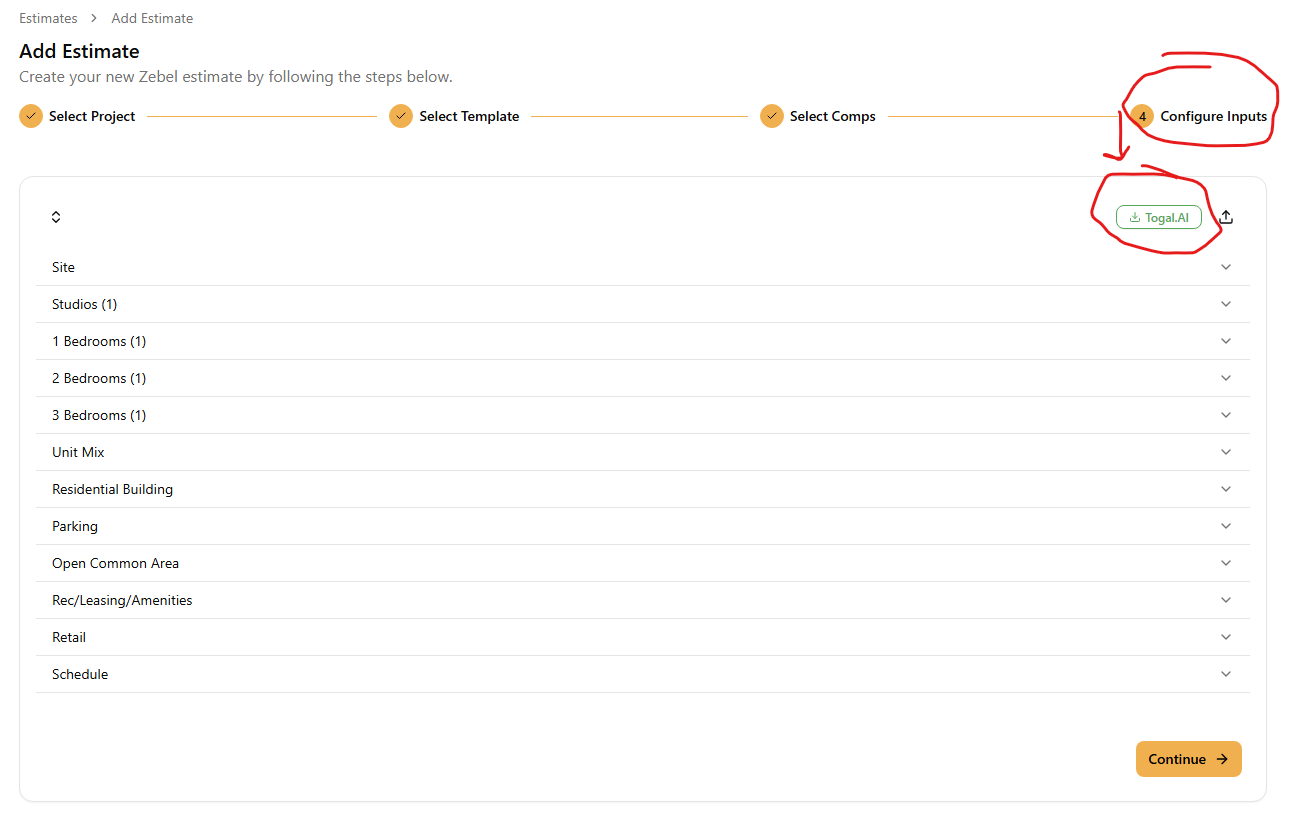
18. The "4 Configure Inputs" step is the area in which you enter all the design data parameters for your estimate. For example, total number of units, gross area of the project, lot size, etc. This "inputs" panel is built in for the template which you selected in step 13 above.
19. Click the green "Togal. AI" button located on the upper right corner.
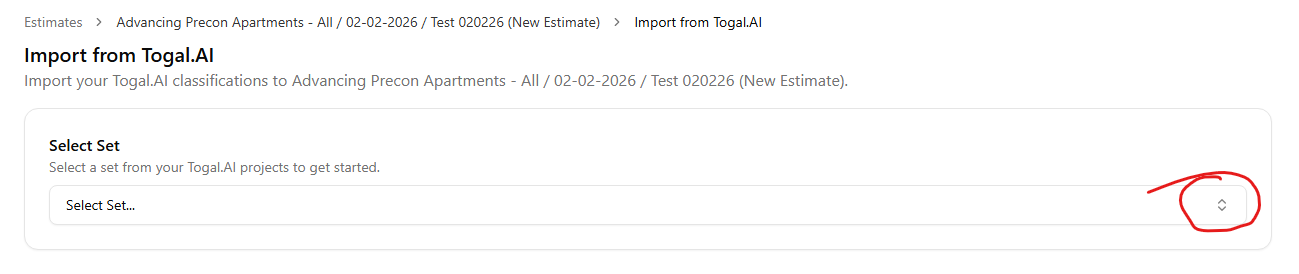
20. Select the desired "Set" from your Togal.AI projects from the dropdown options.
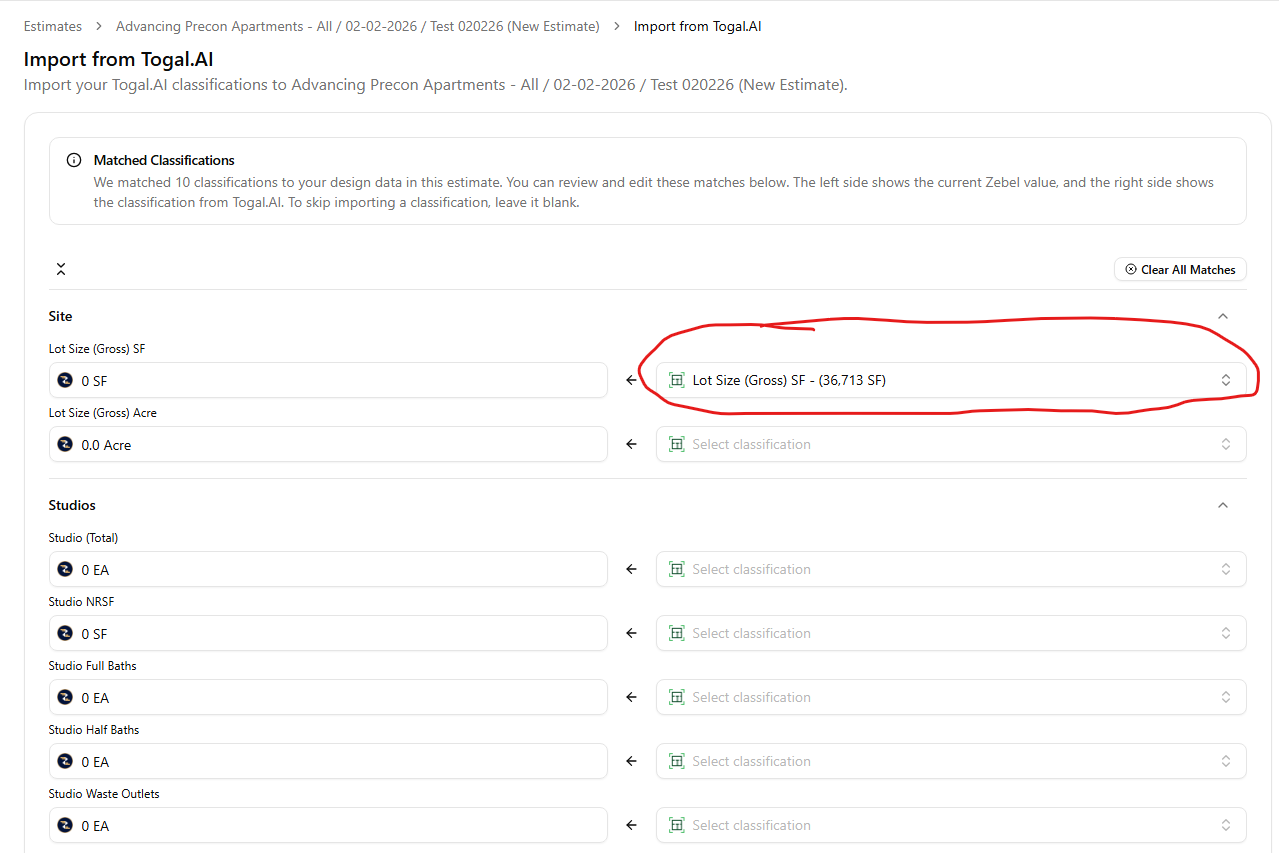
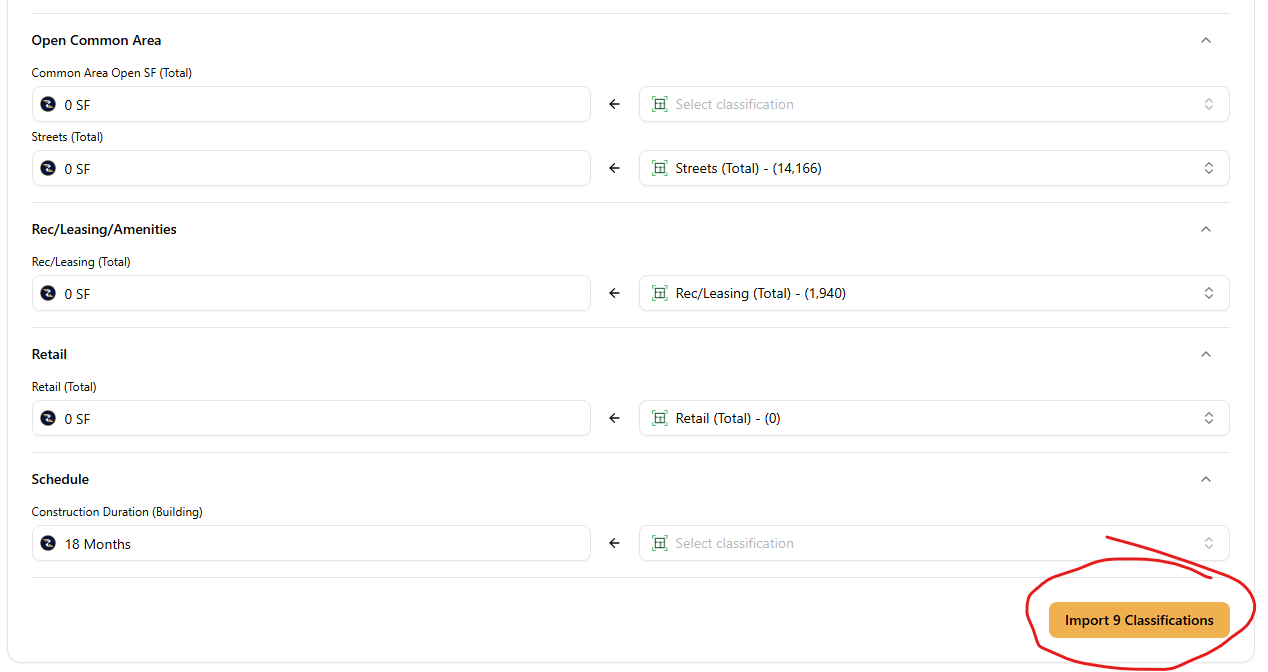
21. The matched classification values will automatically show on the right column. The left column shows the design data fields that are part of your inputs panel.
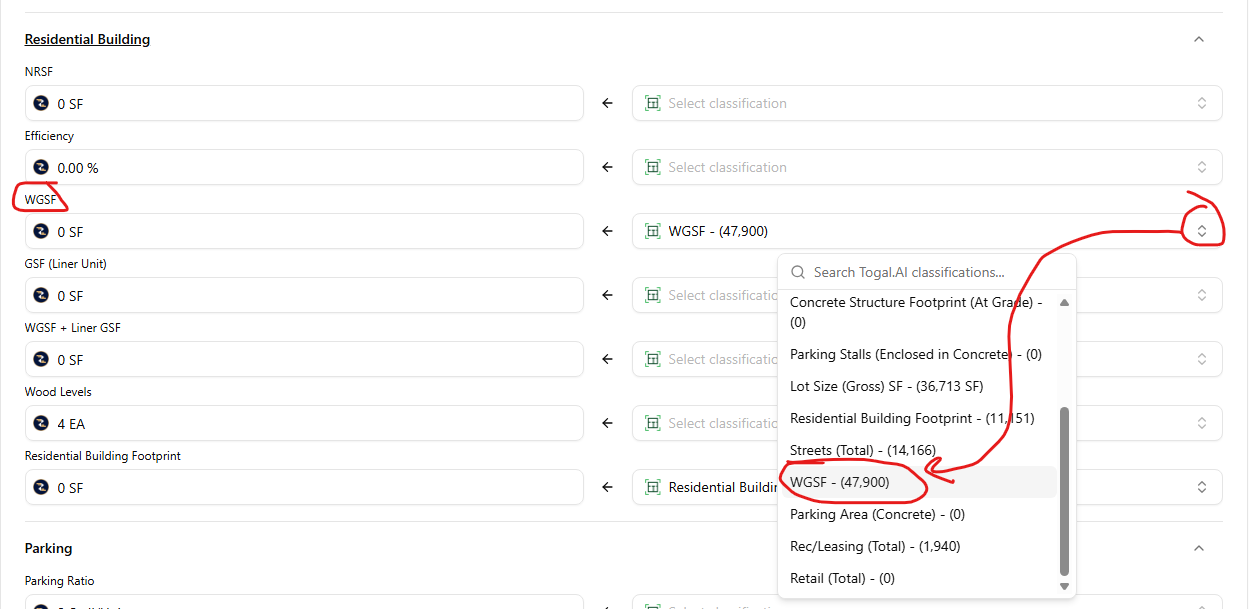
22. You have the ability to review and edit these matches.
23. The left side shows the current Zebel value and the right side shows the classification value from Togal. AI. If you wish to skip importing a classification, leave it blank.
24. You have the ability to select the Togal. AI value in the right side by using the dropdown for each item. For example, if the input in the left is called "Site Area" and your Togal. AI classification on the right is "Site SF", the integration won't automatically match these due to the difference in name. However, you can manually match the "Site SF" value in the right to the "Site Area" field in the left.
25. Once you are finished matching your Togal. AI classifications in the right to the inputs in the left, press the yellow "Import Classifications" button located in the bottom right corner.
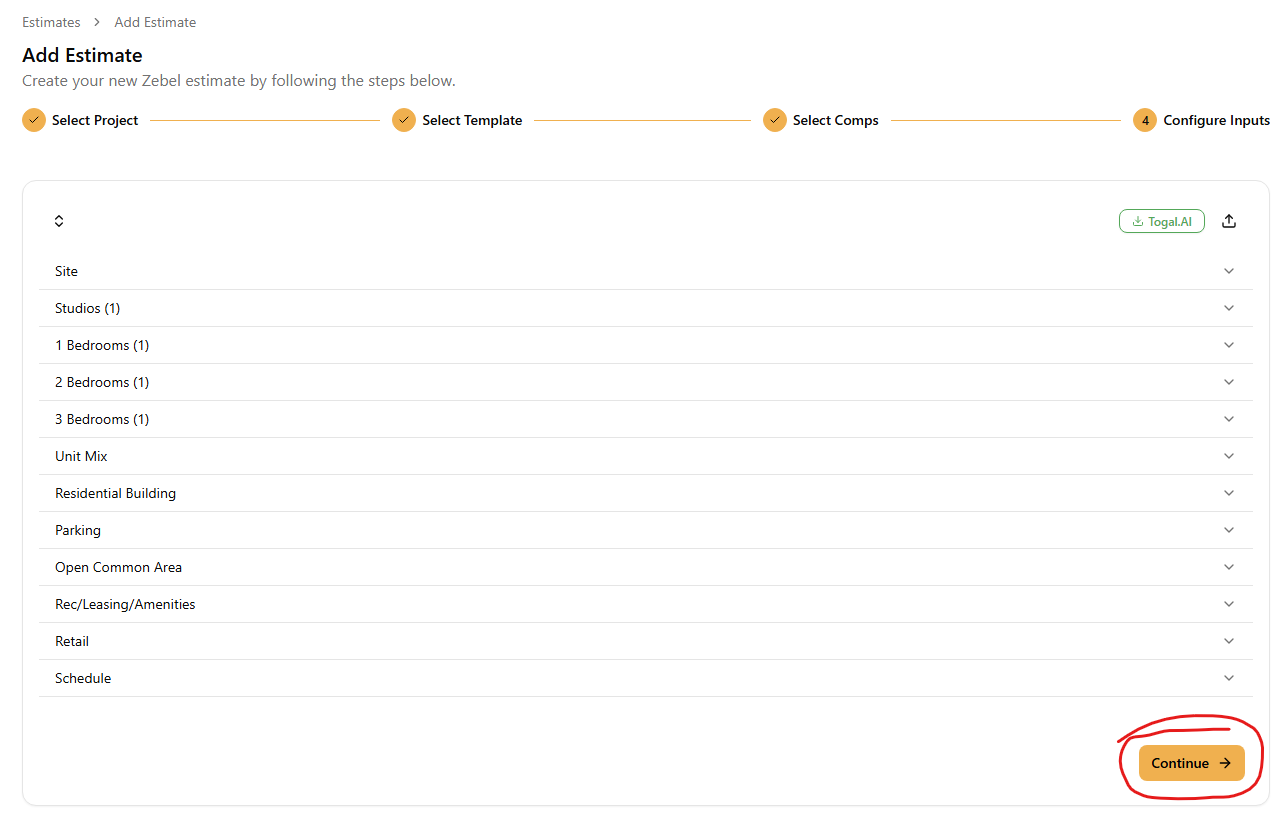
26. Press the yellow "Continue" button on the lower right corner.
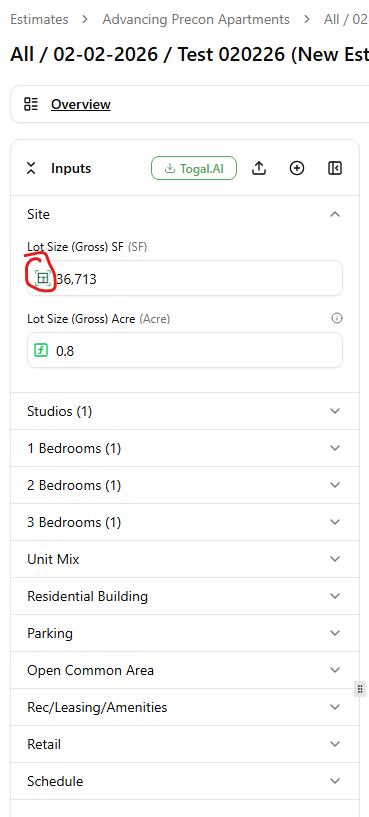
27. All the values imported from Togal. AI will have the Togal. AI logo to the left of each value in your inputs panel (left vertical panel). When you hover over the logo it will show the user, date and time when the value was imported from Togal. AI. Ie. "Imported from Togal. AI by Jon Doe on February 2nd, 2026 at 12:30 PM".
28. You have the ability to unlink values from Togal. AI. Simply click into the desired field in your inputs panel. A box will appear with the text "Unlink from Togal. AI" on the upper left corner. Check the "I want to unlink this design field from Togal.AI" checkbox and press the "Unlink" buttom located on the lower right corner.
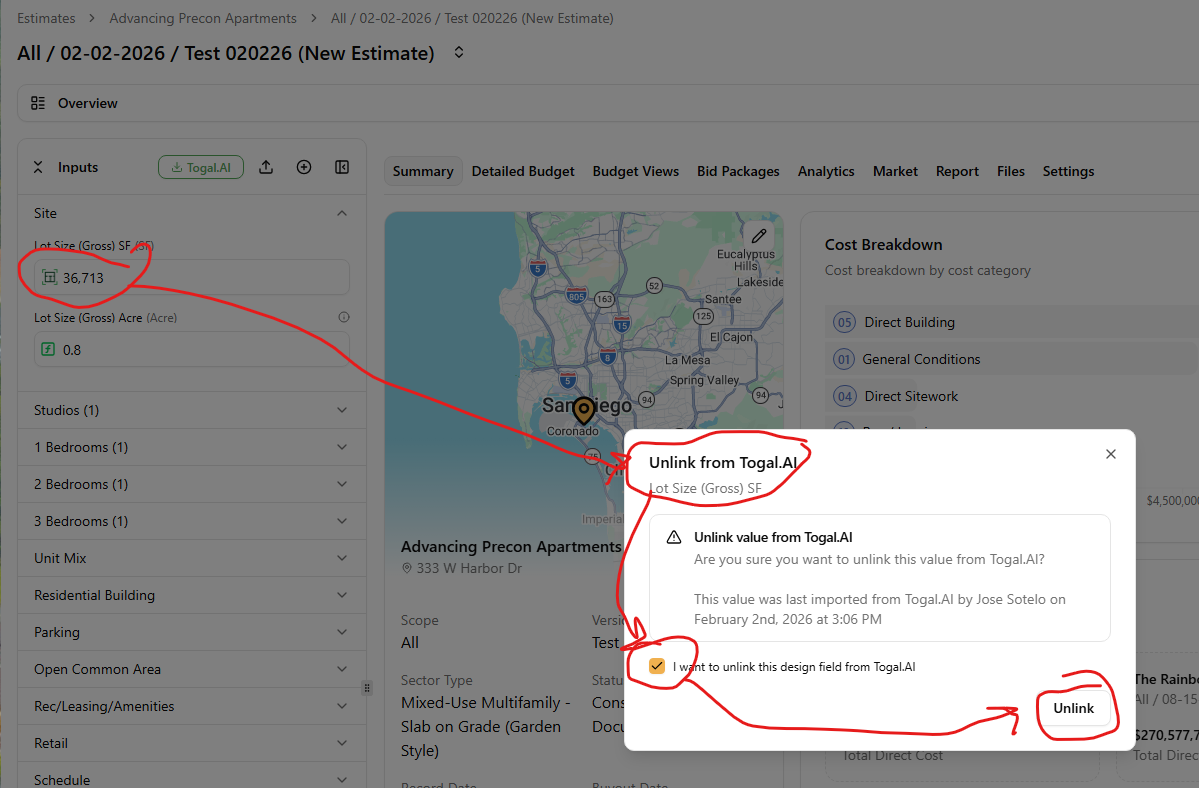
29. Unlinking a value from Togal. AI gives you the ability to edit the value which was originally imported from Togal. AI.
30. If you wish to update the takeoffs in your Togal. AI "Set" you have the ability to re-link the updated values from the Togal. AI "Set" to your inputs panel by repeating Steps 19 through 30 above.
Please note that the design data parameters that are part of your input panel are those that drive cost fields and all the other "UOMs" available in the UOM dropdowns in the "Detailed Budget" tab. If you wish to have all the values in your "Inputs" panel automatically match to those in your Togal. AI "Classifications", the same "exact name" should be used. This will avoid the need to manually match Togal. AI classifications in the right to the inputs in the left.