
To use the Togal AI integration in an "existing" estimate follow these steps.
1. Navigate to the desired estimate.
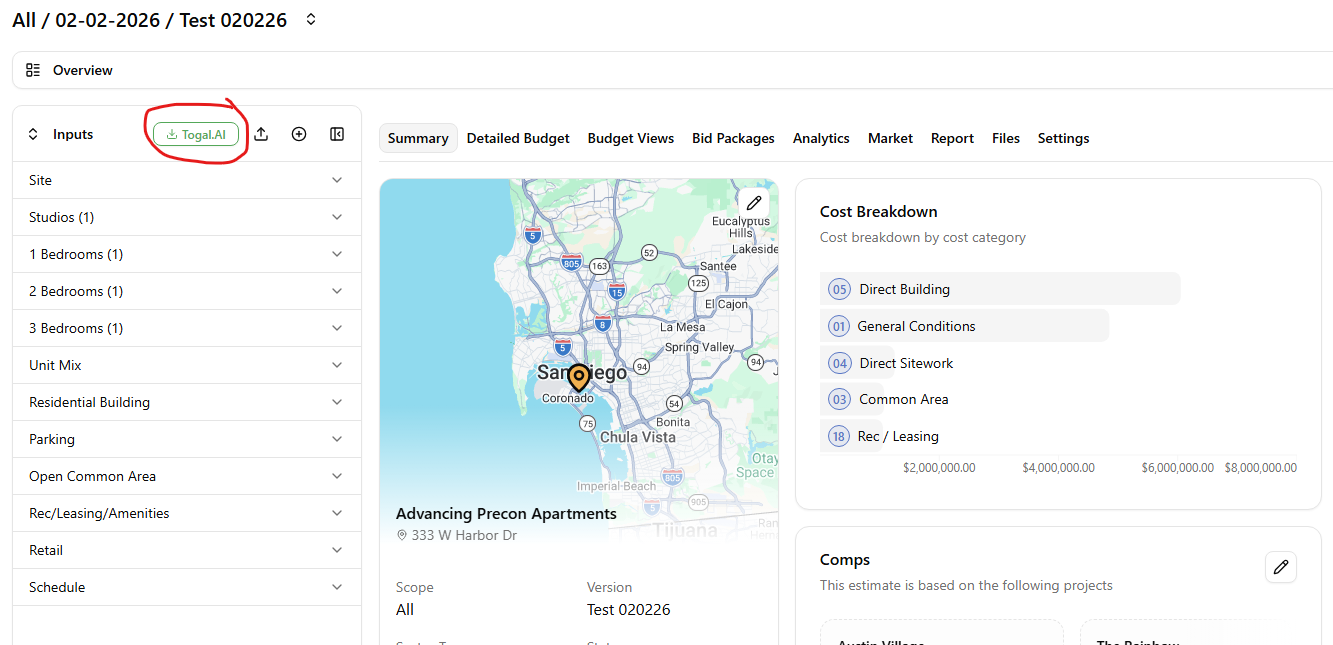
2. Once inside the estimate, make sure the vertical "Inputs" panel located to the left is expanded.
3. Click the green "Togal. AI" button located on the upper right corner of the input panel.
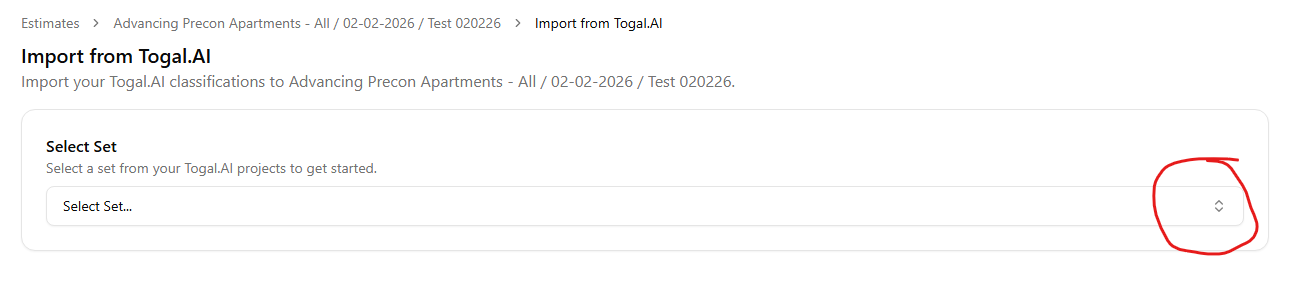
4. Select the desired "Set" from your Togal.AI projects from the dropdown options.
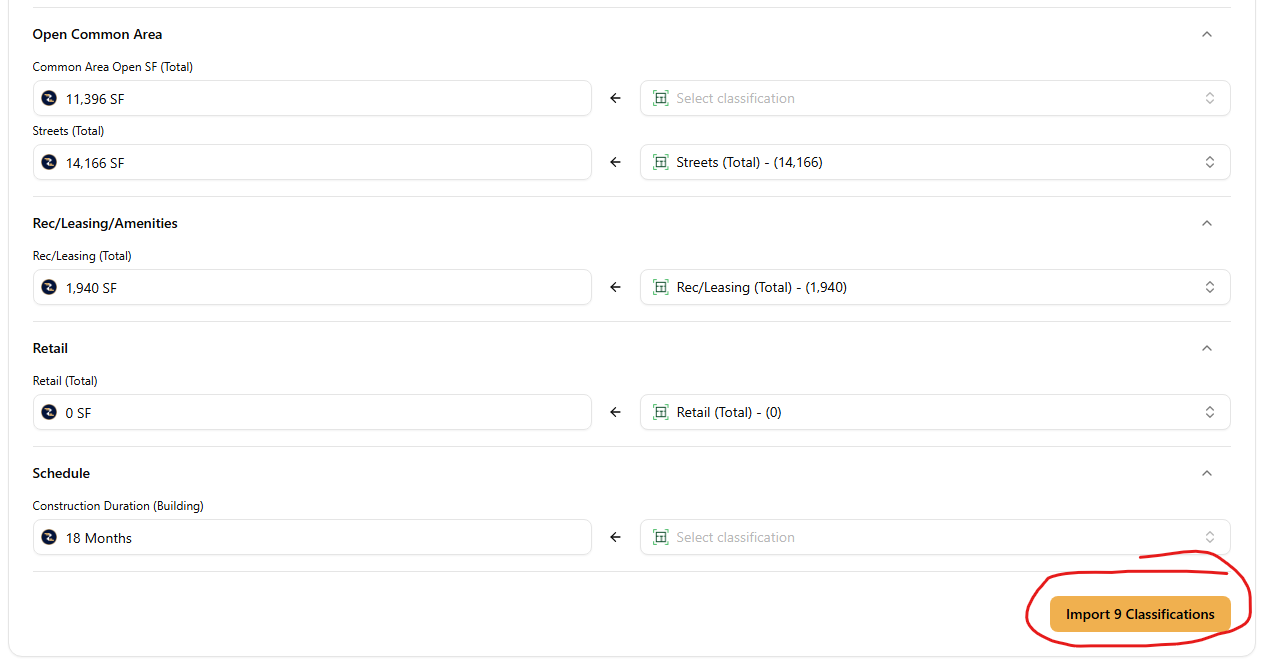
5. The matched classification values will automatically show on the right column. The left column shows the design data fields that are part of your inputs panel.
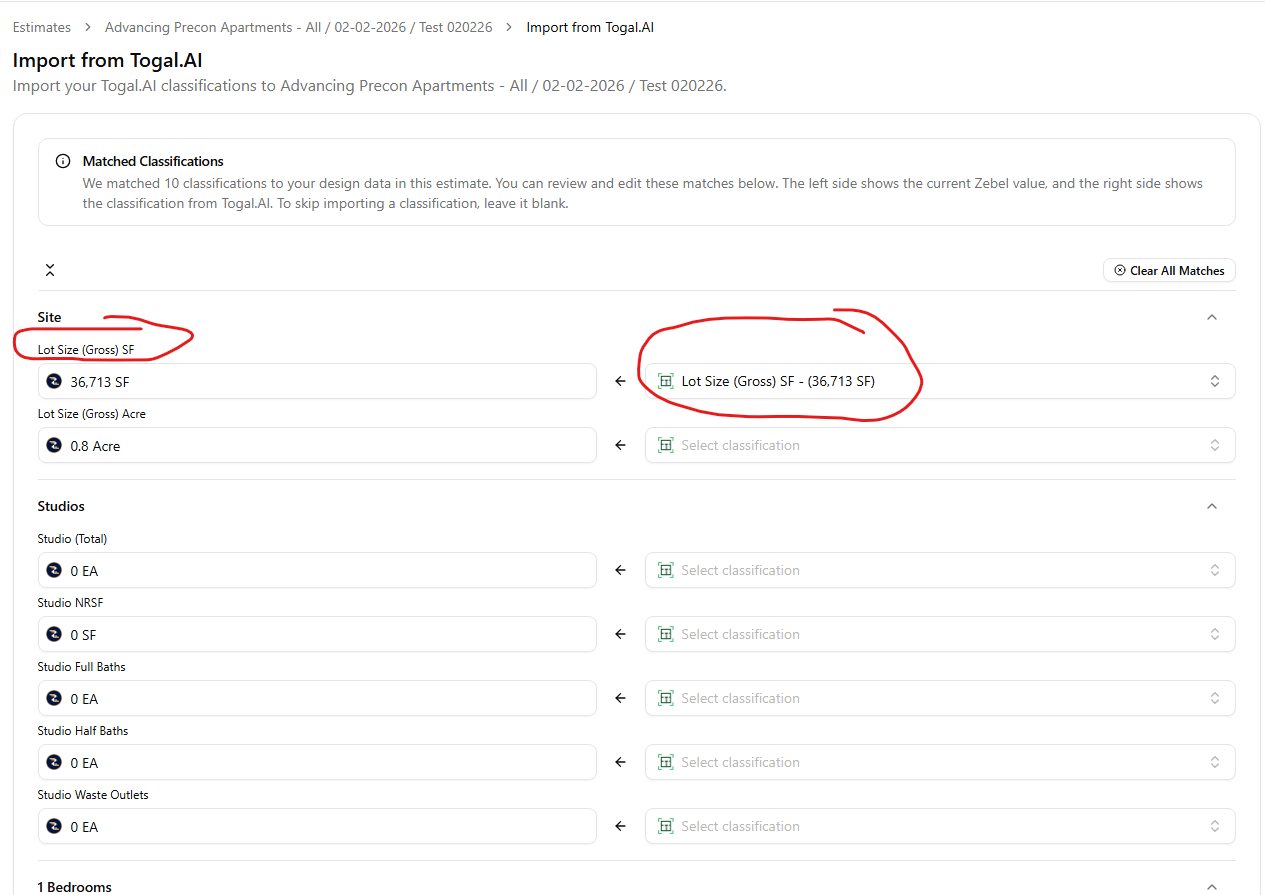
6. You have the ability to review and edit these matches.
7. The left side shows the current Zebel value and the right side shows the classification value from Togal. AI. If you wish to skip importing a classification, leave it blank.
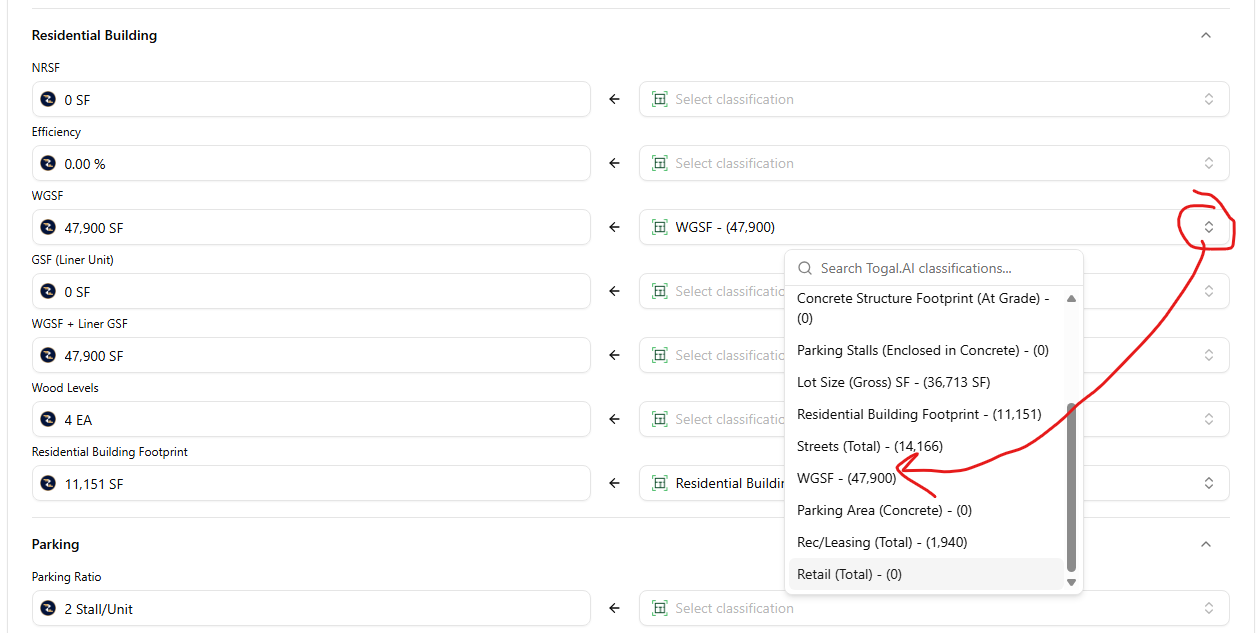
8. You have the ability to select the Togal. AI value in the right side by using the dropdown for each item. For example, if the input in the left is called "Site Area" and your Togal. AI classification on the right is "Site SF", the integration won't automatically match these due to the difference in name. However, you can manually match the "Site SF" value in the right to the "Site Area" field in the left.
9. Once you are finished matching your Togal. AI classifications in the right to the inputs in the left, press the yellow "Import Classifications" button located in the bottom right corner.
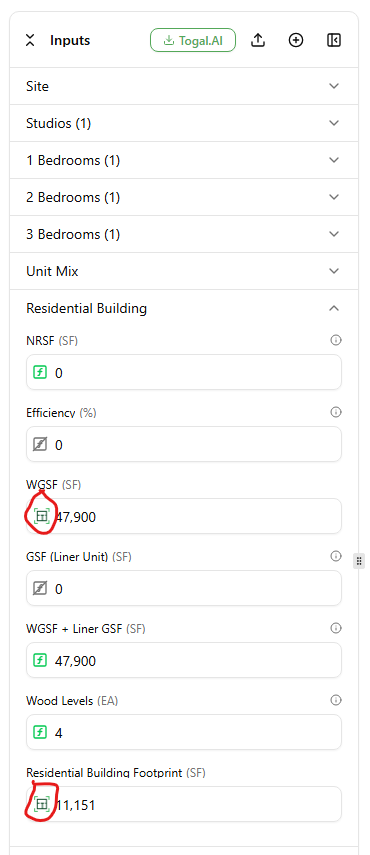
10. All the values imported from Togal. AI will have the Togal. AI logo to the left of each value in your inputs panel. When you hover over the logo it will show the user, date and time when the value was imported from Togal. AI. Ie. "Imported from Togal. AI by Jon Doe on February 2nd, 2026 at 12:30 PM".
11. You have the ability to unlink values from Togal. AI. Simply click into the desired field in your inputs panel. A box will appear with the text "Unlink from Togal. AI" on the upper left corner. Check the "I want to unlink this design field from Togal.AI" checkbox and press the "Unlink" buttom located on the lower right corner.
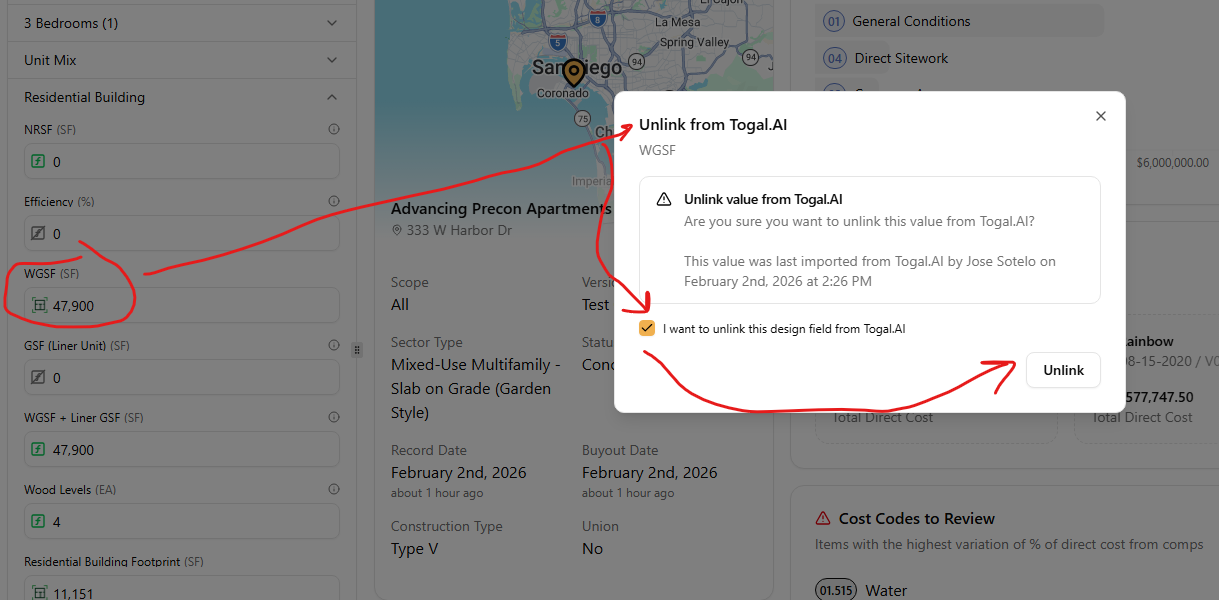
12. Unlinking a value from Togal. AI gives you the ability to edit the value which was originally imported from Togal. AI.
13. If you wish to update the takeoffs in your Togal. AI "Set" you have the ability to re-link the updated values from the Togal. AI "Set" to your inputs panel by repeating Steps 2 through 9 above.
Please note that the design data parameters that are part of your input panel are those that drive cost fields and all the other "UOMs" available in the UOM dropdowns in the "Detailed Budget" tab. If you wish to have all the values in your "Inputs" panel automatically match to those in your Togal. AI "Classifications", the same "exact name" should be used. This will avoid the need to manually match Togal. AI classifications in the right to the inputs in the left.