
General Conditions and General Requirements are the costs you carry for the duration of the job rather than per unit of work — site supervision, temporary facilities, equipment on hire. The "GCs/GRs" tab prices them by the month and spreads them across your project schedule, so the total follows the program instead of being a single lump.
To build your GCs/GRs schedule follow these steps.
Navigate to the desired estimate and select the "GCs/GRs" tab.
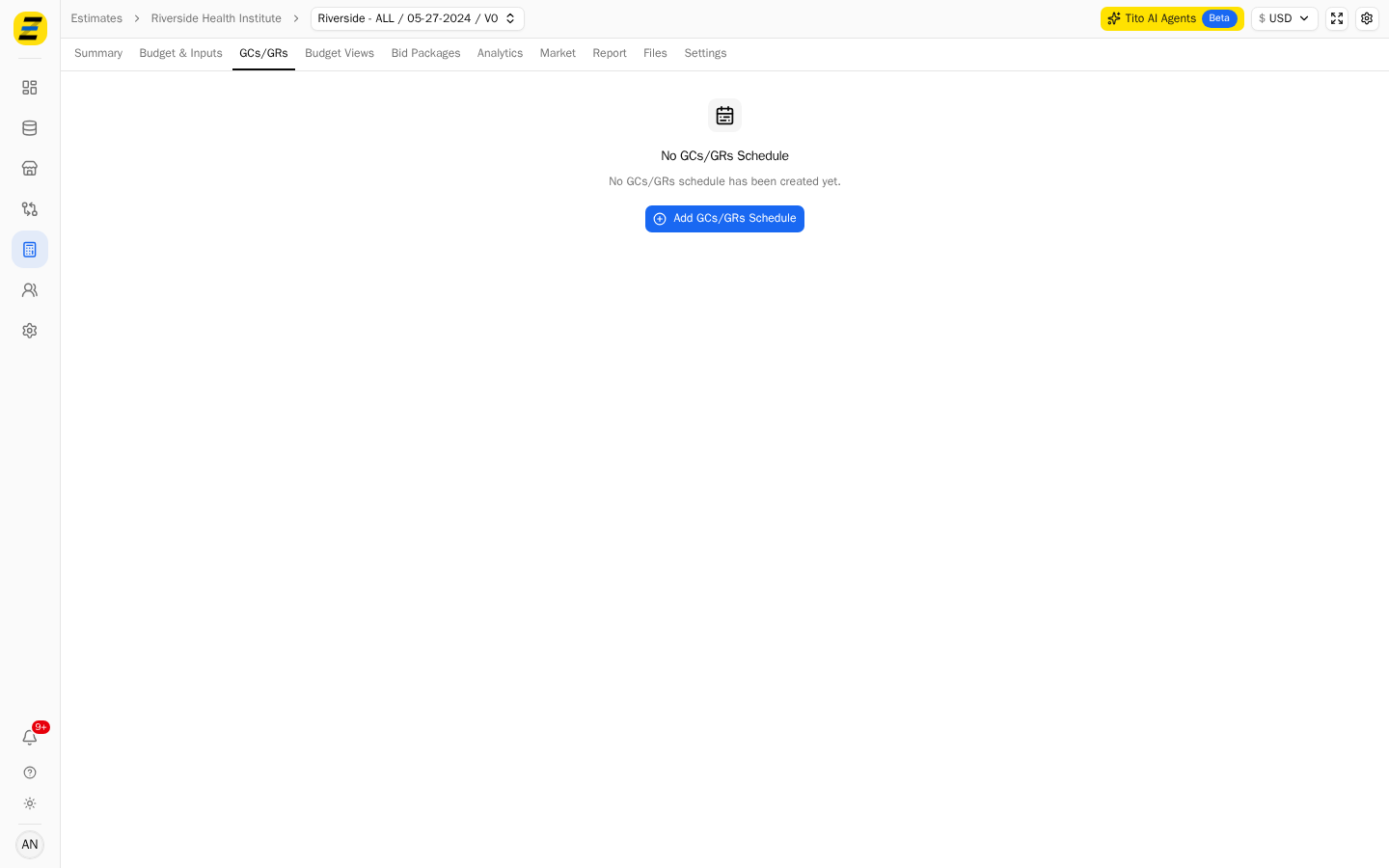
Press the "Add GCs/GRs Schedule" button.
Press "Add Milestone" and name the phases of your program. Each milestone is a bar across the month columns — drag its ends to set which months it covers. In the example, "Foundation" runs months 1 to 3, "Framing" 3 to 6, and "Finishes" 6 to 9.
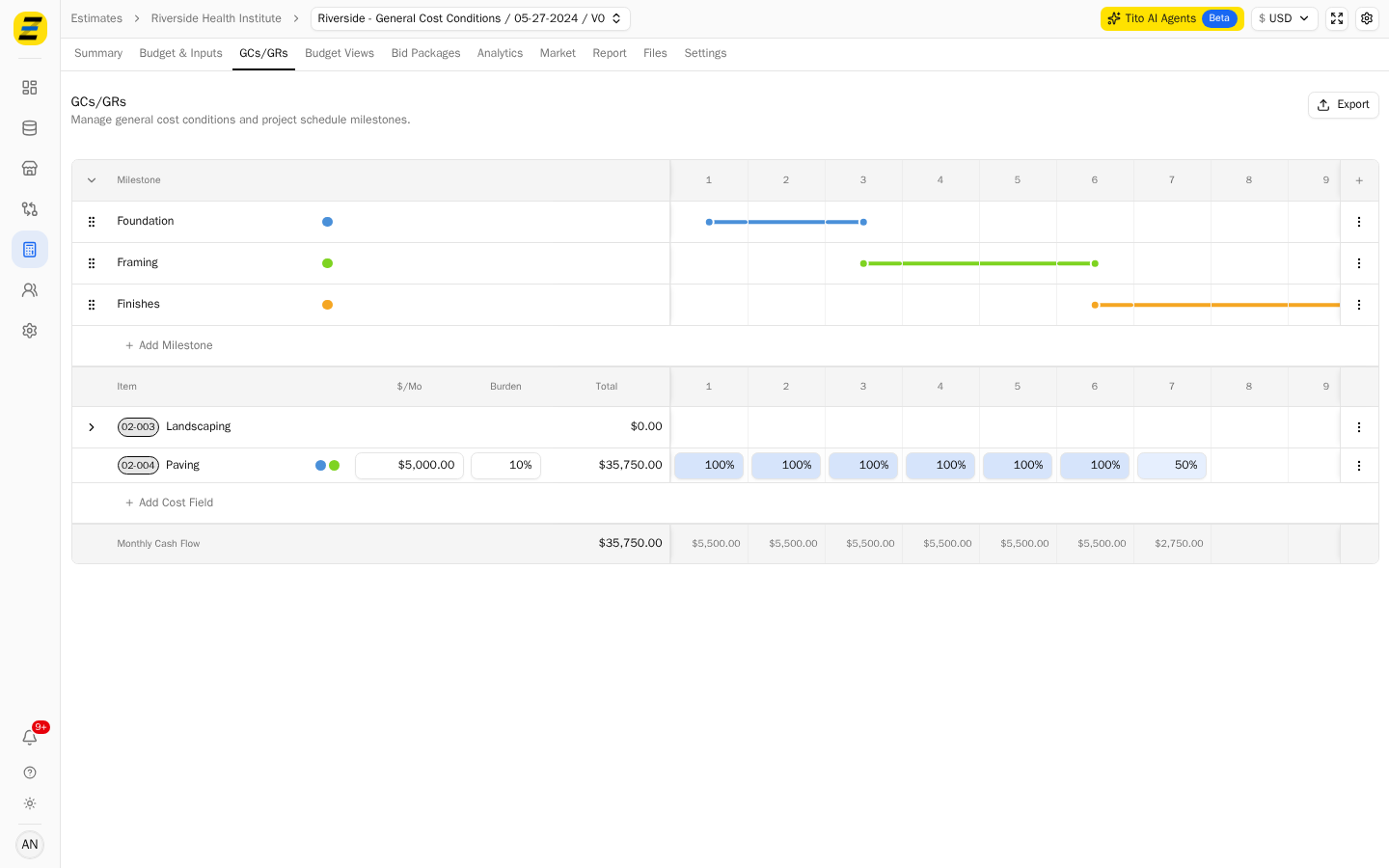
Press "Add Cost Field" and choose the cost field this general condition belongs to.
Enter the monthly cost in the "$/Mo" column. In the example, "Paving" is $5,000.00 a month.
Enter a "Burden" percentage if the cost carries one — payroll burden, insurance, and so on. The example uses 10%.
Set how much of that month you are carrying the cost, in each month column. 100% is a full month; the example carries "Paving" at 100% for six months and 50% in the seventh.
Read the "Total" column and the "Monthly Cash Flow" row at the bottom. These are calculated for you.
NOTE, the "Total" is the monthly cost plus burden, multiplied by the months you allocated. In the example, $5,000.00 plus 10% burden is $5,500.00 a month; six full months and one half month gives $35,750.00, which is what both the "Total" column and the "Monthly Cash Flow" total show.
NOTE, a cost field you have added but not allocated shows $0.00 and contributes nothing — adding the field and setting its monthly cost are two separate steps.
We recommend laying out your milestones before adding any cost fields. The month columns only mean something once the program is on the page, and it is easier to allocate a cost across months you can see.